Changelog
What changed in KlipKap Pro, newest release first. Each one lists what you can now do and what was fixed. For how a feature works in detail, see the documentation.
Several clips in one project, a montage editor and click effects.
New
Multi-clip projects and montage
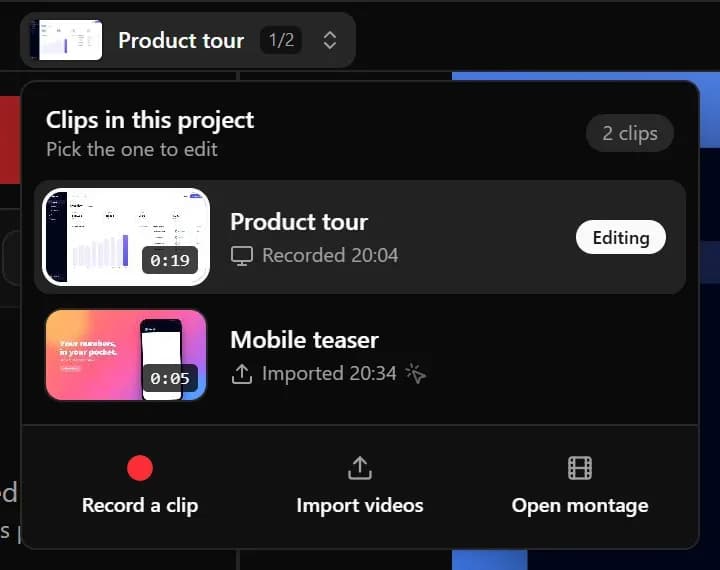
A project can now hold several clips: record a new one or import videos you already have. Switch to the Montage tab to put them in order, trim and split them, add title cards, transitions (cut, crossfade or fade to black) and background music, then export one finished video. Every clip shares the same look, so the result stays consistent.

Switch between clips
The clip menu at the top of the editor lists every clip in the project. Pick one to edit it, record another, import videos or open the montage. Clips you no longer need can be deleted from the library.
Click effects
Make every click visible with one of twelve animated effects: Burst, Ripple, Pop, Sparkle, Confetti, Glow, Firework, Hearts, Focus, Lightning, Pixels and Katana. Turn it on in the Cursor tab.

Record a single window
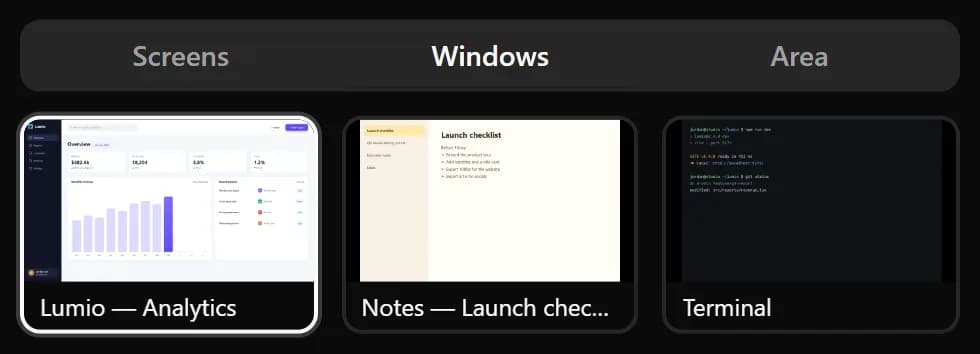
On Windows, the new Windows tab in the source picker records one app window instead of the whole screen. Only that window ends up in the video.
See your webcam while you record
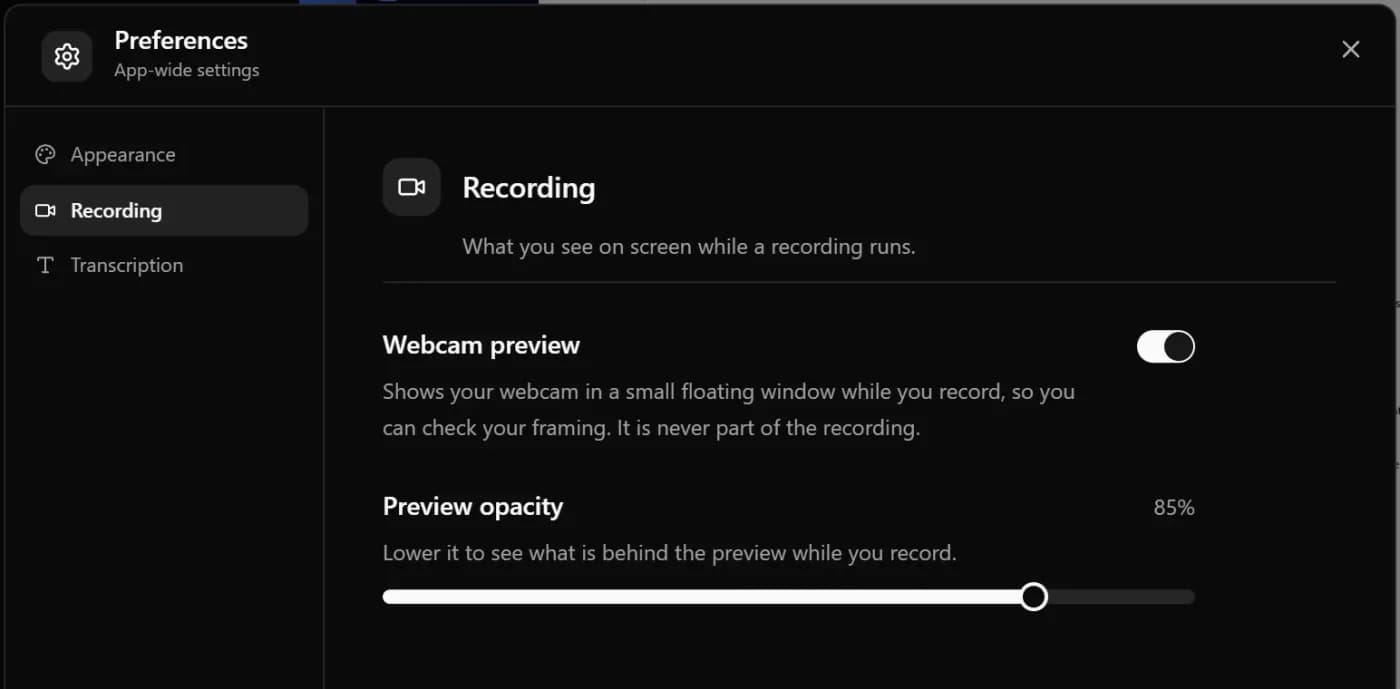
An optional floating preview shows your webcam during the recording so you can check your framing. It never appears in the video. Turn it on and set its opacity in Preferences, under Recording.
More natural motion blur
Motion blur in exports now behaves like a real camera: the faster something moves, the longer the blur, and the export matches what you see in the editor.
A new How to Use guide
Help › How to Use is now an illustrated guide with screenshots of every part of the app, a search box and a section for the montage.
Fixed and improved
- If the webcam stopped sending video during a recording (for example because another app was using it), the export could fail without a message. KlipKap now tells you what happened after the take, and the screen and audio are kept.
- An error could appear during long exports. Fixed.
- New defaults: film grain is now off, and motion blur starts at a stronger setting.
Recover interrupted recordings, and sign in with email.
New
Recover interrupted recordings
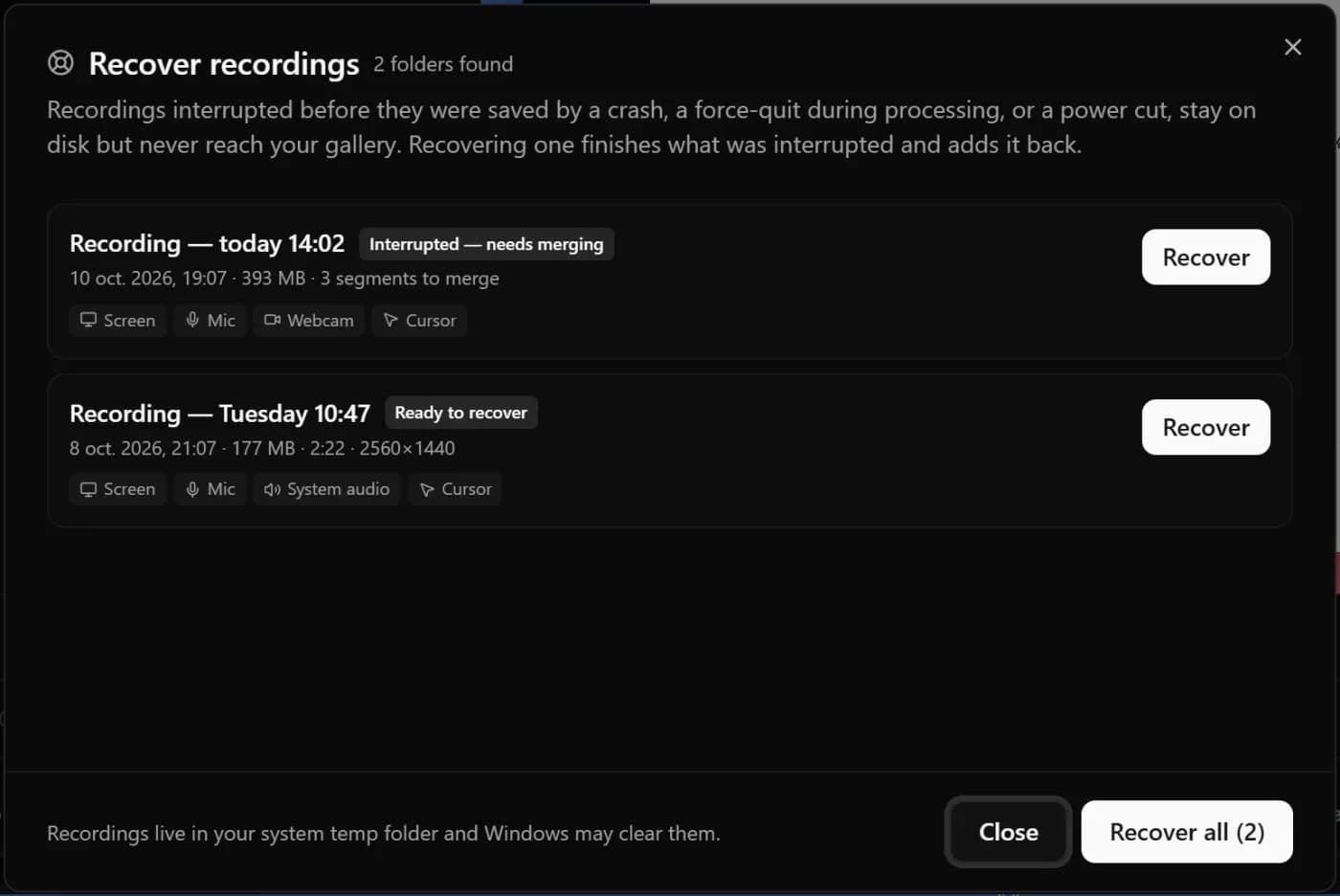
A crash, a force-quit or a power cut no longer costs you a recording. File › Recover Recordings finds the ones that never made it to your gallery, finishes them and adds them back.
Sign in with email
The sign-in screen now offers email and password next to Google.
Smoother webcam
Webcam recordings are sharper and hold a steadier frame rate.
Fixed and improved
- Zooms added by hand were missing from exported videos.
- The webcam could stutter or freeze once the KlipKap window was hidden during a recording.
- KlipKap could stay stuck on “recording” when a recording was stopped from the tray or ended with an error.
- A blur mask near the edge of the video picked up the background in exports.
- Cursor smoothing and film grain start from better default values.
Webcam layouts and a reworked timeline.
New
Webcam layouts
Keep the webcam as a floating bubble, or dock it in a column on the left or right of your screen. The webcam can now take up to 75% of the frame.

Easier cuts
Cut parts now disappear from the timeline, so what you see is the final length of the video, and the cut tool splits every track at once.
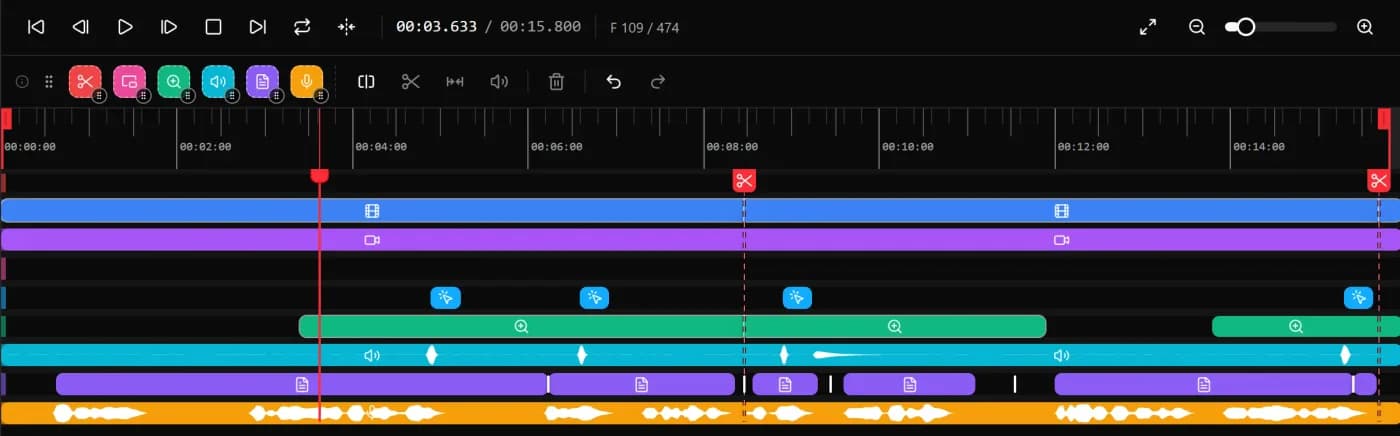
Line up your microphone
If your voice is slightly out of sync, drag the microphone track on the timeline to put it back in place.
Fixed and improved
- Full-screen recording could fail to start when Windows display scaling was above 100%.
- After the computer woke from sleep, a Pro export could come out with the free-tier watermark.
The version KlipKap Pro launched with.
New
Record, and the editing is done for you
Automatic zooms that follow your clicks, a smoothed cursor, motion blur, webcam overlay, backgrounds and subtitles generated on your own machine. Export MP4 or GIF, on Windows and macOS.
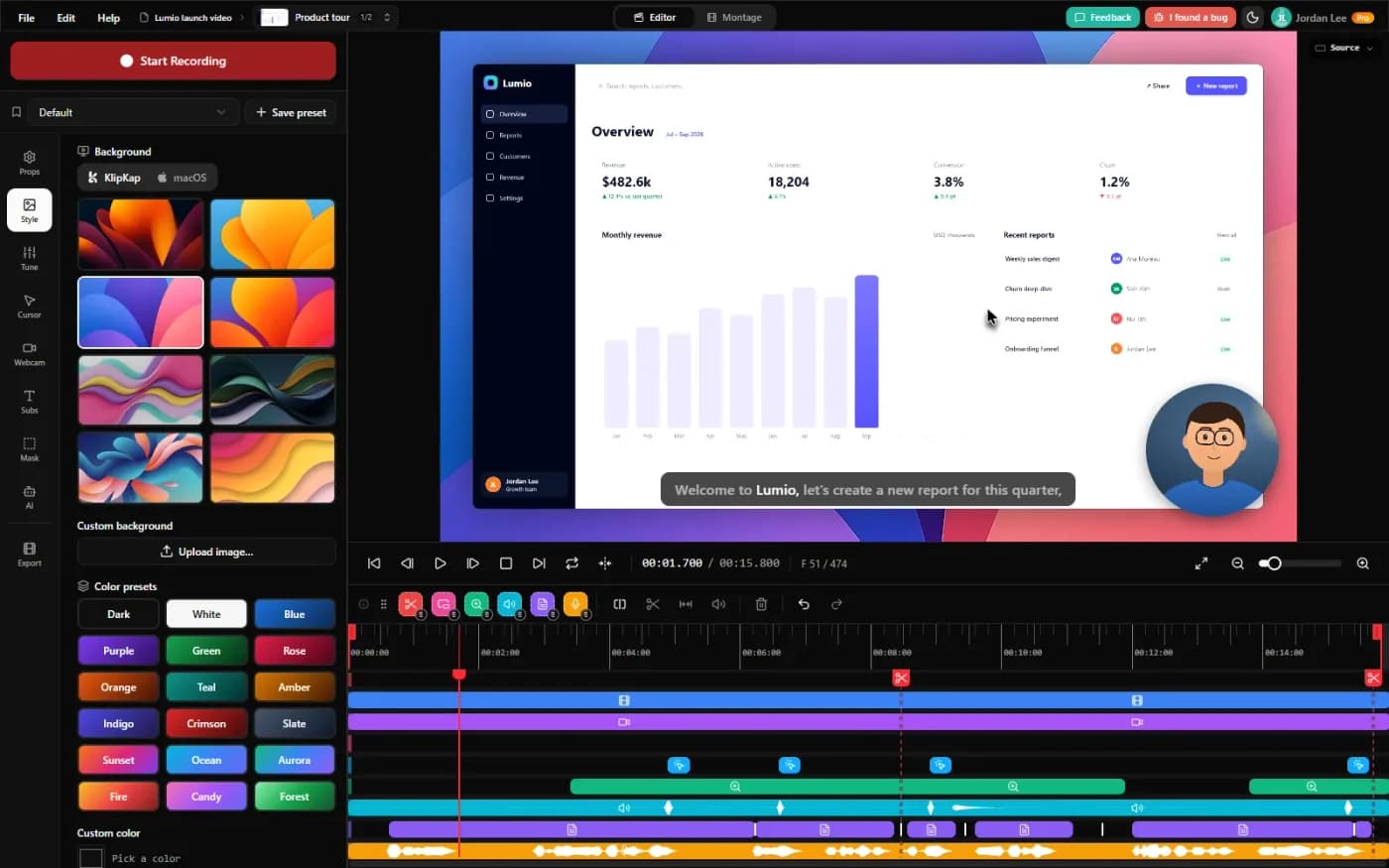
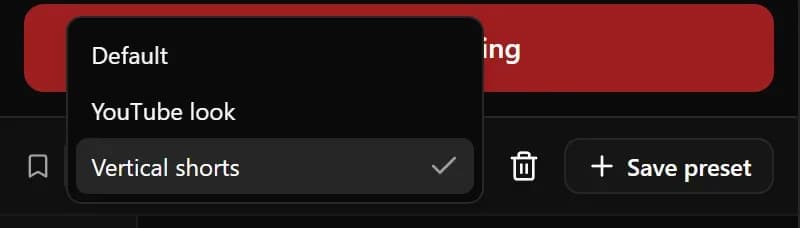
Presets
Save your look once (background, cursor, webcam, subtitles) and apply it to the next recording in one click.
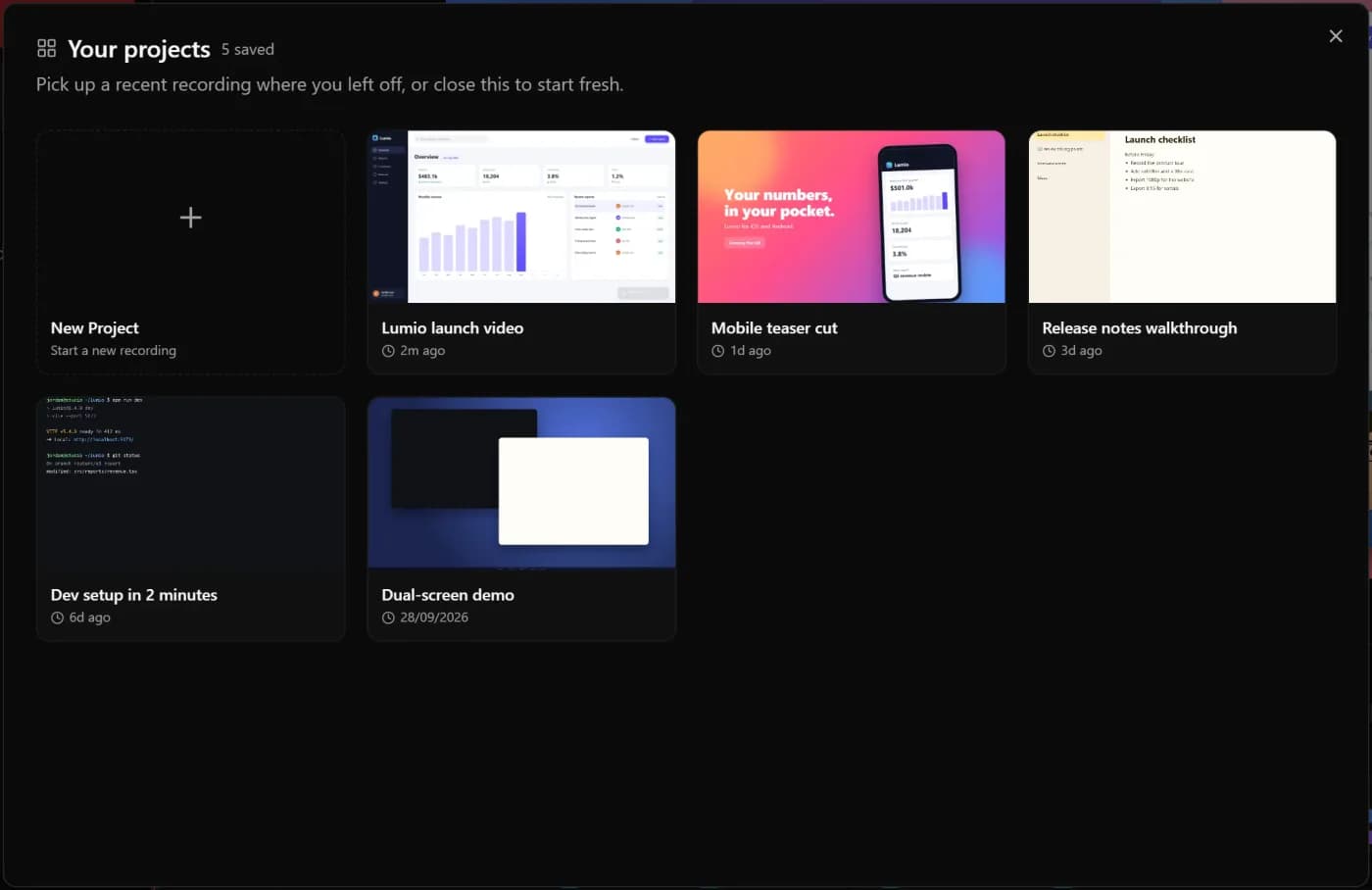
Project gallery
Your recent projects open from a gallery, so you can pick up where you left off.
A friendlier timeline
Undo and redo, drag and drop on the timeline, right-click menus on every item, and short demos that show what each feature does.
Found a bug?
Use I found a bug at the top of the app, or write to contact@klipkap.pro. Several of the fixes above started as a message like that.