How to answer support tickets with screen recordings
- customer support
- help desk
- screen recording
Reply with a recording when the answer is a sequence of clicks rather than a fact, and keep it under a minute by recording only the region that matters. The reason this needs care is that support recordings usually contain a customer's account on screen. In KlipKap Pro the recording, the editing, the transcription and the export all run on your own machine, so that screen is never uploaded.
01When a recording beats a paragraph
The test is whether the answer is a fact or a path. A fact belongs in text, where it is searchable and can be quoted back. A path of six clicks through an interface is where writing falls down, because every sentence has to describe a thing the reader cannot see.
Recordings also cut the reply loop. A written answer that misses one step produces a second ticket; a recording of the same answer usually does not, because the customer can see the state at every point.
- Path of clicks: record it
- A setting, a limit, a price: write it
- Something that failed and you cannot reproduce: ask them to record it
- An answer you have now sent three times: record it once and keep it
02Keep the customer's screen off the internet
This is the part most guides skip. A support recording routinely shows an account name, an email address, an invoice, a record from somebody else's business. Sending that through a tool that processes video or audio on its own servers is a data transfer, whether or not anyone thinks of it that way.
KlipKap Pro records, edits, transcribes and exports on the machine. The only network calls are downloading the app and activating a licence. Metered AI features elsewhere in this category are metered precisely because the work runs on the vendor's infrastructure.
03Record only the region that matters
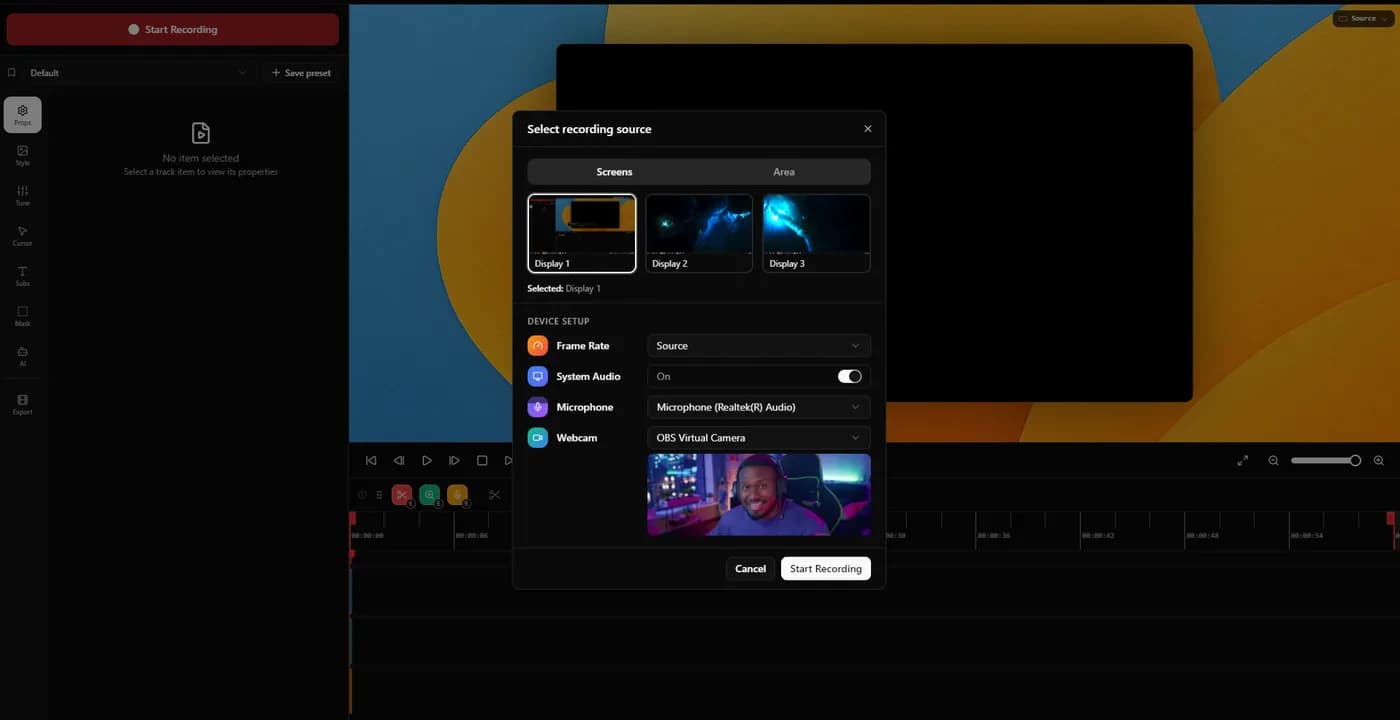
The Area tab crops the capture to a region you draw before recording. For support this is both faster and safer: a cropped region excludes the browser tabs, the other tickets open on your second monitor and the customer list in your sidebar.
It also keeps the file small, which matters when the answer is going into a ticket that has an attachment limit.
04Zoom on the setting you are pointing at
Automatic zoom follows the cursor with intensity from 1.0x to 4.0x, which suits support recordings because you are usually pointing at the thing you are describing.
For the moments where you are not, any individual zoom can be switched to a fixed target set with a crosshair on a preview canvas. A validation error at the top of a form while the cursor is at the bottom is the usual case.
05Keep it under a minute
A support recording is read like a document, not watched like a video. Someone is looking for the step they got wrong, so length costs more here than elsewhere.
Recording is controlled from the tray and paused segments are stitched together automatically, so a page that takes eight seconds to load does not become eight seconds of the customer watching a spinner.
06Captions so it can be skimmed
Word level captions let someone scrub to the part they need instead of watching from the start, and they make the recording usable for a customer who is not a confident speaker of your language.
Transcription runs locally with a choice of model sizes, which is the same point as the section above: a support recording is exactly the kind of audio that should not be sent to an API. Transcription is a Pro tier feature.
07Use GIF for the one step answers
GIF export is unusual in this category and it fits support better than any other use. A four second loop showing where a toggle lives plays inline in most help desks without the customer pressing anything.
For anything longer than about ten seconds, MP4 at 1080p is the better trade. GIF files grow quickly and the format has no audio.
08Build a library of the answers you send twice
The compounding value in support recordings is reuse. Any answer sent three times is worth recording once properly, storing somewhere your team can find it, and linking from the help centre article that people did not find.
Because the export is a file rather than a hosted link, those recordings live wherever your team already keeps things, and they do not stop working if a subscription lapses.
Quick tips
- 01Open a clean browser profile for support recordings. Your bookmarks are not part of the answer.
- 02Say the customer's problem back at the start, so the recording is self-explanatory in six months.
- 03Never record with another customer's ticket visible, even briefly. A pause is not a crop.
- 04Keep the source file, not just the export. Interfaces change and one section usually needs redoing.
- 05Attach the recording and write two sentences. The text is what makes it searchable later.
Frequently asked questions
- Is it safe to screen record a customer's account?
- Only if you know where the video goes. KlipKap Pro processes recording, editing, transcription and export on your own machine, with network calls only for the download and licence activation. Tools with metered AI features process that work on their own servers, which means anything on screen was transmitted.
- How long should a support video be?
- Under a minute in almost every case. Support recordings are consulted rather than watched, so a viewer is scanning for one step. If the answer genuinely needs three minutes, it usually needs a help centre article with the recording embedded in it.
- Should support answers be GIF or video?
- GIF for a single step under about ten seconds, because it plays inline in most help desks with nothing to click. MP4 for anything longer or anything that needs narration, since GIF has no audio and the files grow quickly.
- Can I reuse the same recording for several tickets?
- That is where the time is saved. Any answer you have sent three times is worth recording once and keeping. Because the export is a file rather than a hosted link, the library stays yours and keeps working regardless of any subscription.
More ways people use KlipKap Pro
This guide is written by the team behind KlipKap Pro, a screen recorder and video editor for Windows 10 and 11 and macOS 13 or later. There is a permanent free tier at 720p if you want to try the workflow described here before paying for anything.