The best screen recorders for Mac in 2026
- macOS
- screen recording
- comparison
macOS records your screen for free: Cmd+Shift+5 captures a window or region and QuickTime saves it, though neither captures system audio. Beyond that, KlipKap Pro is the strongest pick on a Mac: it is bought once, keeps its AI on your own machine, runs on Intel Macs as well as Apple Silicon, and the same licence covers Windows. Screen Studio is the most mature of the alternatives, CursorClip and Screen Charm sell perpetual licences, and CleanShot X is the best capture utility.
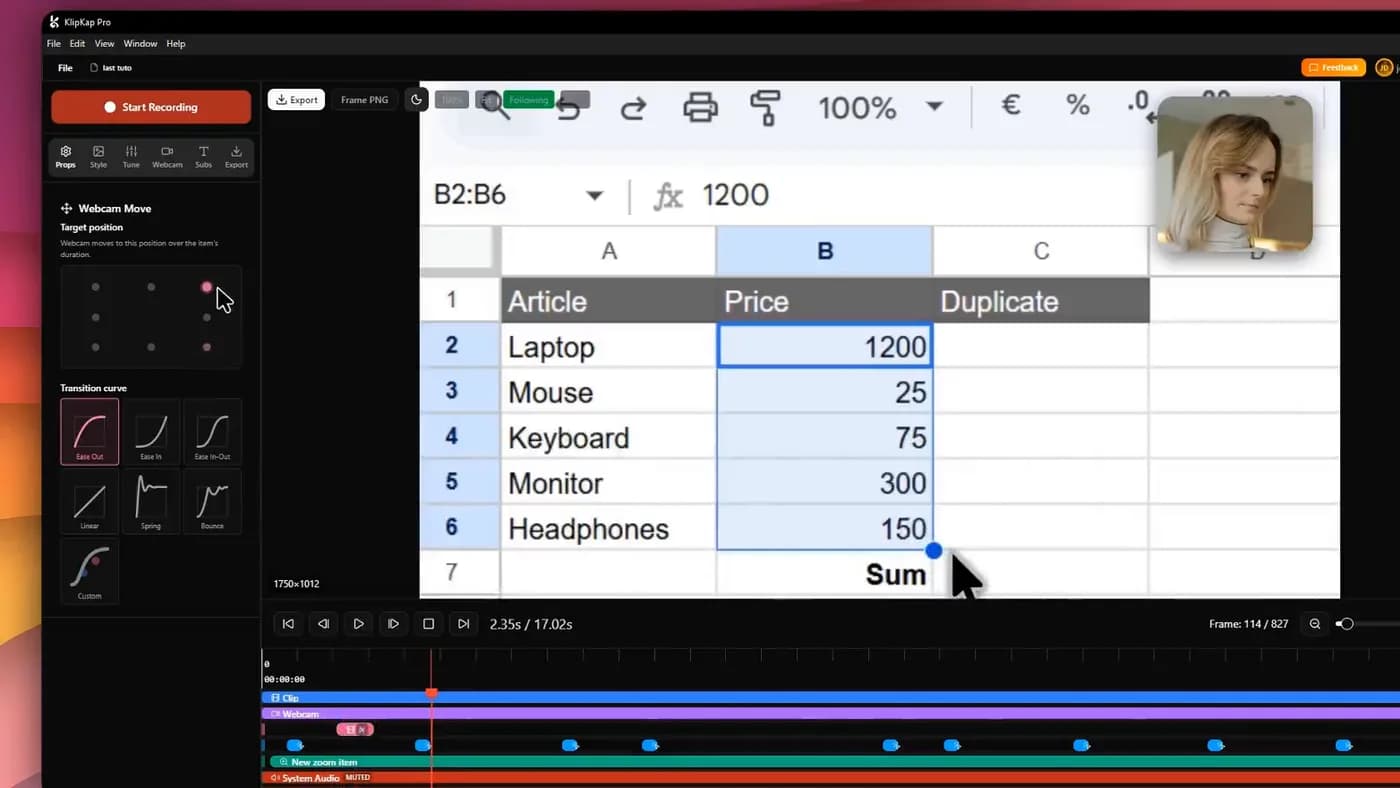
macOS already records your screen
Cmd+Shift+5 brings up the capture toolbar: record the whole screen or a selected region, choose a microphone, and it writes a file when you stop. QuickTime Player does the same through File then New Screen Recording. Both are free and already installed.
There is one thing they will not do, and it is the reason this article exists beyond that sentence: macOS will not capture the audio coming out of the machine without help. Screen and microphone, yes. The sound of the video you are recording, no, not without a virtual audio device or a tool that ships its own capture.
Add automatic zoom, cursor smoothing and editing to that list and you have the complete case for everything below.
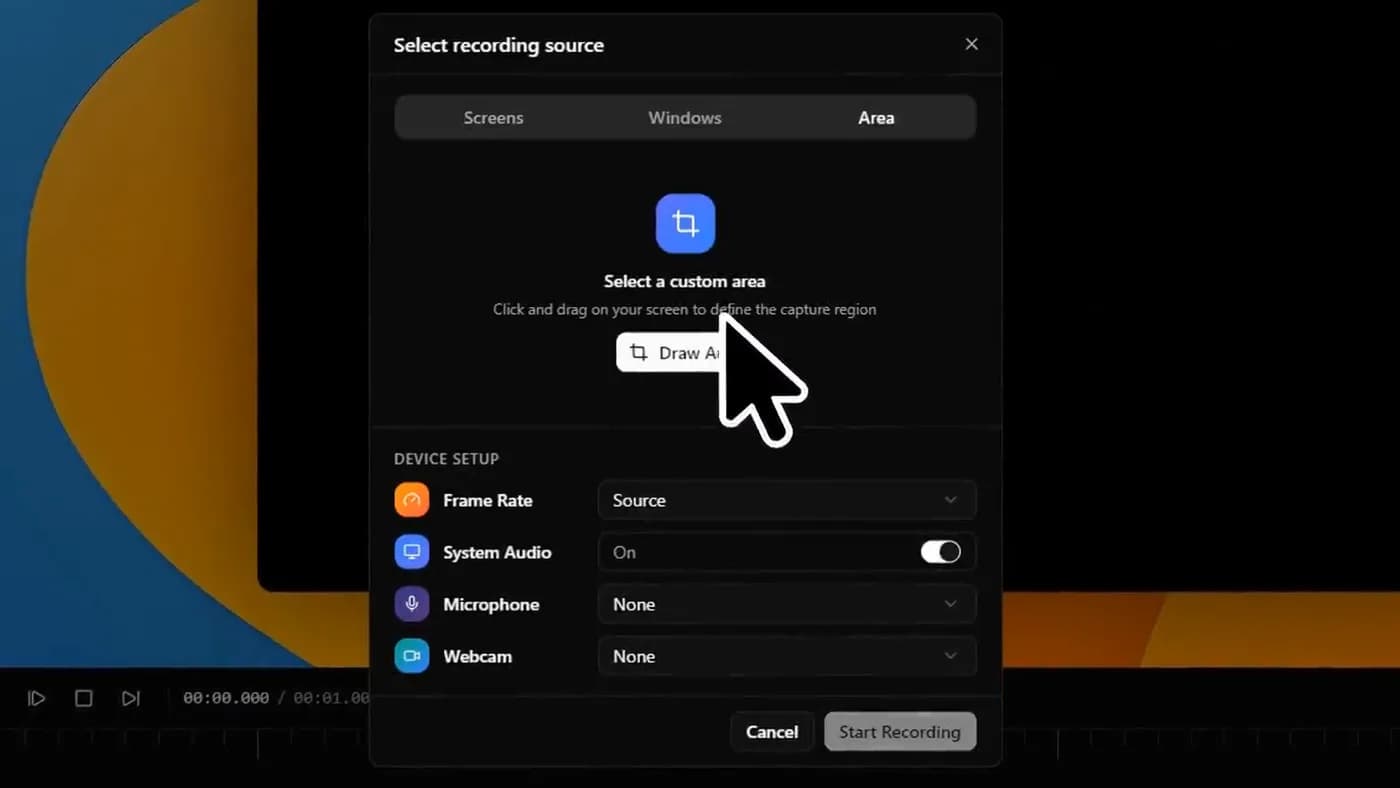
Cmd+Shift+5 records a Mac screen for free. What it will not do is capture system audio, which is the most common reason people install something else.
The Mac field
| Tool | Automatic zoom | Also on Windows | Pricing |
|---|---|---|---|
| Screen Studio | Yes, best-tuned | No | Subscription |
| CursorClip | Yes | No | One-time |
| Tight Studio | Yes, editable after | No | Free tier + subscription |
| Screen Charm | Yes, single-take | No | One-time |
| KlipKap Pro | Yes | Yes | One-time |
| Cap | Yes | Yes | Free personal, then yearly |
| CleanShot X | No | No | One-time, 1 year of updates |
| OBS Studio | No | Yes | Free |
The eight, and who each is for

1. Screen Studio
The most mature, if a subscription is acceptable
- Platforms
- macOS only
- Price
- $9/month billed annually, or $29/month
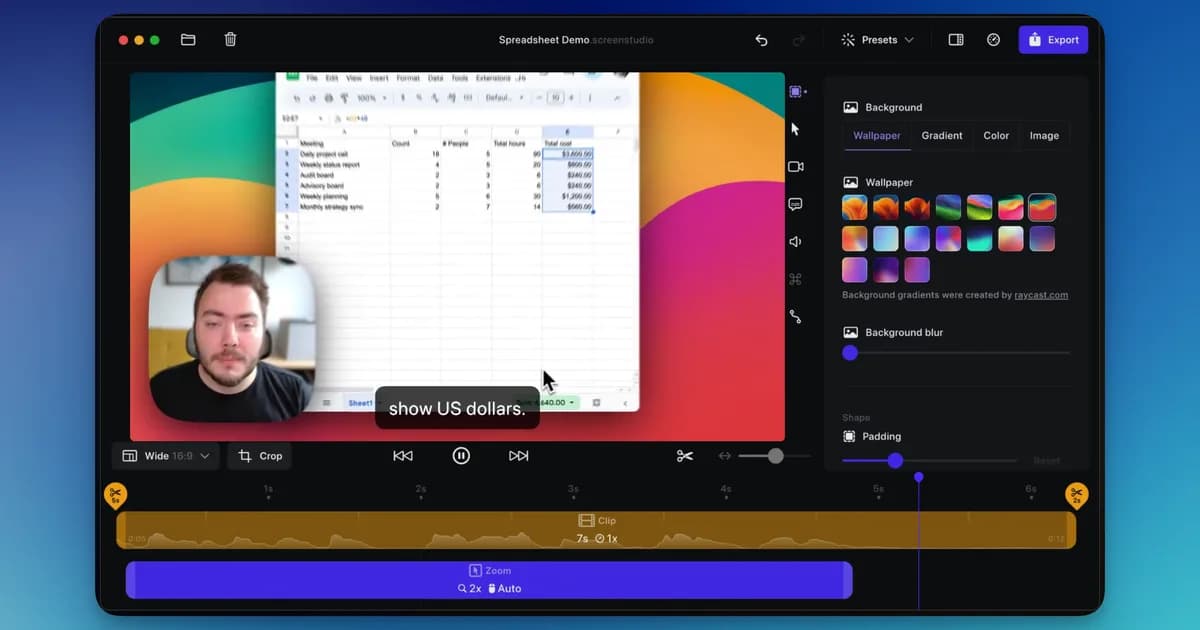
The product that defined automatic-zoom screen recording, and still the best-tuned defaults in the category. Its vertical export is the strongest implementation anyone ships: it re-derives every zoom for a 9:16 crop rather than cropping the finished frame.
macOS only, which is not a constraint on this page, and a subscription: the one-time licence was withdrawn for new customers in October 2025. There is no permanent free tier.
In its favour
- Best-tuned defaults in the category
- Best vertical export
- The deepest track record
What you give up
- Subscription only since October 2025
- No free tier
- macOS only

2. CursorClip
Buy it once, and trial the whole workflow first
- Platforms
- macOS 13.5 or later
- Price
- $70 once, or plans from $9/month
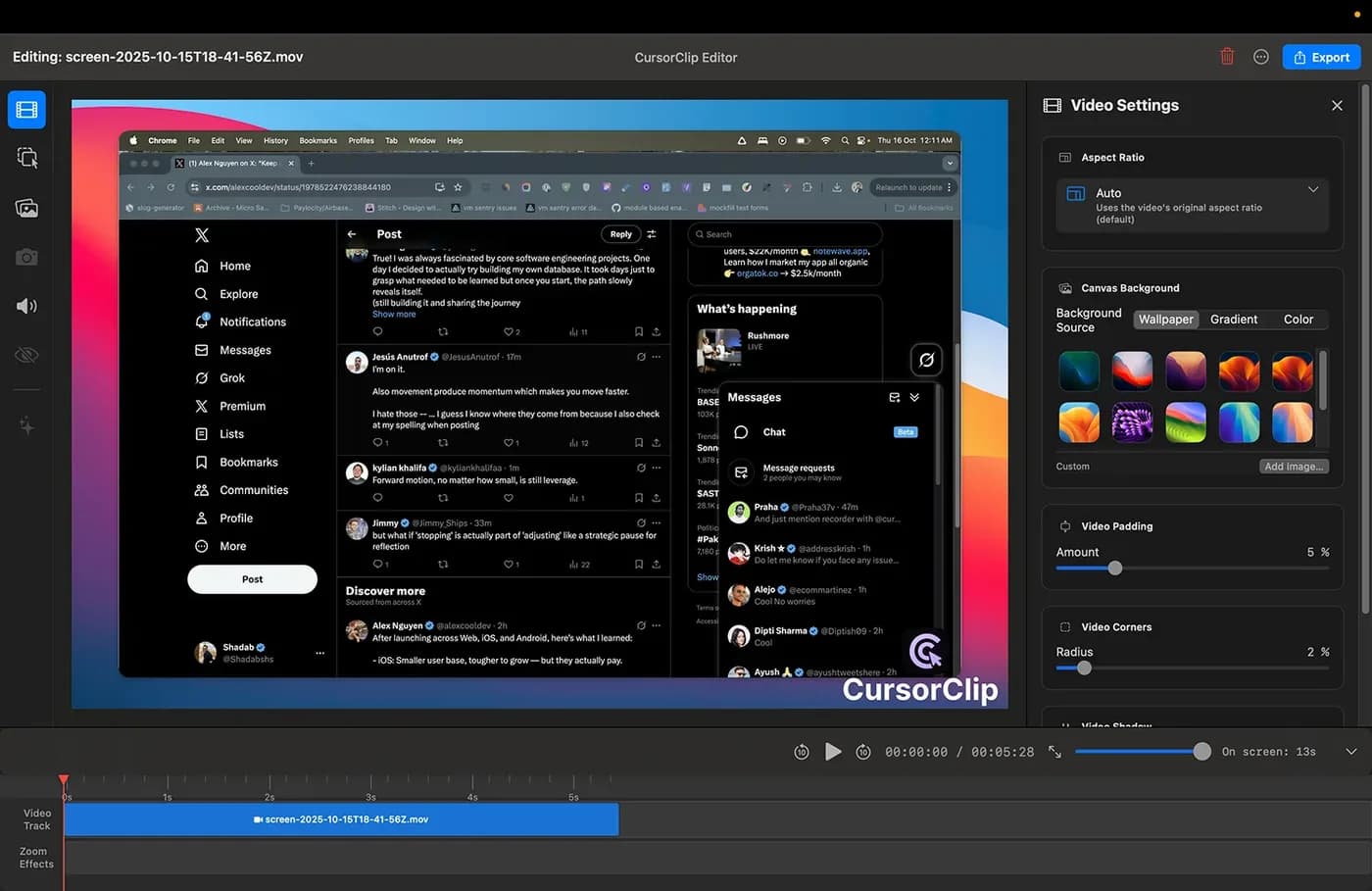
A small native binary built around cursor-follow zoom, sold once with no account and no cloud. Free to record and edit all the way through, paying only at export, which means you can evaluate the real workflow rather than a feature list.
macOS 13.5 or later. Its price moved between two checks ten days apart, though existing customers keep the price they paid.
In its favour
- One payment, no account
- Free until export
- Small and fast to launch
What you give up
- Narrow by design
- Price rising
- macOS 13.5 or later

3. Tight Studio
Editable zooms, Apple Silicon Macs only
- Platforms
- macOS on Apple Silicon only, Windows on a waitlist
- Price
- $9/month (Plus) or $24/month (Pro), both billed yearly
Auto-zoom and cursor animation with zooms that stay editable after the recording, which is the right model. The platform range is the catch: its own FAQ states it supports Apple chip Macs only, so Intel Macs and every Windows machine are out.
Its zooms stay editable after recording and each can flip between cursor-following and a fixed point, which some paid tools cannot do. The AI features that distinguish it (voiceover with voice cloning, the teleprompter) are metered free and gated to the top plan.
In its favour
- Zooms editable and retargetable
- Teleprompter and AI voiceover
What you give up
- macOS only, Windows on a waitlist
- AI metered and gated
- Top tier is expensive

4. Screen Charm
One take, done, lifetime updates
- Platforms
- macOS only
- Price
- $79 once, lifetime updates
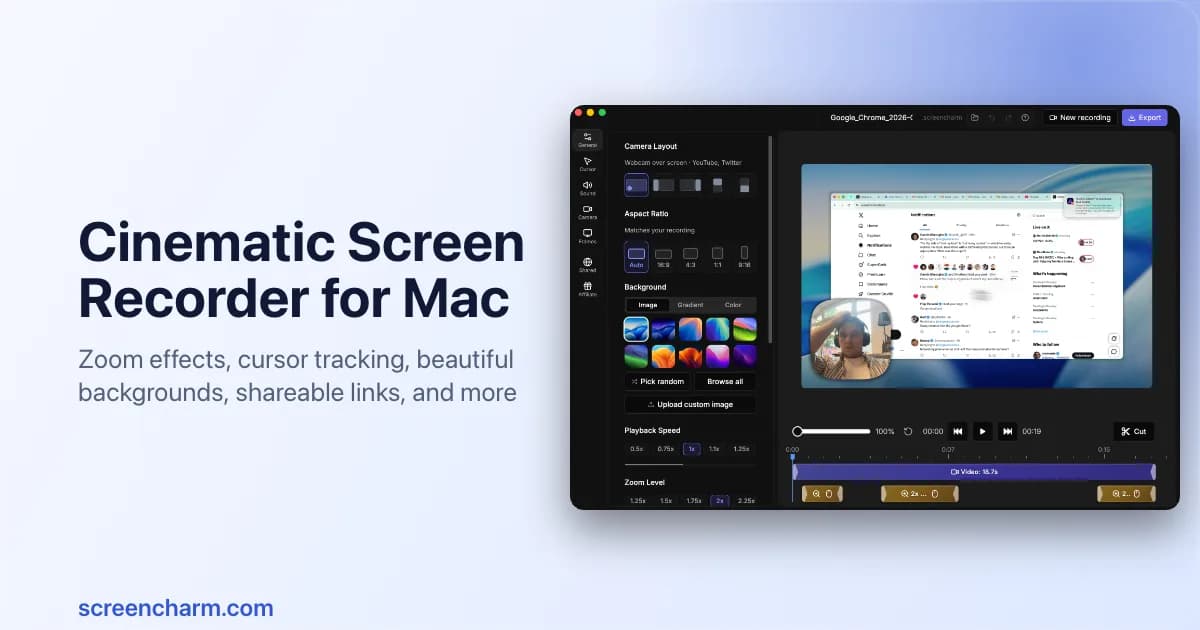
Deliberately narrow: a single-take workflow with smooth zoom, click feedback and a MacBook frame, sold once with lifetime updates, and here that means all future versions rather than one.
No captions, no audio repair, limited correction after the take. If you want one clean pass with nothing to configure, the narrowness is the feature.
In its favour
- Lifetime updates, genuinely
- Unlimited 4K export
- Nothing to configure
What you give up
- One take, few corrections
- No captions or audio repair
- macOS only

5. KlipKap Pro
Pay once, and the same licence covers Windows
- Platforms
- Windows 10/11, macOS 13+
- Price
- $25.49 once
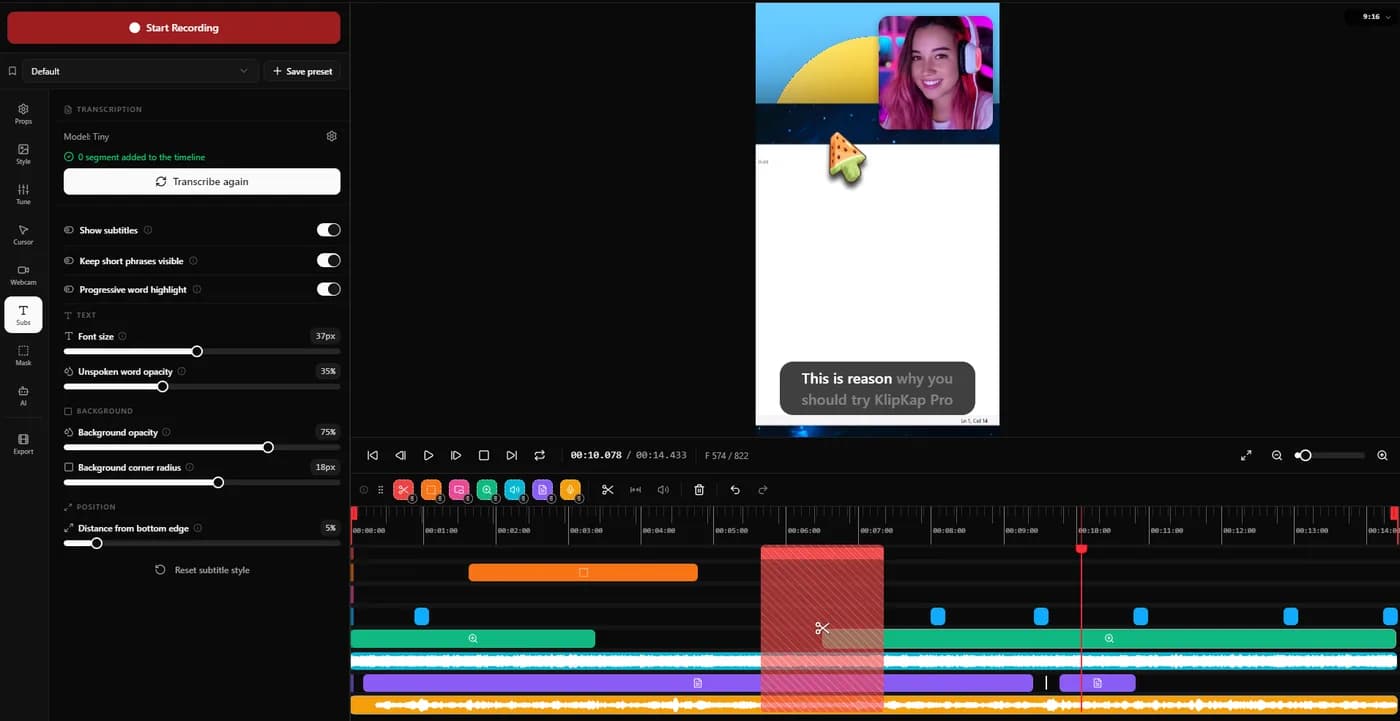
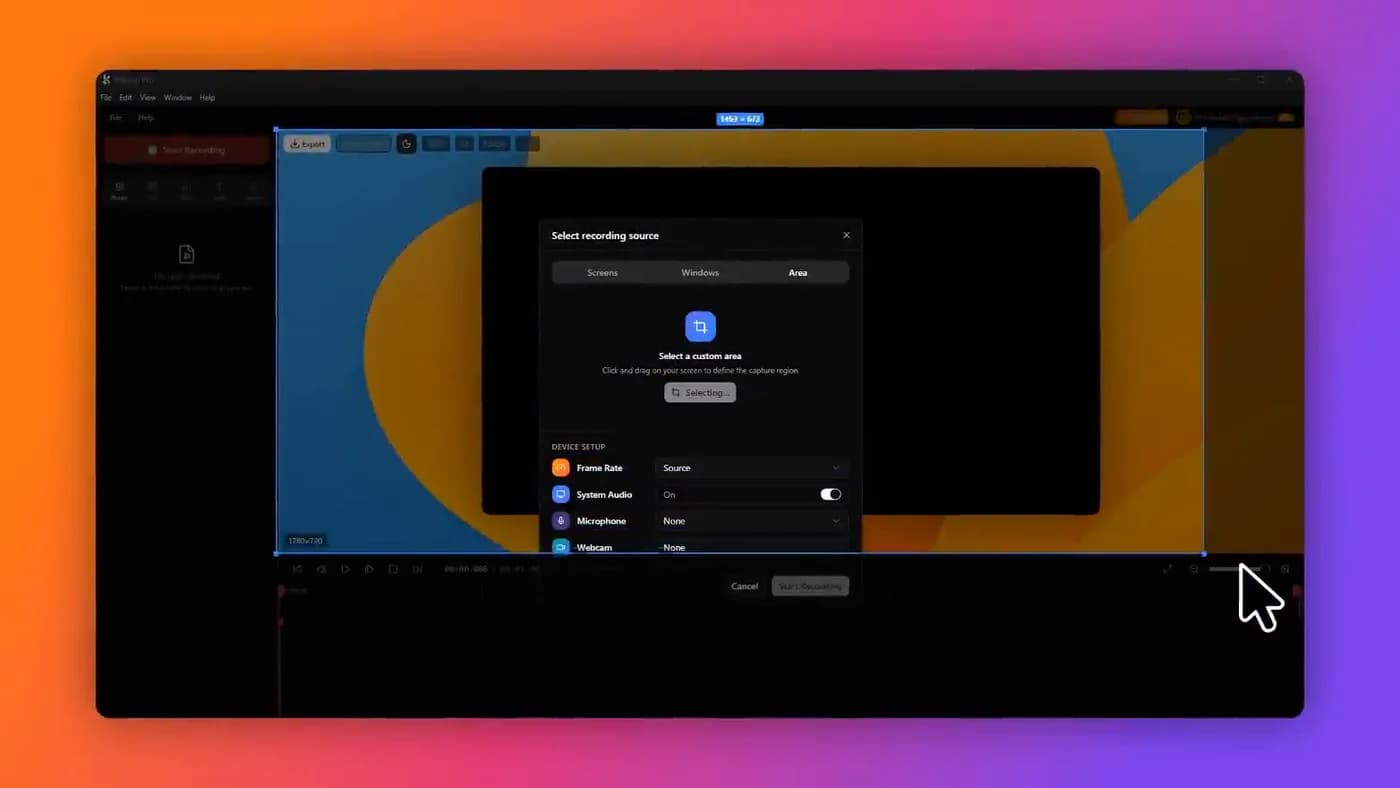
On a Mac it does what this group does (automatic zoom on every click, cursor smoothing, backgrounds, a timeline for corrections) and two things the Mac-only tools do not.
The same one-time licence covers Windows 10 and 11, which matters if you move between machines or your team is mixed. And the AI runs on your own device: subtitles transcribed locally in over fifty languages with no API key, no account and no per-minute credits, plus local noise removal. Footage is not uploaded; a connection is needed to download the app, activate a licence and export with a Pro account.
It also captures system audio natively, which is the gap in the built-in macOS tools described at the top of this page.
In its favour
- One account covers every machine you own, Windows and macOS, with no device limit
- A bespoke effects engine, written from scratch rather than built on a shared foundation
- One licence covers macOS and Windows
- Native system audio capture
- Local subtitles and noise removal, no credits
- Permanent free tier at 720p
What you give up
- No Linux build
- No share links
- Newer than the Mac incumbents

6. CleanShot X
The best capture utility, if video is not really the job
- Platforms
- macOS only
- Price
- $29 once, with one year of updates
Screenshots, annotation, scrolling capture, OCR and short clips, all faster than anything that has to open an editor first. Most Mac power users who own one screen tool own this one.
It is a capture tool, not a video production tool: no automatic zoom, no timeline, no cursor motion work. And the one payment covers a year of updates, after which the app keeps working and stops changing.
In its favour
- Unmatched at capture and annotation
- One payment
- Instant, no editor to load
What you give up
- One year of updates
- No auto-zoom or timeline
- Not a video tool
The system audio problem, specifically
This catches nearly everyone once, so it is worth stating plainly. macOS does not let an application capture the system audio output without a route for it. Recording a video playing on screen, a call, or a game gives you a silent capture from QuickTime and from Cmd+Shift+5.
There are three ways around it. Install a virtual audio device such as BlackHole and route output through it, which works and adds a permanent piece of audio plumbing to your machine. Use a tool that ships its own capture. Most of the paid recorders above do, KlipKap Pro and Screen Studio included. Or record the audio separately and sync it, which is worse than both.
If the recordings you are planning have sound in them, make this the first thing you check, not the last.
Frequently asked questions
- Does macOS have a built-in screen recorder?
- Yes. Cmd+Shift+5 opens a capture toolbar that records the whole screen or a selected region, and QuickTime Player does the same through File then New Screen Recording. Both are free and pre-installed. Neither captures system audio, and neither does any editing or automatic zoom.
- How do I record system audio on a Mac?
- macOS does not allow it directly. Either install a virtual audio device such as BlackHole and route output through it, or use a recorder that ships its own system-audio capture. Most of the paid tools in this article do, including KlipKap Pro and Screen Studio. Recording audio separately and syncing it afterwards is the worst of the three options.
- What is the best free screen recorder for Mac?
- Cmd+Shift+5 if you need one raw capture now. KlipKap Pro's free tier if you want the finished look, because it keeps the automatic zoom and the cursor smoothing at 720p and also captures system audio, which Cmd+Shift+5 will not. OBS Studio if you want full control and will edit elsewhere. Cap's free tier includes the full editor and is licensed for personal use.
- Which Mac screen recorders are a one-time purchase?
- CursorClip and Screen Charm are sold once, and Screen Charm includes lifetime updates. CleanShot X is one payment covering a year of updates. KlipKap Pro is one payment covering all future updates on both macOS and Windows. Screen Studio withdrew its one-time licence for new customers in October 2025.
- What is the best Mac screen recorder with automatic zoom?
- Screen Studio has the best-tuned defaults and the strongest vertical export. CursorClip is the closest perpetual-licence equivalent. Tight Studio is the best free option and keeps its zooms editable afterwards. KlipKap Pro adds a Windows build and on-device AI to the same feature set.
More from the blog
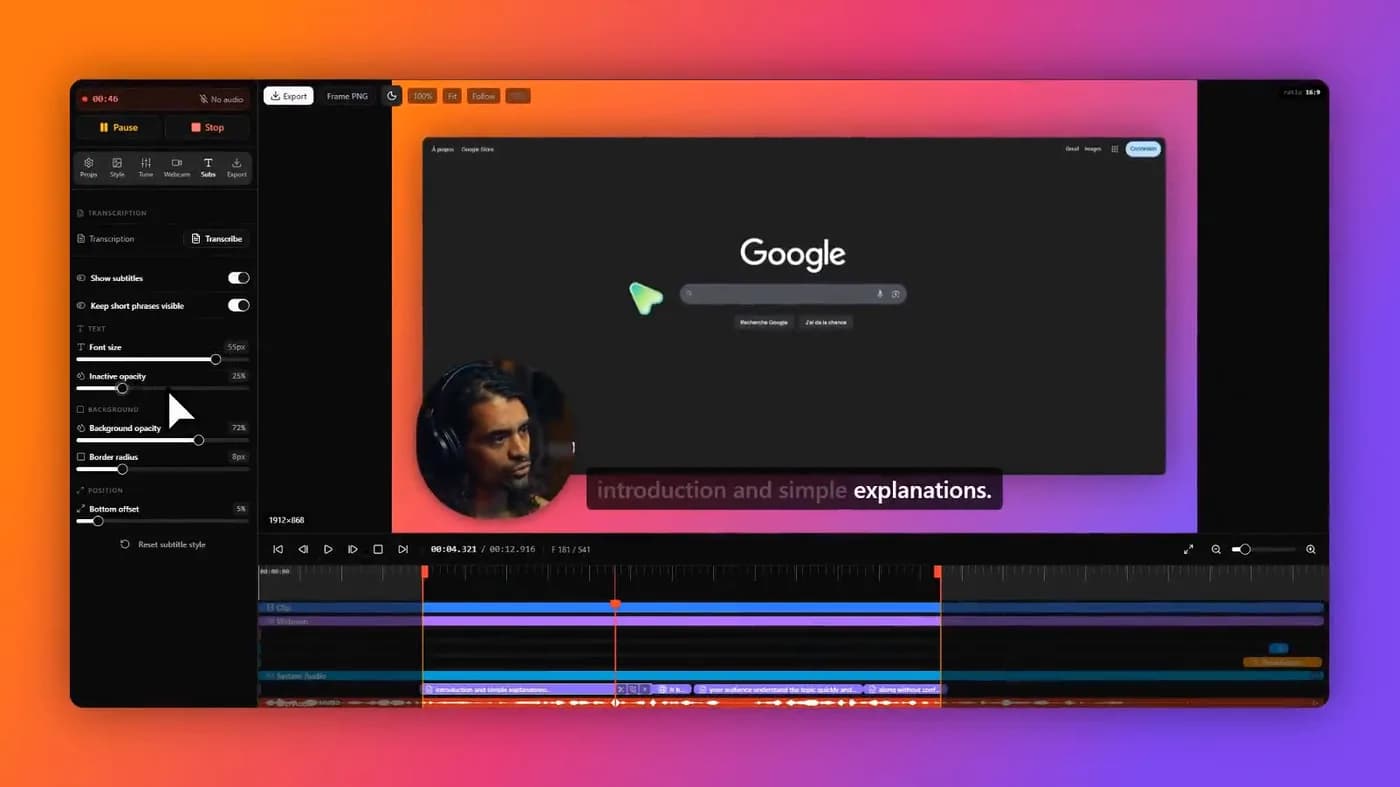 The best screen recorders in 2026Nine tools, sorted by what you are actually making. The answer is different for a product demo, a course, an async update and a livestream.Read it
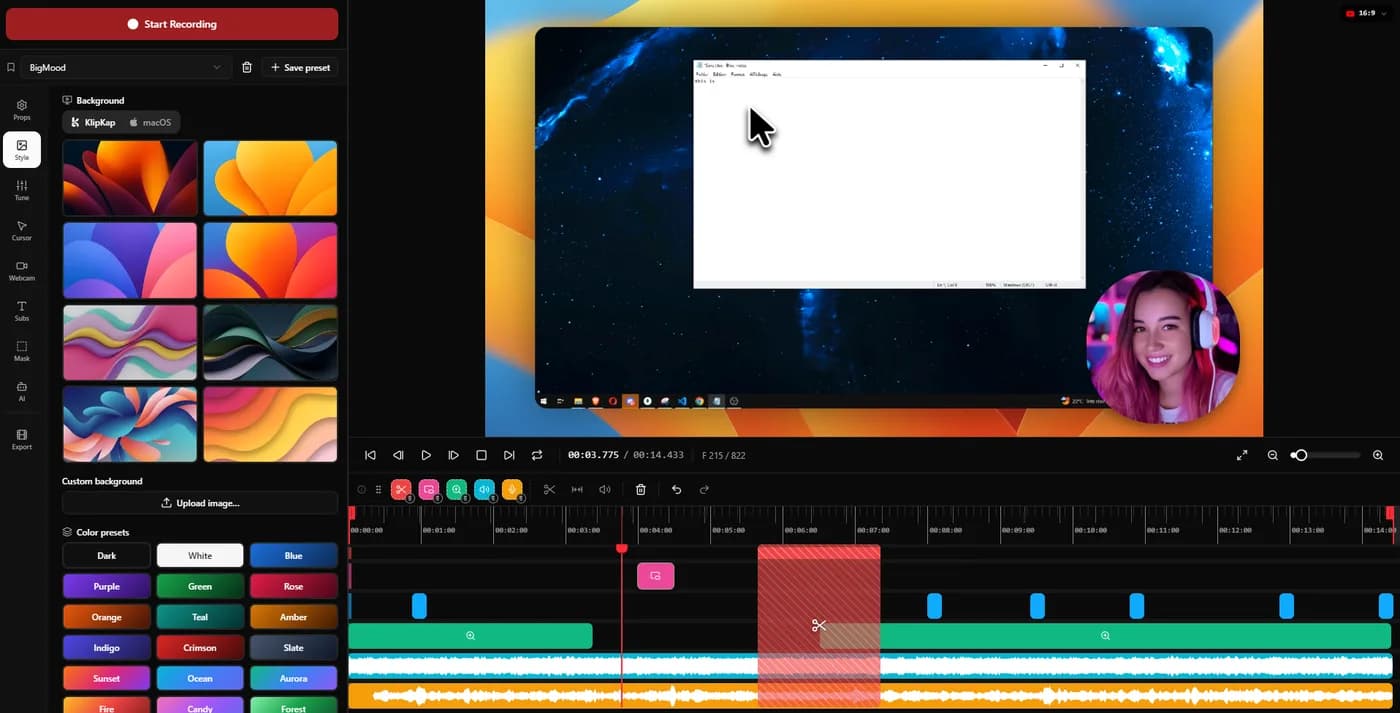 The best Screen Studio alternatives in 2026Ten tools compared on platform, price and what three years actually costs. Screen Studio is macOS-only and withdrew its one-time licence in October 2025.Read it
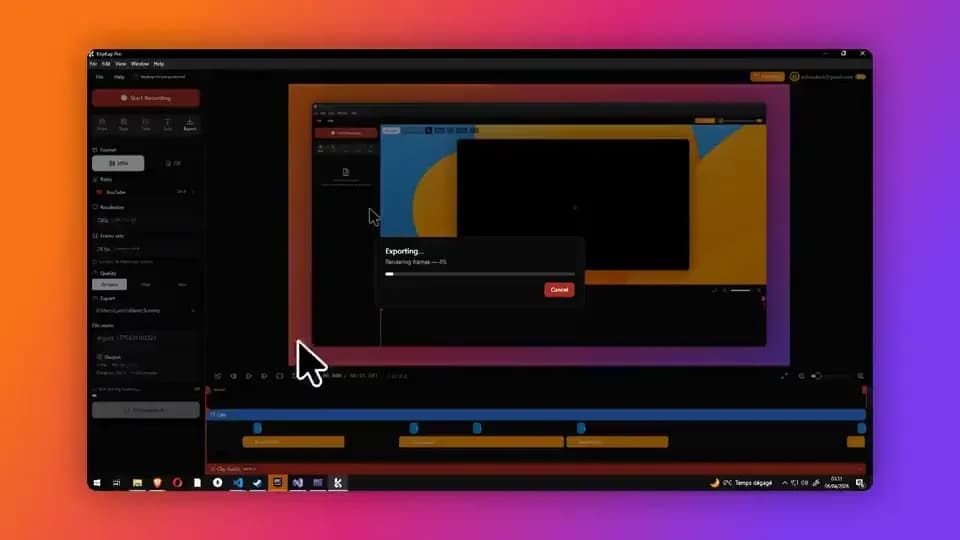 Screen recorders with a one-time purchaseThe tools still sold as a perpetual licence in 2026, what three years costs against the subscriptions, and what the word lifetime is doing in each case.Read it
Sources
Prices and platform support come from each vendor’s own pricing page, linked below. Software changes; if you spot something out of date here, tell us at contact@klipkap.pro and we will correct it.