The best screen recorders for Windows in 2026
- Windows
- screen recording
- comparison
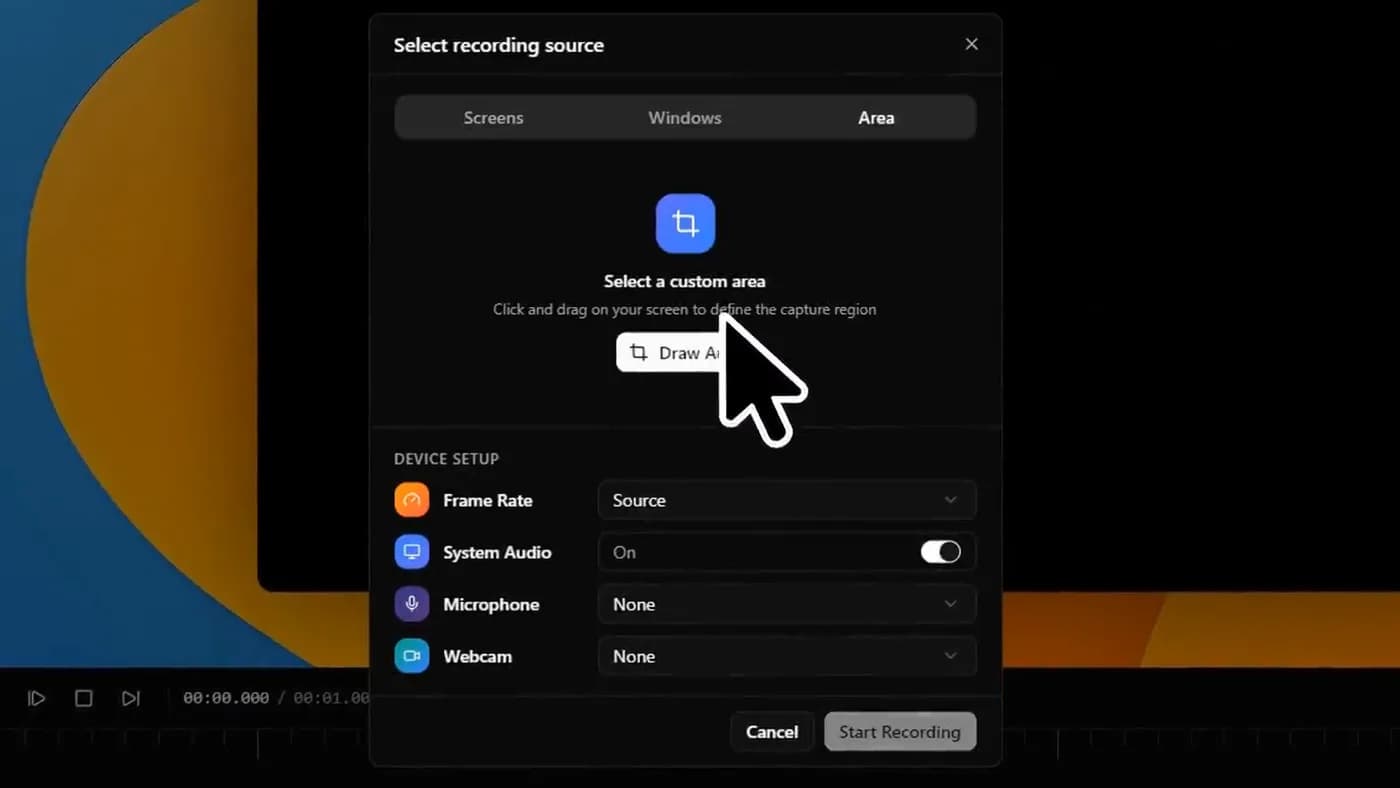
Windows already records your screen: the Xbox Game Bar captures any application window with Win+Alt+R, at no cost. For anything beyond a raw capture, the options with real Windows builds are KlipKap Pro and FocuSee for automatic zoom, OBS Studio and ShareX for free capture, Camtasia for courses, and Loom for sending a link. Screen Studio, CursorClip and Tight Studio have no Windows build.
Start with what Windows already has
Before installing anything, know that Windows records screens on its own and has done for years. Win+Alt+R starts the Xbox Game Bar's capture on any application window, with microphone audio optional, and writes an MP4 to your Videos folder. The Snipping Tool also records a region on Windows 11.
For a rough capture you are going to trim and send once, that is genuinely enough and there is no reason to pay for anything. The built-in tools stop mattering the moment you want any of four things: a specific region on Windows 10, system audio captured reliably, any editing afterwards, or automatic zoom.
That is the honest threshold. If none of those four apply to you, the rest of this article is a longer way of saying press Win+Alt+R.
Windows records your screen for free with Win+Alt+R. Paying for a recorder buys what happens after the capture, not the capture.
What actually runs on Windows
This is the list after removing everything that does not ship a Windows build, which is most of the tools recommended under this query, because most of the category is macOS software.
| Tool | Automatic zoom | Pricing | Best for |
|---|---|---|---|
| KlipKap Pro | Yes | One-time | Polished demos, paying once |
| FocuSee | Yes | Subscription or lifetime 2.x | The closest Screen Studio feature match |
| Cap | Yes | Free personal, then yearly | Open source, self-hosting |
| OBS Studio | No | Free | Livestreams, full capture control |
| ShareX | No | Free | Screenshots, GIFs, quick captures |
| Camtasia | No, manual keyframes | Subscription | Courses and training |
| Loom | No | Subscription per creator | Sending a link |
| Tella | No | Subscription per user | Presenter-led video |
| Xbox Game Bar | No | Built into Windows | A raw capture, right now |
The ones worth installing

1. KlipKap Pro
Automatic zoom, one payment, nothing uploaded
- Platforms
- Windows 10/11, macOS 13+
- Price
- $25.49 once
Windows 10 and 11, sold once with all future updates, and the same licence covers macOS if you move between machines.
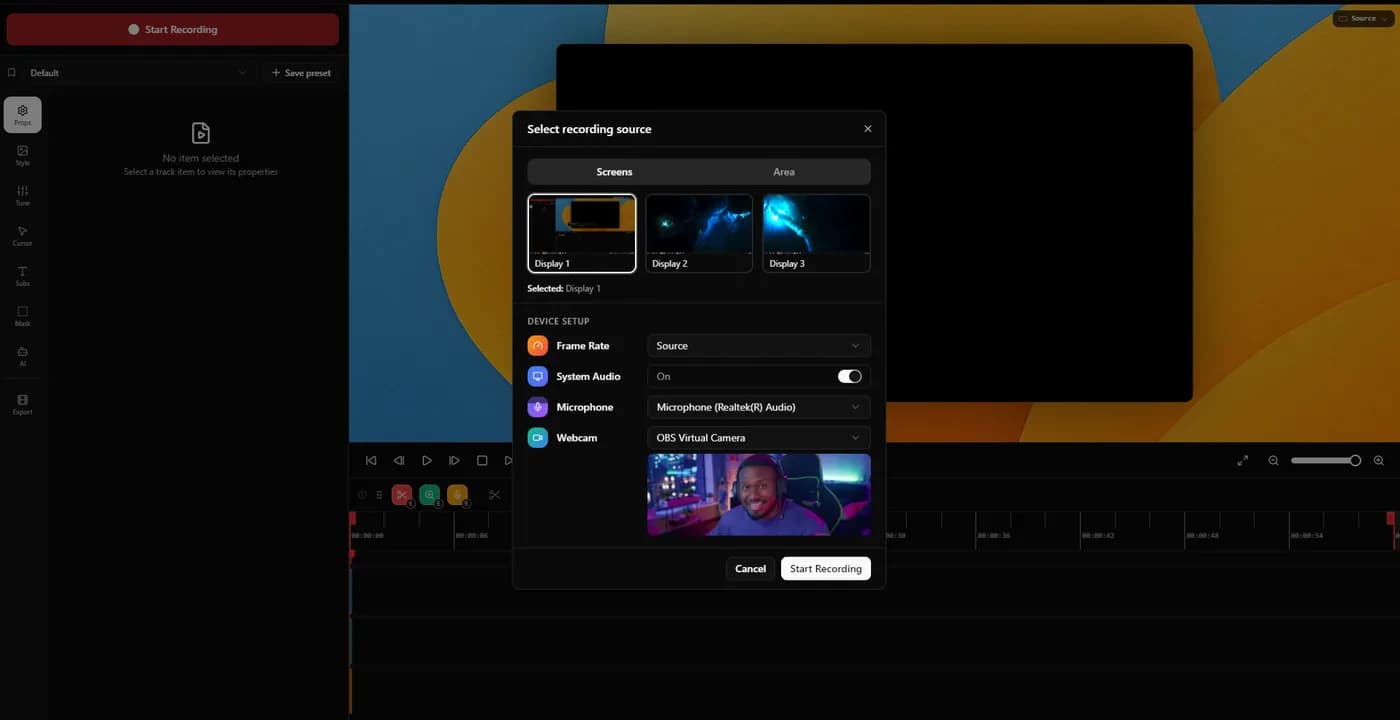
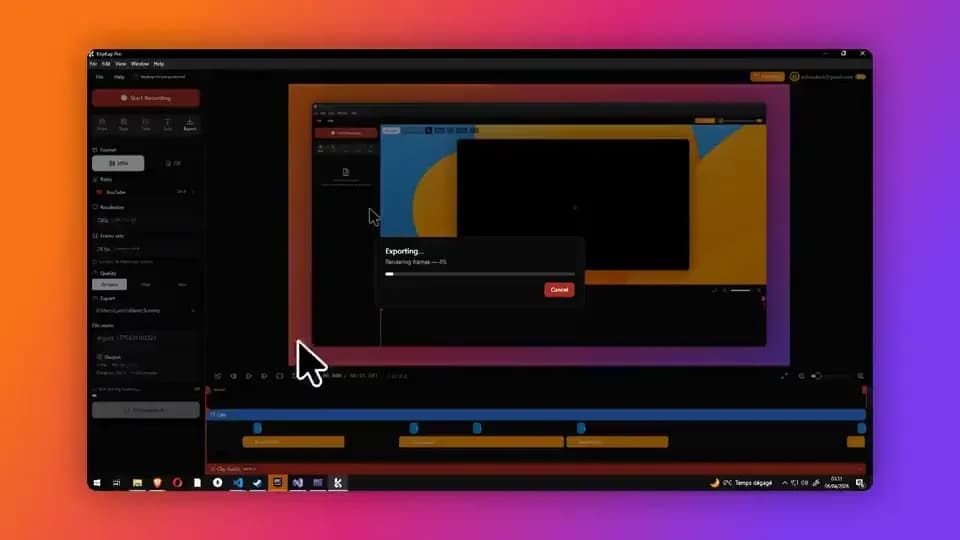
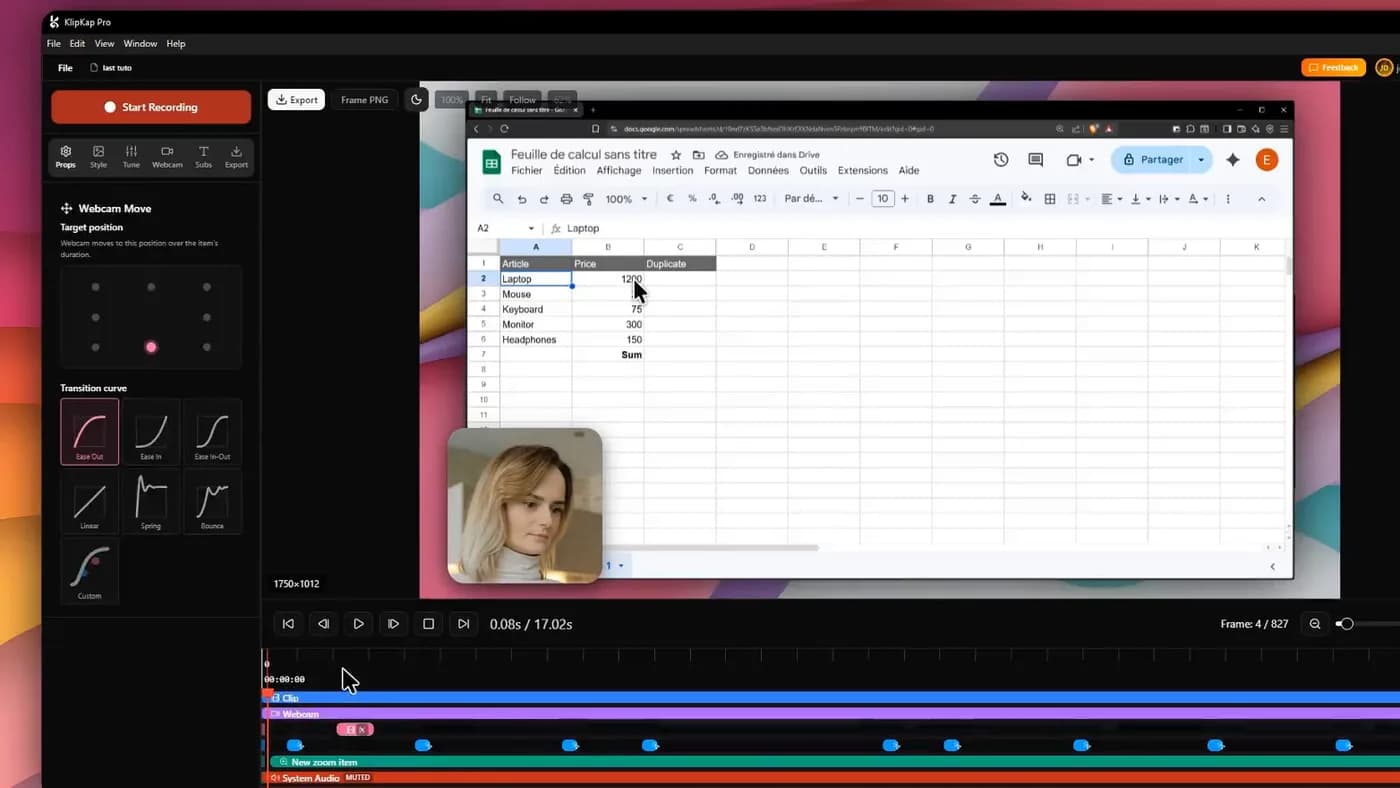
Automatic zoom on every click, cursor smoothing, a background and padding around the recorded window, and a timeline to retarget the zooms the automatic pass placed badly. Subtitles and noise removal run on your own machine in over fifty languages, with no API key, no account and no per-minute credits, and the footage is not uploaded.
It captures system audio natively on Windows with no virtual audio cable and no plugin, which is the single most common reason a Windows recording ends up silent in the wrong places.
In its favour
- One account covers every machine you own, Windows and macOS, with no device limit
- A bespoke effects engine, written from scratch rather than built on a shared foundation
- Native system audio with no virtual cable
- One payment, Windows and macOS, all future updates
- Local subtitles and noise removal with no credits
- Permanent free tier at 720p
What you give up
- No Linux build
- Exports a file rather than a link
- A newer product
2. FocuSee
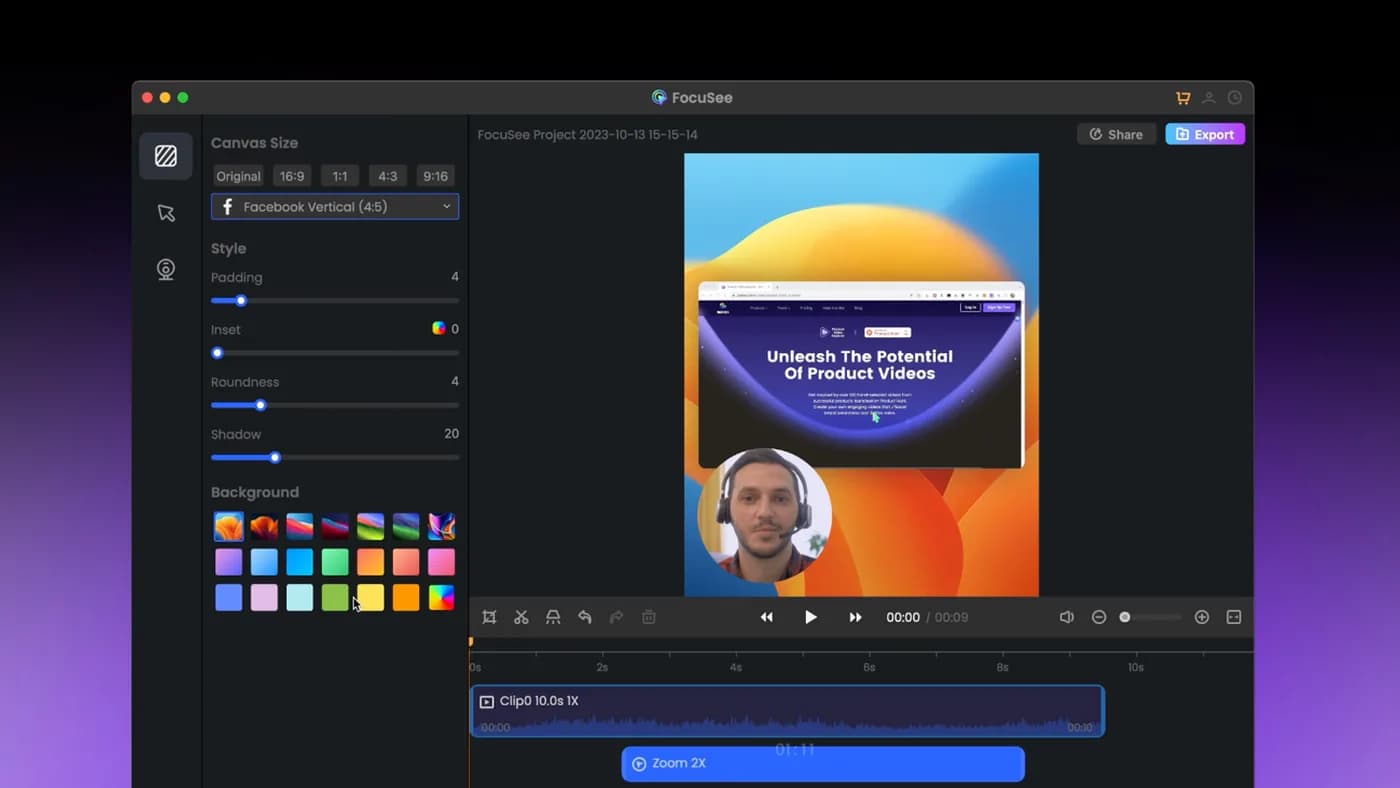
The closest thing to Screen Studio that runs on Windows
- Platforms
- Windows and macOS
- Price
- $49.99/year (Standard), $79.99/year (Advanced), $199.99 lifetime
Automatic zoom on clicks and dynamic backgrounds, with a genuine Windows build. If you came here from a Screen Studio comparison, this is the nearest feature match you can actually install.
Its lifetime licence covers version 2.x, the next major version is a paid upgrade, and its AI credits expire after a year, so judge the price against a major-version cycle rather than against forever.
In its favour
- Real Windows build
- Feature set close to Screen Studio's
- A lifetime option exists
What you give up
- Lifetime is one major version
- AI credits expire yearly
- No free tier

3. OBS Studio
Free, and better at capture than anything paid
- Platforms
- Windows, macOS, Linux
- Price
- Free
The standard for livestreaming and scene mixing, free and open source, with control over sources, audio routing and encoders that no commercial tool matches. On Windows it handles NVENC and AMF hardware encoding properly, which matters if you are recording anything long.
No editor, no automatic zoom, no cursor treatment. Everything this article is about would be manual work in a second application.
In its favour
- Free with no tiers
- Hardware encoding done properly
- Total control over capture
What you give up
- No editor or auto-zoom
- Steep setup
- Needs a second tool for polish

4. Cap
Open source, with a free tier that includes the editor
- Platforms
- macOS, Windows, Linux
- Price
- $29/licence billed yearly (Desktop), or $8.16/user/month (Pro)
Runs on Windows, macOS and Linux, is genuinely open source, and its free tier is perpetual with the full Studio editor rather than a trial. If auditing or self-hosting matters, this is the one.
The free tier is licensed for personal use, so commercial work means paying, and the cheapest paid tier is billed yearly rather than sold once.
In its favour
- Open source and self-hostable
- Perpetual free tier with the editor
- All three platforms
What you give up
- Free tier is personal use only
- Cheap tier is billed yearly
Two Windows-specific things that ruin exports
Neither of these appears on a feature list and both are immediately visible in a finished video, which is a bad combination.
Display scaling. Windows laptops commonly run at 125 or 150 percent scaling. A recorder that does not account for it captures the scaled framebuffer and produces a soft 1080p export from a perfectly sharp screen. The text in your UI will look slightly fuzzy and you will not be able to say why. Record thirty seconds, export it, and view it at full size before you commit to any tool.
System audio. Capturing the sound coming out of the machine (a video playing, a call, a notification) is straightforward on Windows and some tools still route you through a virtual audio cable or a plugin to do it. If your recording has sound in it, confirm native system-audio capture before buying. It is the most common post-purchase surprise in this category.
- Record 30 seconds, export, and view at 100% before buying anything
- Check whether system audio needs a virtual cable or works natively
- On a high-DPI laptop, check the export is not softer than the screen
- If you record long sessions, check for NVENC or AMF hardware encoding
Frequently asked questions
- Does Windows have a built-in screen recorder?
- Yes. The Xbox Game Bar records any application window with Win+Alt+R and saves an MP4 to your Videos folder, at no cost. On Windows 11 the Snipping Tool also records a selected region. Both are fine for a rough capture and neither offers editing or automatic zoom.
- What is the best free screen recorder for Windows?
- OBS Studio if you want full control over capture and are willing to edit elsewhere. ShareX if you want screenshots, GIFs and quick recordings in one free, open-source tool. Cap if you want a free editor included and your use is personal rather than commercial. The Xbox Game Bar if you just need one capture now.
- Is there a Windows equivalent of Screen Studio?
- Screen Studio itself is macOS only. The tools that do the same automatic zoom on clicks and cursor smoothing on Windows are KlipKap Pro, FocuSee and Cap. CursorClip, Screen Charm and Tight Studio are also macOS only despite frequently being recommended under this query.
- Why does my screen recording look blurry on Windows?
- Usually display scaling. If Windows is at 125 or 150 percent and the recorder captures the scaled framebuffer rather than the native resolution, a 1080p export comes out soft even though the screen is sharp. Record a short clip, export it and view it at full size to check before committing to a tool.
- How do I record system audio on Windows?
- Most current recorders capture it natively, with no virtual audio cable and no plugin. KlipKap Pro and OBS Studio both do. Some still require routing through a virtual device. If your recordings contain sound from the machine, confirm this before buying, because it is the most common thing people discover after paying.
More from the blog
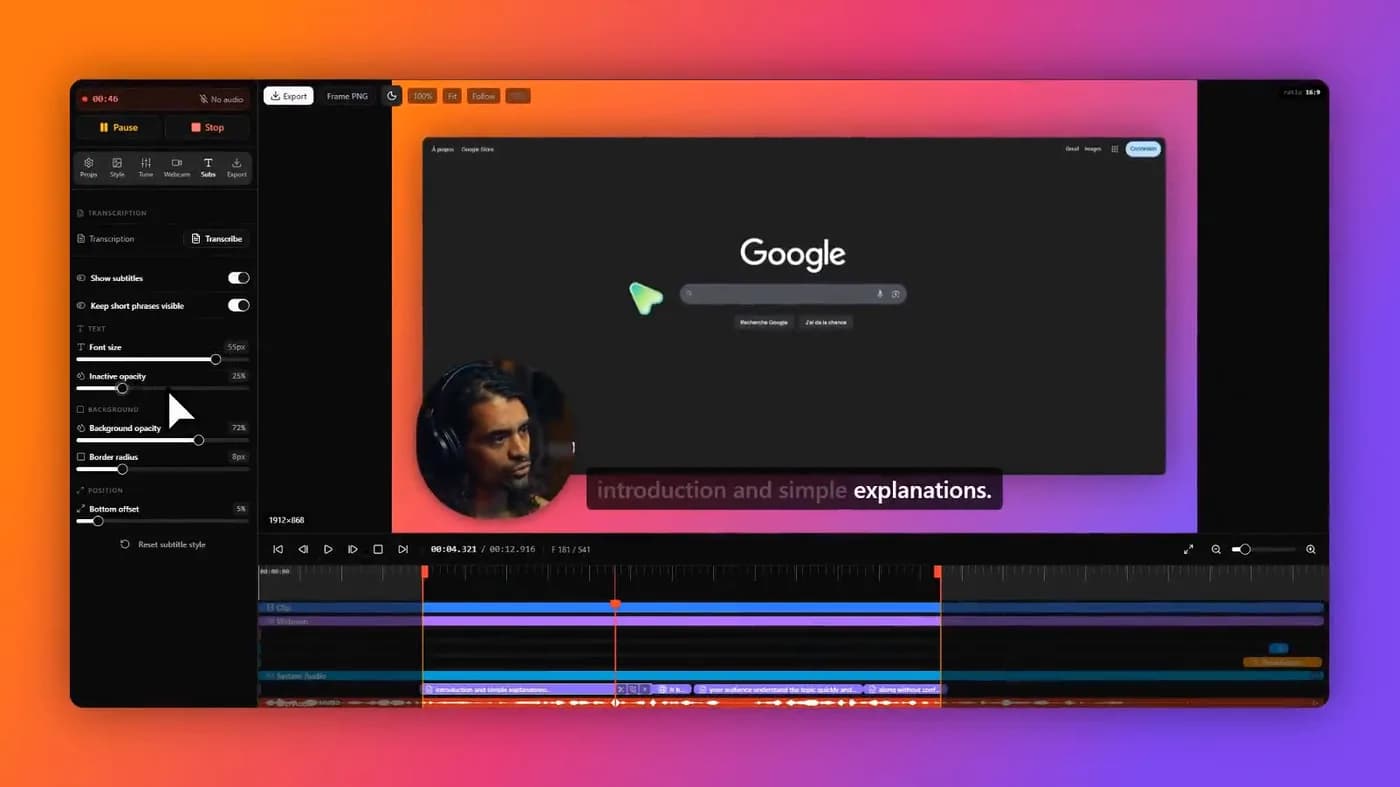 The best screen recorders in 2026Nine tools, sorted by what you are actually making. The answer is different for a product demo, a course, an async update and a livestream.Read it
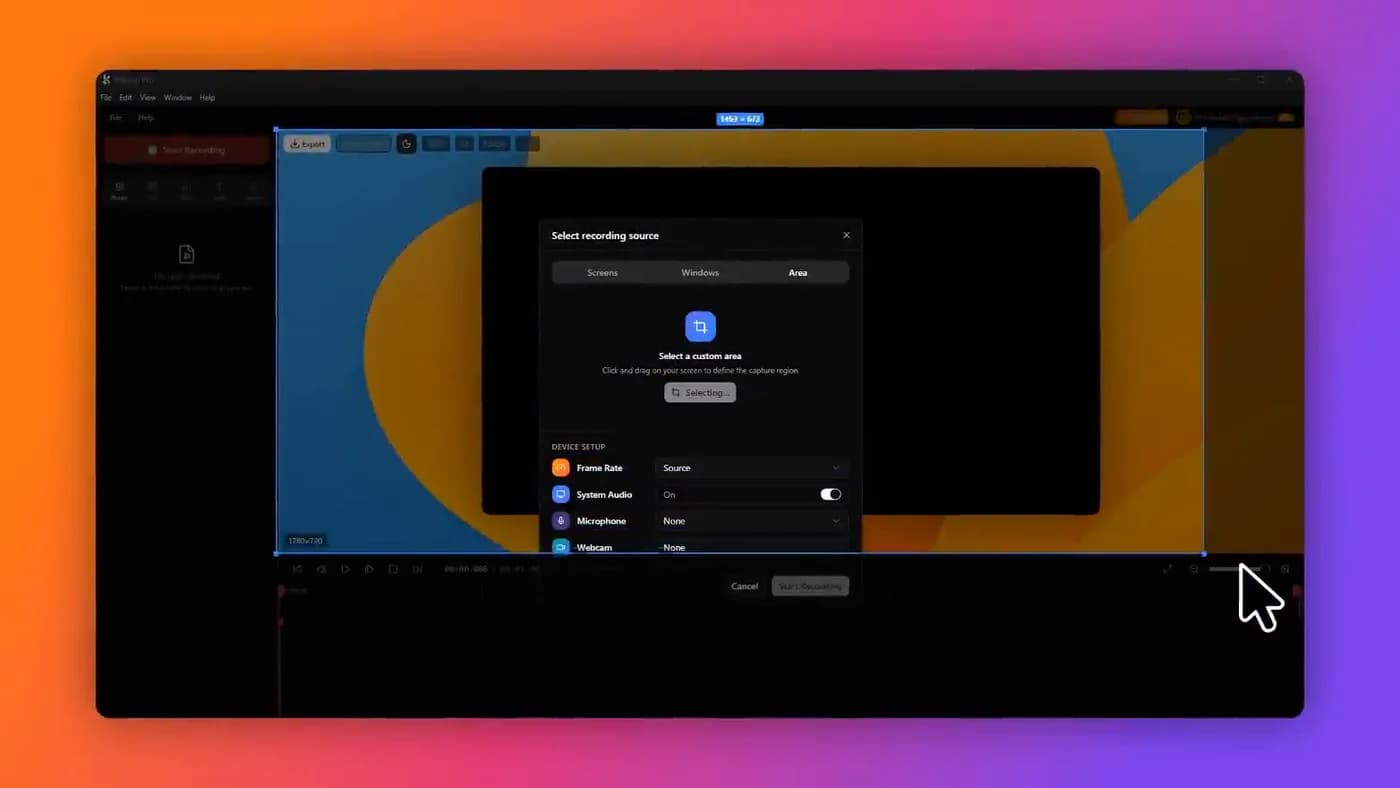 Screen Studio for WindowsThere is no Windows build and no announced date for one. Here is what actually does automatic zoom on Windows in 2026, and what to ignore.Read it
 Open-source screen recordersThree that are genuinely open source, what their licences actually permit, and the honest account of the work you take on in exchange.Read it
Sources
Prices and platform support come from each vendor’s own pricing page, linked below. Software changes; if you spot something out of date here, tell us at contact@klipkap.pro and we will correct it.