How to record a YouTube video from your screen
- youtube
- creators
- screen recording
Record at the resolution you intend to publish, because upscaling afterwards does not recover detail that was never captured. Export at 4K even for a 1080p audience, since YouTube gives 4K uploads a better encode and small interface text is the first thing its compression destroys. KlipKap Pro exports 4K at up to 120 fps with GPU accelerated rendering, and its six voice processing controls run on your own machine.
01Record at the resolution you will publish
Screen recordings are unusually sensitive to resolution because they are full of small text. A 1080p capture of a code editor is legible on a desktop and unreadable on a phone, and no amount of post processing recovers pixels that were never captured.
The Pro tier records and exports up to 4K with quality settings of Balanced, High or Max. The free tier tops out at 720p with a watermark, which is fine for learning the editor and not fine for publishing.
02Frame rate, and when 120 is worth it
Thirty frames per second is enough for most screen content, where the picture is static between actions. Sixty is worth it for anything with continuous motion: scrolling, dragging, animation, gameplay.
The Pro tier offers 24, 30, 60 and 120 fps. At 120 the case is specific: a fast panning demo where you intend to slow a section down afterwards and want the slowed footage to stay smooth. Otherwise the extra frames are file size.
03Export at 4K even for a 1080p audience
YouTube allocates a better encode to 4K uploads than to 1080p ones. The practical result is that a 4K upload watched at 1080p looks cleaner than a 1080p upload watched at 1080p, and the difference is most visible on exactly what screen recordings are made of: thin text and flat colour.
Rendering is GPU accelerated, so the larger export does not translate into an hour of waiting. That matters more than it sounds when you are exporting a second time because you spotted something.
04Fix the voice you have, not the microphone you want
Six voice processing controls run at export rather than being baked into the recording: cleanup, adaptive noise suppression, bass boost, voice clarity, voice boost and a de-esser around 7 kHz. Non-destructive means you can change your mind about the de-esser three edits later.
All of it runs on your processor, so a forty minute video costs the same as a four minute one. Tools that meter audio processing are metering it because it runs on their hardware. These are Pro tier features.
05Trim the silence before you edit anything else
Automatic silence trimming removes the silent stretches from the audio track. Doing it first is the right order: it shortens the timeline you are about to work on, and on an unscripted take it commonly removes a quarter to a third of the runtime.
What it does not do is make an unstructured video structured. It removes pauses, not digressions.
06Give the frame somewhere to breathe
Background padding up to 200 pixels, inner padding to 50, corner radius to 40, plus drop shadow and adjustable brightness, contrast and saturation. Backgrounds are a solid colour, one of fifteen gradients or one of eight supplied images with adjustable blur.
The reason this matters on YouTube specifically is the thumbnail and the first two seconds. A raw desktop capture and a framed window read differently in a subscription feed before anybody has heard a word.
07Burn in captions rather than relying on the platform
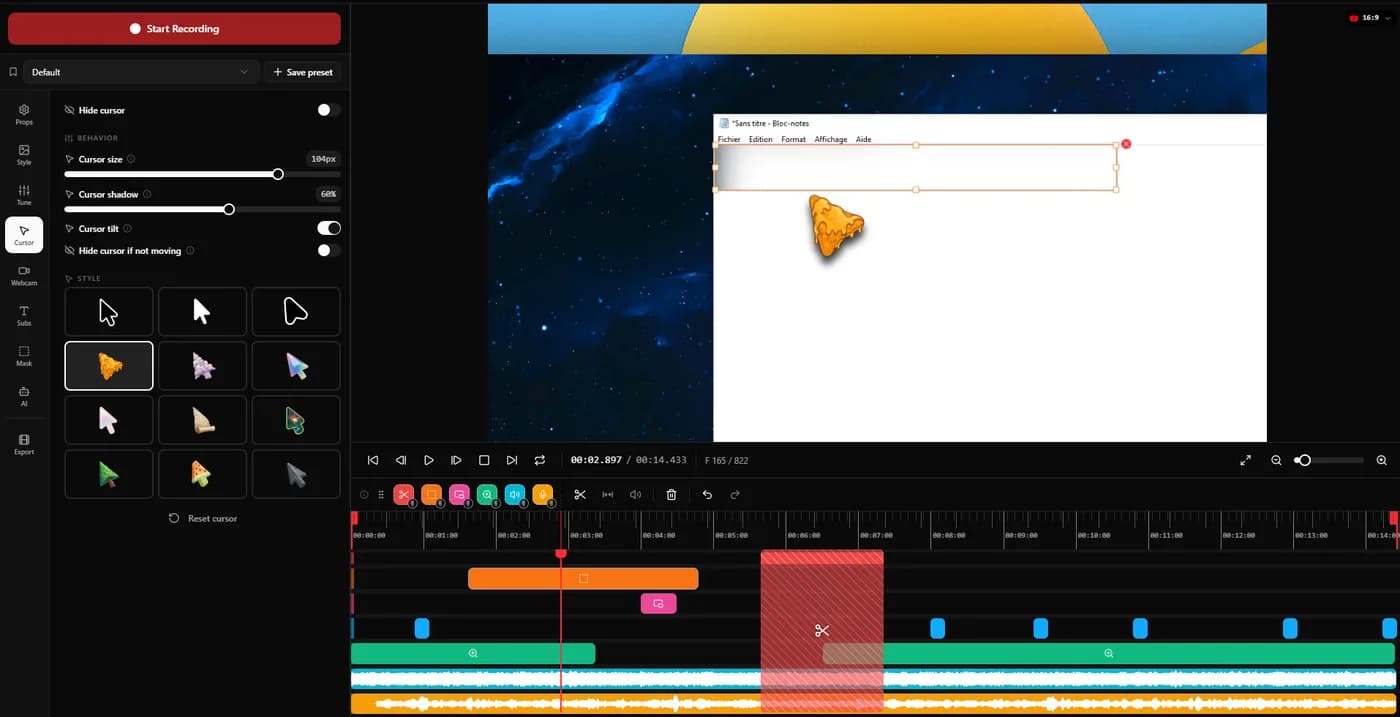
Automatic platform captions are serviceable for search and poor for retention, because they are styled by the platform and not by you. Word level captions with progressive highlight, at an opacity you set, are the effect people associate with well produced short video.
Transcription runs locally with a choice of model sizes, so nothing is uploaded before the video is finished. It is a Pro tier feature.
08Cut a vertical version from the same recording
Six aspect ratios include 9:16 and 1:1, so a vertical cut comes out of the same project rather than a second recording. For screen content the practical constraint is that a 16:9 interface cropped to 9:16 loses two thirds of its width, so the vertical version works best built around a zoomed segment.
That is a use for fixed-point zoom: set the target to the part of the interface the short is about, and the crop has something to hold.
Quick tips
- 01Record a thirty second test and export it fully before recording forty minutes. Settings mistakes are only visible at the end.
- 02Turn off notifications at the system level, not per app. The one you forget is the one that fires.
- 03Watch the first fifteen seconds on a phone. That is where the audience is decided.
- 04Keep a fixed background across videos. It does more for recognisability than an intro sequence.
- 05Export the vertical cut in the same session. You will not come back for it.
Frequently asked questions
- What resolution should I record a YouTube video at?
- Record and export at 4K when the video contains interface text, even if most of your audience watches at 1080p. YouTube gives 4K uploads a better encode, and small text is the first thing its compression damages. KlipKap Pro exports 4K on the Pro tier; the free tier is 720p with a watermark.
- Is 60 fps worth it for screen recording?
- For scrolling, dragging, animation or gameplay, yes. For a static interface where the picture only changes when you click, 30 fps looks the same and halves the file. KlipKap Pro offers 24, 30, 60 and 120 fps on the Pro tier.
- How do I make screen recorded audio sound better?
- Process it after recording rather than buying a microphone first. KlipKap Pro applies six voice controls at export, including adaptive noise suppression, voice clarity and a de-esser around 7 kHz, and because it runs on your own processor the length of the video does not affect the cost.
- Should I use YouTube captions or burn my own in?
- Platform captions help search; burnt in captions help retention, because you control the styling and the timing. Word level captions with progressive highlight are the effect most short form video uses, and in KlipKap Pro the transcription runs on your machine.
More ways people use KlipKap Pro
This guide is written by the team behind KlipKap Pro, a screen recorder and video editor for Windows 10 and 11 and macOS 13 or later. There is a permanent free tier at 720p if you want to try the workflow described here before paying for anything.