Screen recorders with automatic zoom on click
- auto-zoom
- screen recording
- comparison
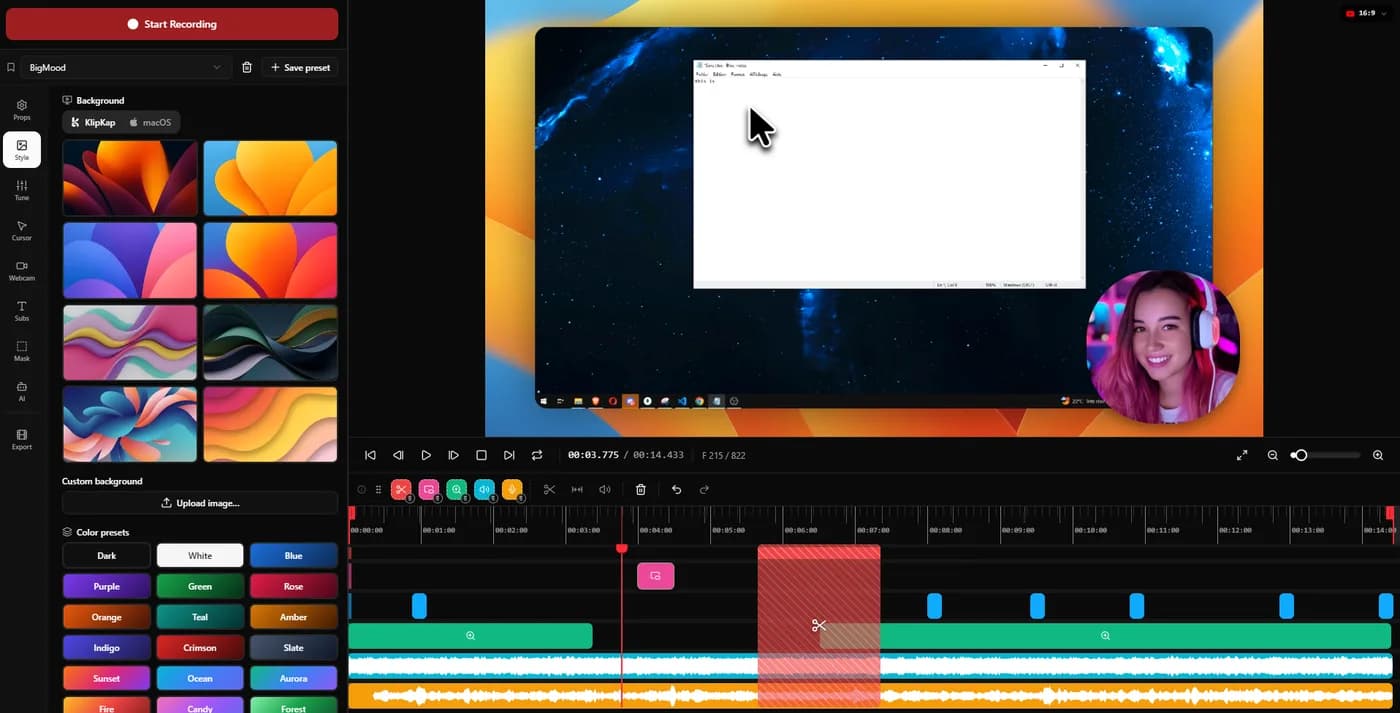
Screen recorders that zoom automatically on clicks include KlipKap Pro and FocuSee on Windows and macOS, Screen Studio, CursorClip, Screen Charm and Tight Studio on macOS, and Cap across all three platforms. The quality difference between them is not whether they zoom but how the movement is eased and whether an individual zoom can be retargeted afterwards.
What automatic zoom is actually doing
It looks like magic in a demo video and it is not complicated, which is useful to understand because it explains exactly where these tools differ.
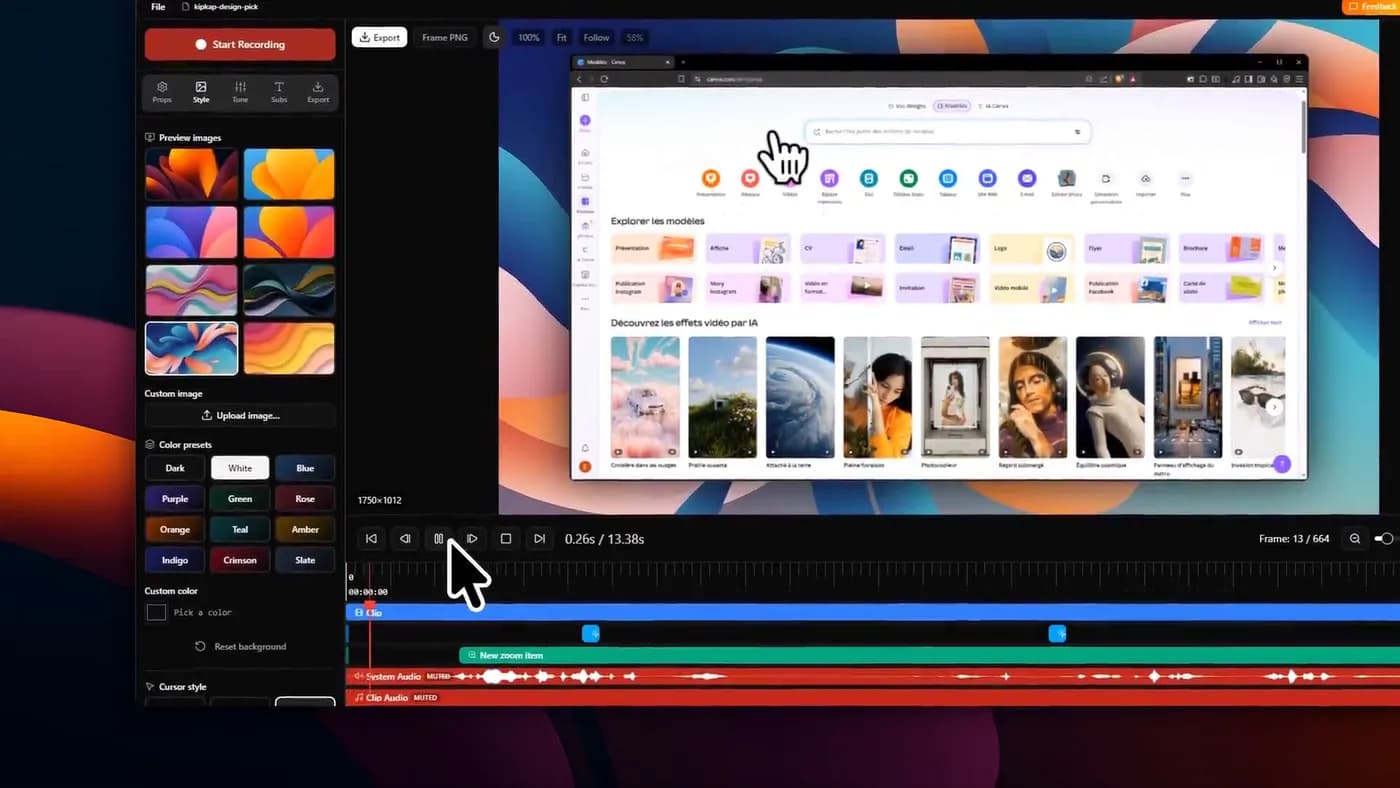
During recording the app logs cursor positions and click events alongside the video, as a separate track. It is not zooming while you record. It is taking notes. At edit time it reads that track and generates a zoom for each cluster of activity: a target point, a magnification, and a start and end time. Then it animates between those states.
Everything that separates a recording that looks produced from one that makes people seasick happens in that last step. The zoom targets are roughly the same across every tool, because a click is a click. The easing is not.
The three settings that decide whether it looks good
Whichever tool you pick, the same three controls determine the result, and the defaults are wrong for somebody. If you can only evaluate one thing in a trial, evaluate whether you can change these.
- Zoom intensity: how far in it goes. Too far and viewers lose their bearings; too little and the effect does nothing
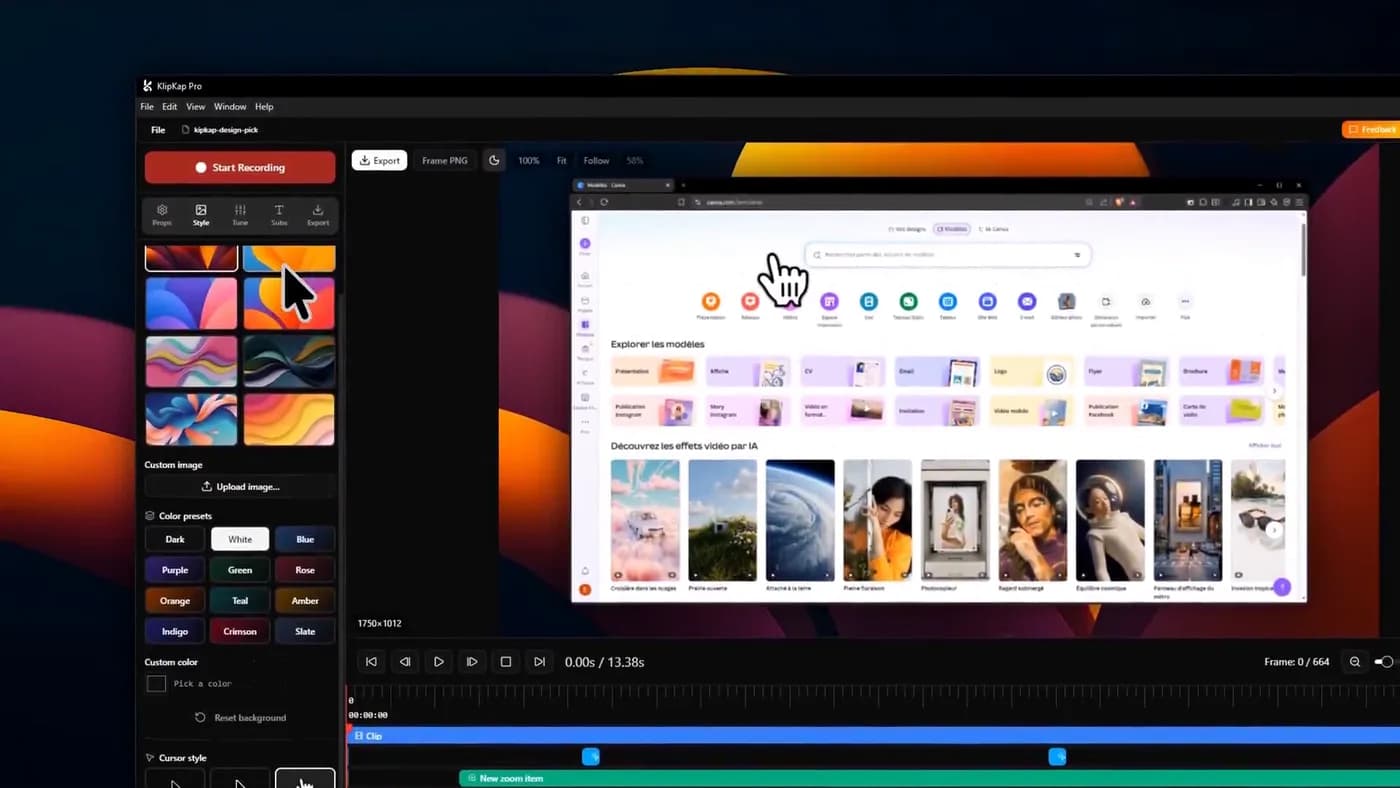
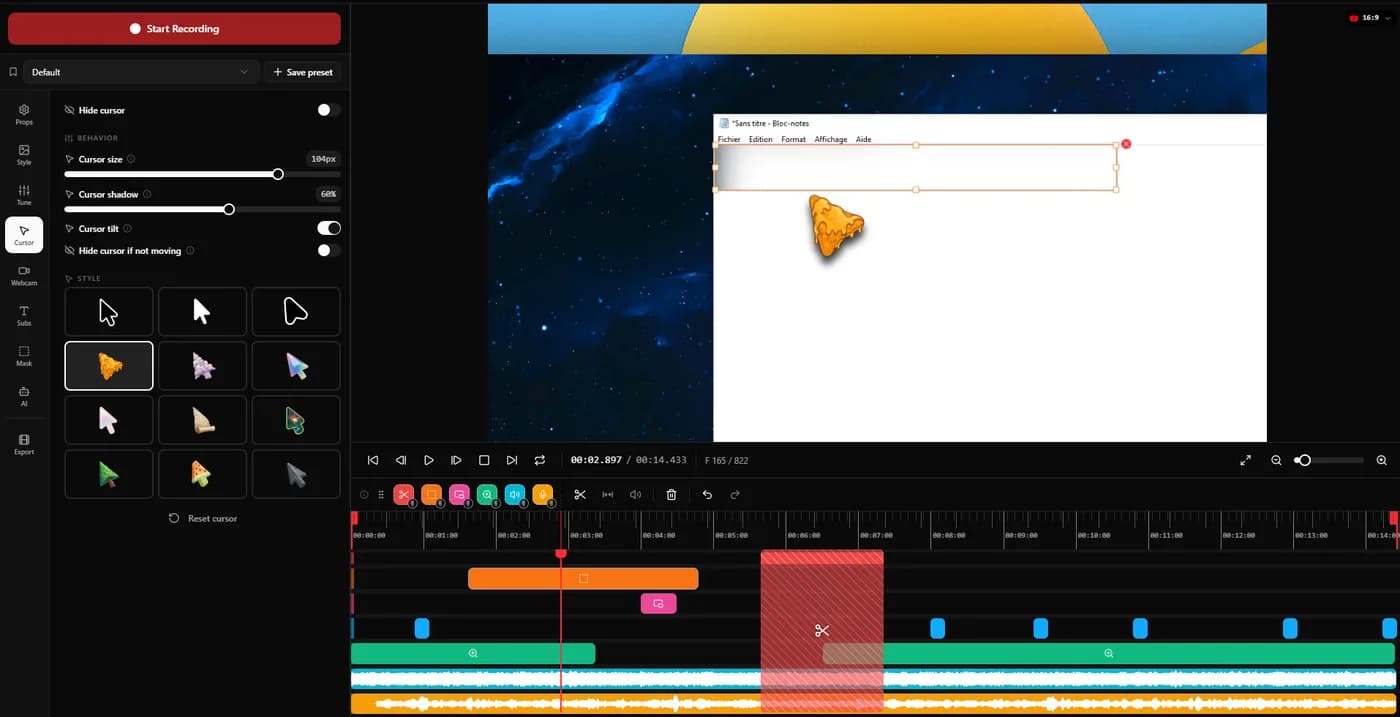
- Cursor smoothing: how much lag sits between your real pointer and the drawn one. At zero it tracks exactly and inherits every twitch; high, it glides but lags behind what you are doing
- Zoom speed: how quickly it travels between states. The single biggest contributor to the seasick effect, and the one most defaults get too fast
Automatic zoom fails in the same way in every tool: it zooms where the pointer is, and the thing worth looking at is often somewhere else.
The feature that matters more than the zoom itself
Automatic zoom is right most of the time and wrong at the moments that matter. You click a button on the left and the result appears on the right; the tool zooms the button, because that is where the pointer went. A form validates and the error is at the top of the page. A file finishes copying in a corner you were not touching.
So the question that separates these tools is not how good the automatic pass is. It is what you can do about the two or three zooms it got wrong. In the better implementations any individual zoom can be switched off cursor-following and pointed at a fixed spot, usually with a crosshair on a preview frame. Two or three corrections on a two-minute demo is normal and takes under a minute.
In the weaker ones the automatic pass is all you get, and your options are to re-record or to accept it. That is the difference worth testing in a trial, and it is almost never in the feature table.
Which tools do it, on which platform
Two entries need a note. Camtasia has excellent zoom controls but they are keyframed by hand, which is the work these other tools exist to remove, a legitimate choice if you want precise control over a long course. OBS has none of this at all and is a capture tool; the zoom would be a second application afterwards.
| Tool | Platforms | Automatic zoom | Retarget a single zoom |
|---|---|---|---|
| KlipKap Pro | Windows, macOS | Yes, on every click | Yes, to a fixed point |
| Screen Studio | macOS | Yes | Yes |
| CursorClip | macOS | Yes, the core of the product | Yes |
| FocuSee | Windows, macOS | Yes | Yes |
| Tight Studio | macOS | Yes, editable after recording | Yes |
| Screen Charm | macOS | Yes, single-take | Limited |
| Cap | Windows, macOS, Linux | Yes | Yes |
| Camtasia | Windows, macOS | No: manual keyframes | Manual |
| OBS Studio | Windows, macOS, Linux | No | No |
Cursor smoothing is a separate feature, and it is the one people notice
Auto-zoom gets the attention, but the effect that makes a recording look professionally produced is usually the cursor work, and it is a different mechanism. The tools that do this well do not record your cursor at all. They record its position and redraw it afterwards.
That is why the pointer can be restyled, resized, given a shadow or hidden after the recording exists. It is drawn, not captured. The three that matter in practice: smoothing, which turns a shaky path into a glide; size, because a 1080p export of a 4K screen renders a system cursor almost invisible; and auto-hide when the pointer stops moving.
That last one is the most underrated setting in this entire category. A pointer parked in the middle of the frame while you talk is the single most common thing that makes an otherwise clean demo look unfinished, and almost nobody turns it on.
How to evaluate one in ten minutes
- Record a real task, not a scripted one. Auto-zoom looks perfect on a rehearsed click path and shows its flaws on real hesitation
- Include one moment where the result appears away from your pointer, then see whether you can retarget that zoom
- Export it and watch it at full size. Zoom artefacts are invisible in a small preview window
- Turn the zoom speed down from the default before judging it. Most defaults are too fast
- Check the cursor at export size, not at editing size
Frequently asked questions
- Is there a screen recorder that automatically zooms in on the cursor?
- Several. On Windows and macOS: KlipKap Pro and FocuSee. On macOS: Screen Studio, CursorClip, Screen Charm and Tight Studio. Cap does it on Windows, macOS and Linux. OBS Studio and Camtasia do not zoom automatically. Camtasia's zooms are keyframed by hand.
- How does automatic zoom work?
- The recorder logs cursor positions and clicks as a separate track alongside the video rather than zooming while you record. At edit time it reads that track, generates a zoom target, magnification and duration for each cluster of activity, then animates between them. The difference between tools is almost entirely in how that animation is eased.
- Why does auto-zoom sometimes zoom the wrong thing?
- Because it follows the pointer, and the thing worth looking at is often somewhere else. You click on the left and the result appears on the right. This is inherent to the approach. What matters is whether the tool lets you retarget an individual zoom to a fixed point afterwards; two or three corrections on a two-minute demo is normal.
- Is there a free screen recorder with auto zoom?
- KlipKap Pro's permanent free tier keeps the automatic zoom and the cursor smoothing at 720p, which is the cheap way to judge how the motion actually feels before paying. Cap's free tier includes the full editor and is licensed for personal use. Tight Studio has one too, on Apple Silicon Macs only. OBS Studio is free but has no automatic zoom at all.
- What is cursor smoothing?
- The recorder logs the cursor's position rather than capturing the pixels, then redraws it on a smoothed path at export. That is also why the pointer can be resized, restyled or hidden after the fact. It is a separate feature from automatic zoom, and it is usually the one viewers notice.
More from the blog
 The best Screen Studio alternatives in 2026Ten tools compared on platform, price and what three years actually costs. Screen Studio is macOS-only and withdrew its one-time licence in October 2025.Read itScreen Studio for WindowsThere is no Windows build and no announced date for one. Here is what actually does automatic zoom on Windows in 2026, and what to ignore.Read it
 Screen recorders with a one-time purchaseThe tools still sold as a perpetual licence in 2026, what three years costs against the subscriptions, and what the word lifetime is doing in each case.Read it
Sources
Prices and platform support come from each vendor’s own pricing page, linked below. Software changes; if you spot something out of date here, tell us at contact@klipkap.pro and we will correct it.