The best screen recorders in 2026
- screen recording
- comparison
- buying guide
There is no single best screen recorder, because the four common jobs want different tools. For polished product demos, pick something with automatic zoom: KlipKap Pro, FocuSee, Screen Studio or CursorClip. For async updates, Loom. For courses and training, Camtasia. For livestreaming and full control over capture, OBS Studio, which is free. Start from what you are making, not from a feature list.
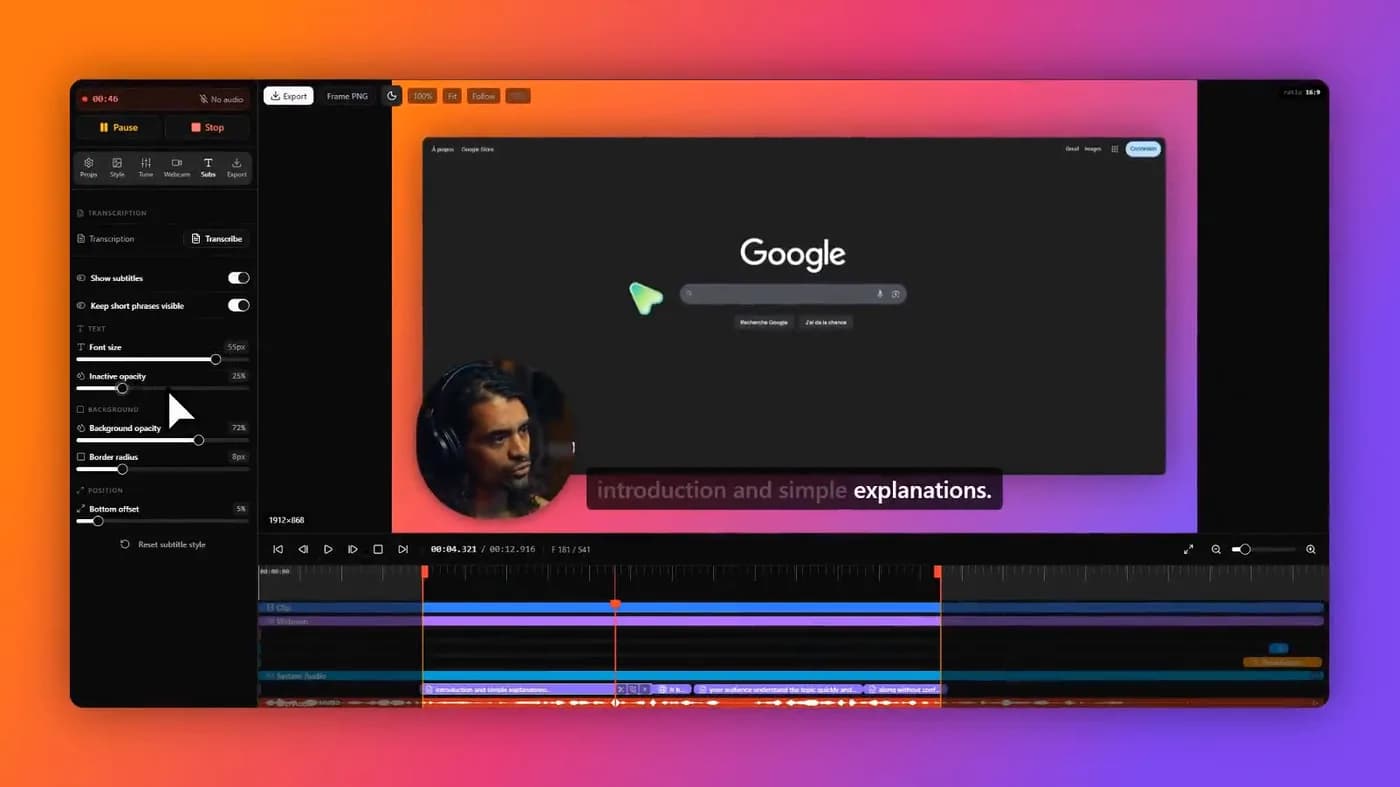
Three questions that settle it faster than a feature table
Screen recorders look interchangeable in a comparison grid and are not interchangeable in practice. Almost every wrong purchase in this category comes from reading the grid before answering these three.
What are you making? A product demo, a training course, a message to a colleague and a livestream are four different products, and the tools that lead at one are usually bad at another. Loom is excellent and would ruin a launch video. Camtasia is excellent and is far too much tool for a two-minute walkthrough.
Which machine? This narrows the field more than any feature does. Several of the best-regarded tools in this category are macOS only, and a Windows reader can discard them entirely before comparing anything.
Renting or buying? Most of this category moved to subscriptions. A handful still sell a perpetual licence. Over three years the gap between the two runs to several hundred dollars, which is larger than any feature difference on the list.
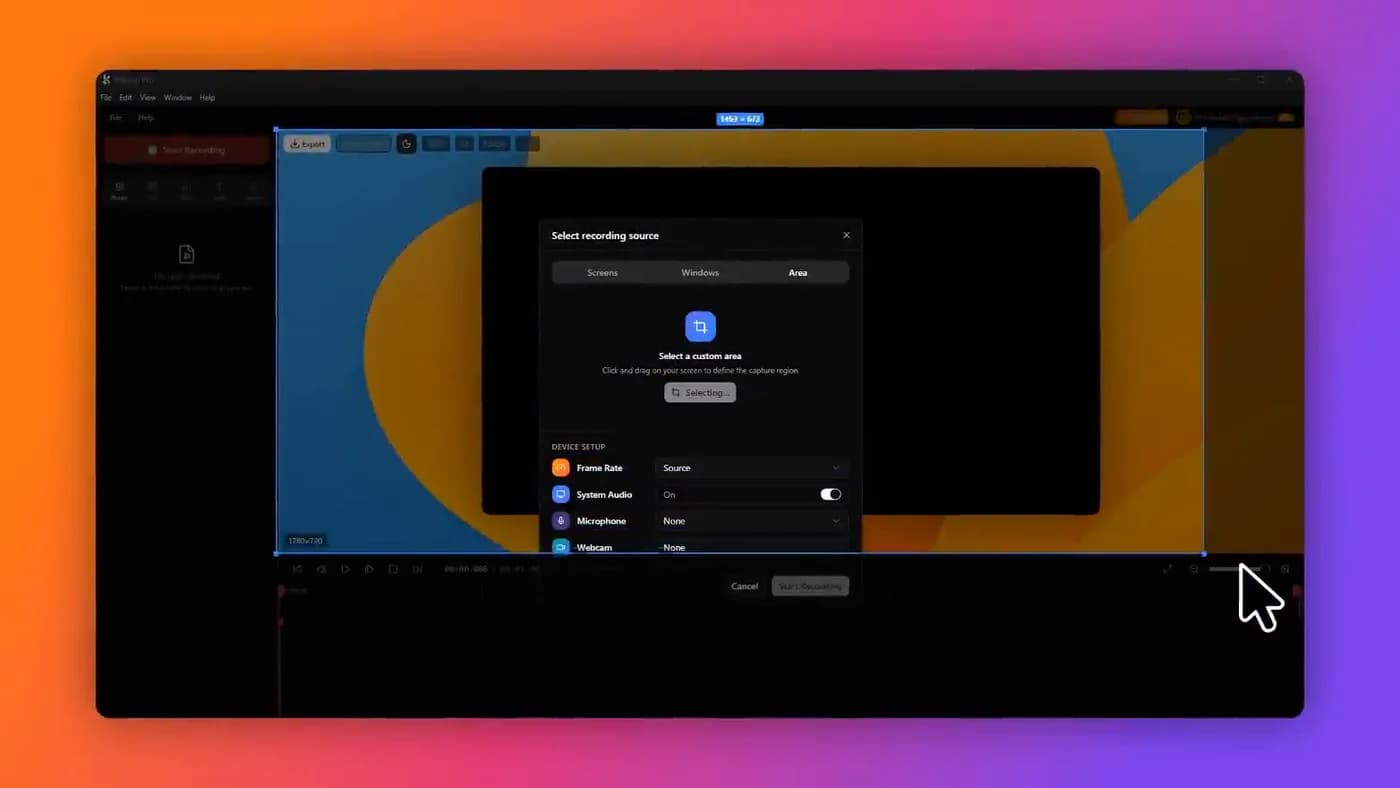
Pick the job first. A screen recorder that is excellent for async messaging is usually a poor choice for a launch video, and the feature grid will not tell you that.
The shortlist
Sorted by job rather than by rank, because a rank on a query this broad is mostly a claim about whose article you are reading. Prices come from each vendor's own page on the dates listed at the foot of this article.
| If you are making | Use | Platforms | Pricing |
|---|---|---|---|
| Product demos, polished | KlipKap Pro, FocuSee, Screen Studio, CursorClip | Varies, two of these are macOS only | One-time or subscription |
| Async updates for a team | Loom | Windows, macOS, web | Subscription per creator |
| Courses and training | Camtasia | Windows, macOS | Subscription |
| Livestreams and scene mixing | OBS Studio | Windows, macOS, Linux | Free |
| Founder and talking-head video | Tella | Windows, macOS, web | Subscription per user |
| Quick captures and annotation | CleanShot X, ShareX | macOS / Windows | One-time / free |
| Anything, on zero budget | OBS Studio, Cap, Tight Studio | Varies | Free |
For product demos: the automatic-zoom tools
This is the category that grew fastest over the last two years and the one most people mean when they search for a screen recorder in 2026. The idea is simple: the app logs your clicks and cursor path as a separate track while recording, then generates the zooms, the cursor smoothing and the framing afterwards, without you touching a timeline.
The result is a recording that looks edited when it is not, and the difference against a raw capture on a launch page is large enough that it has effectively become the baseline expectation.
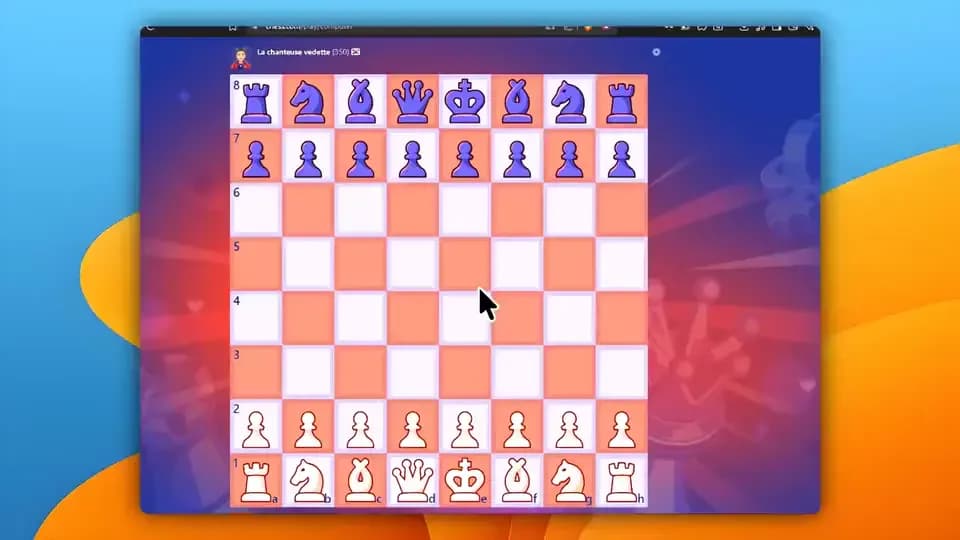

1. KlipKap Pro
Windows and macOS, one payment, AI that runs on your machine
- Platforms
- Windows 10/11, macOS 13+
- Price
- $25.49 once
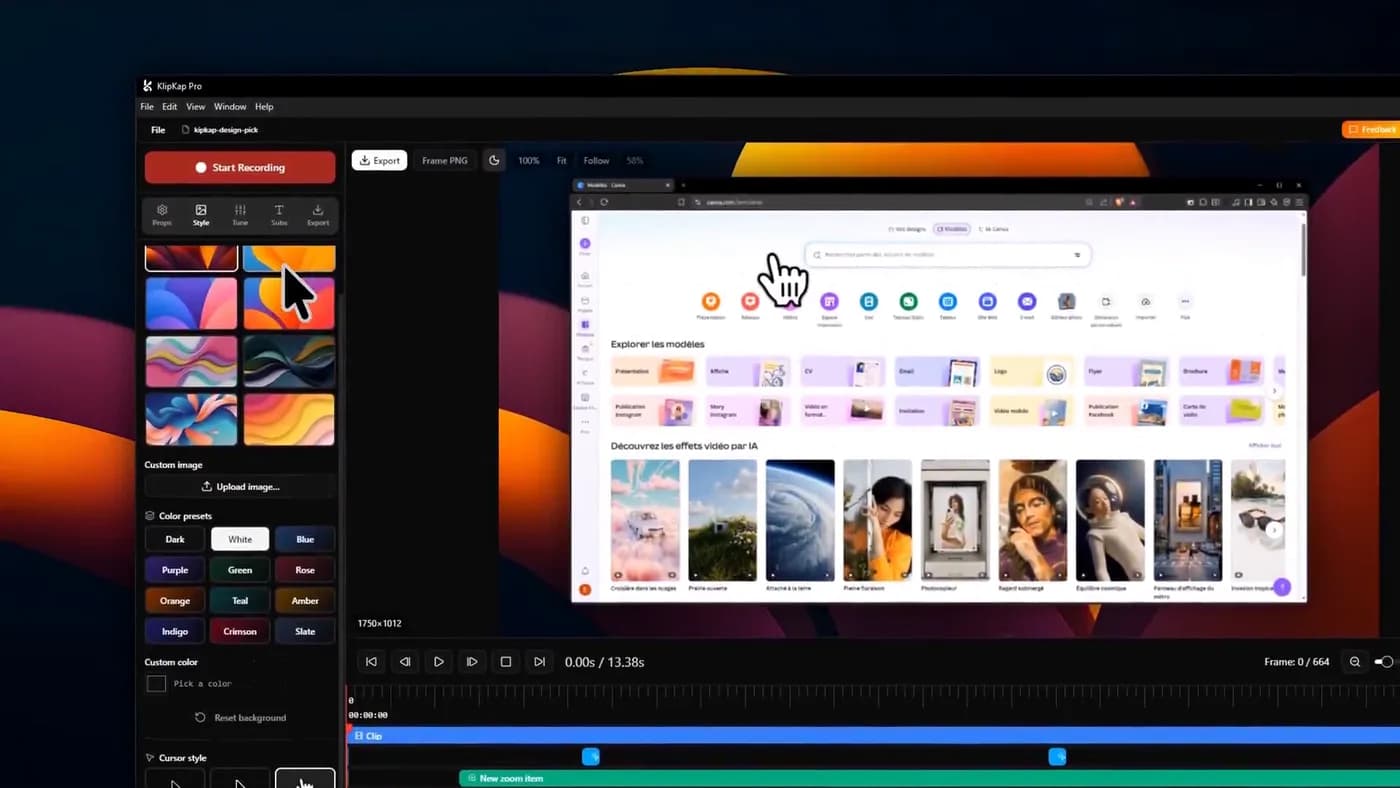
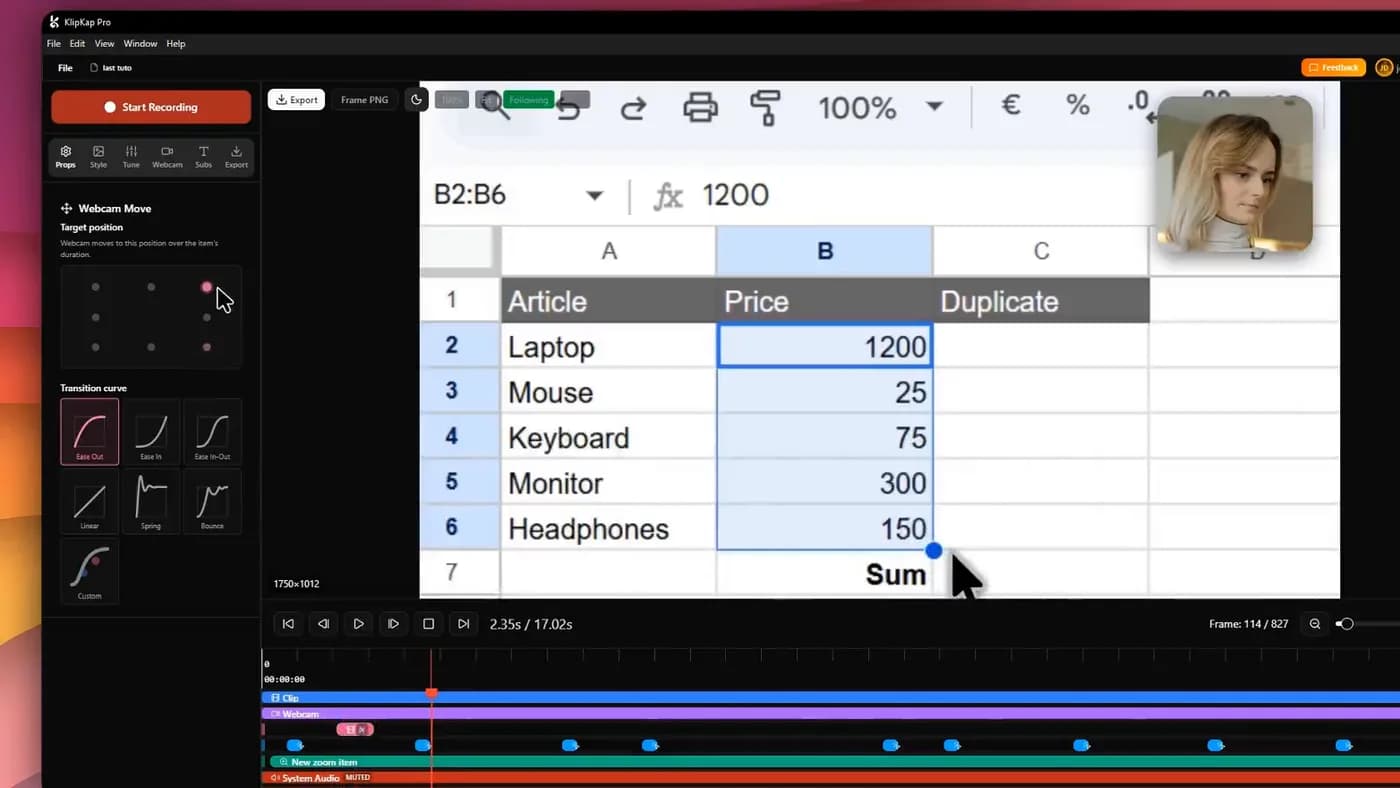
Automatic zoom on every click, cursor smoothing, backgrounds and padding around the recorded window, and a timeline for correcting the zooms the automatic pass put in the wrong place.
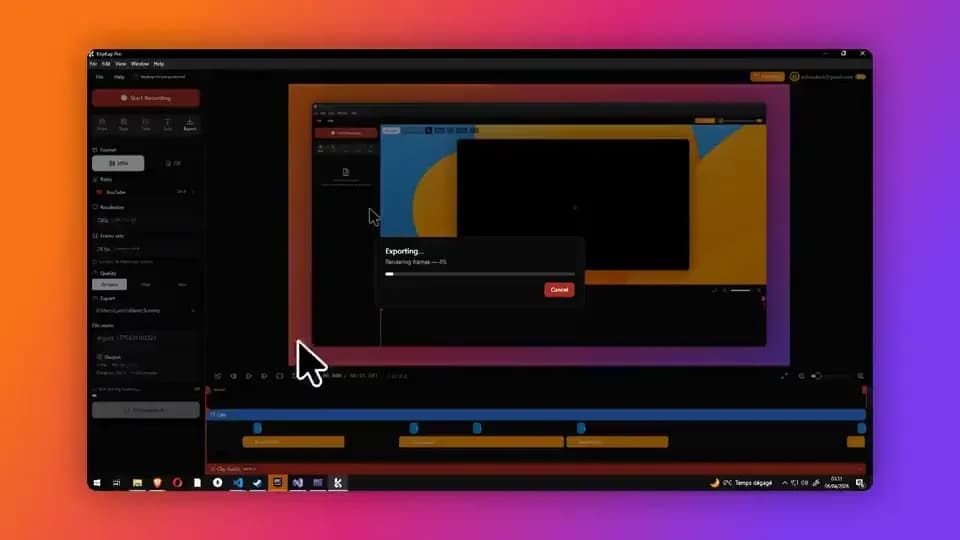
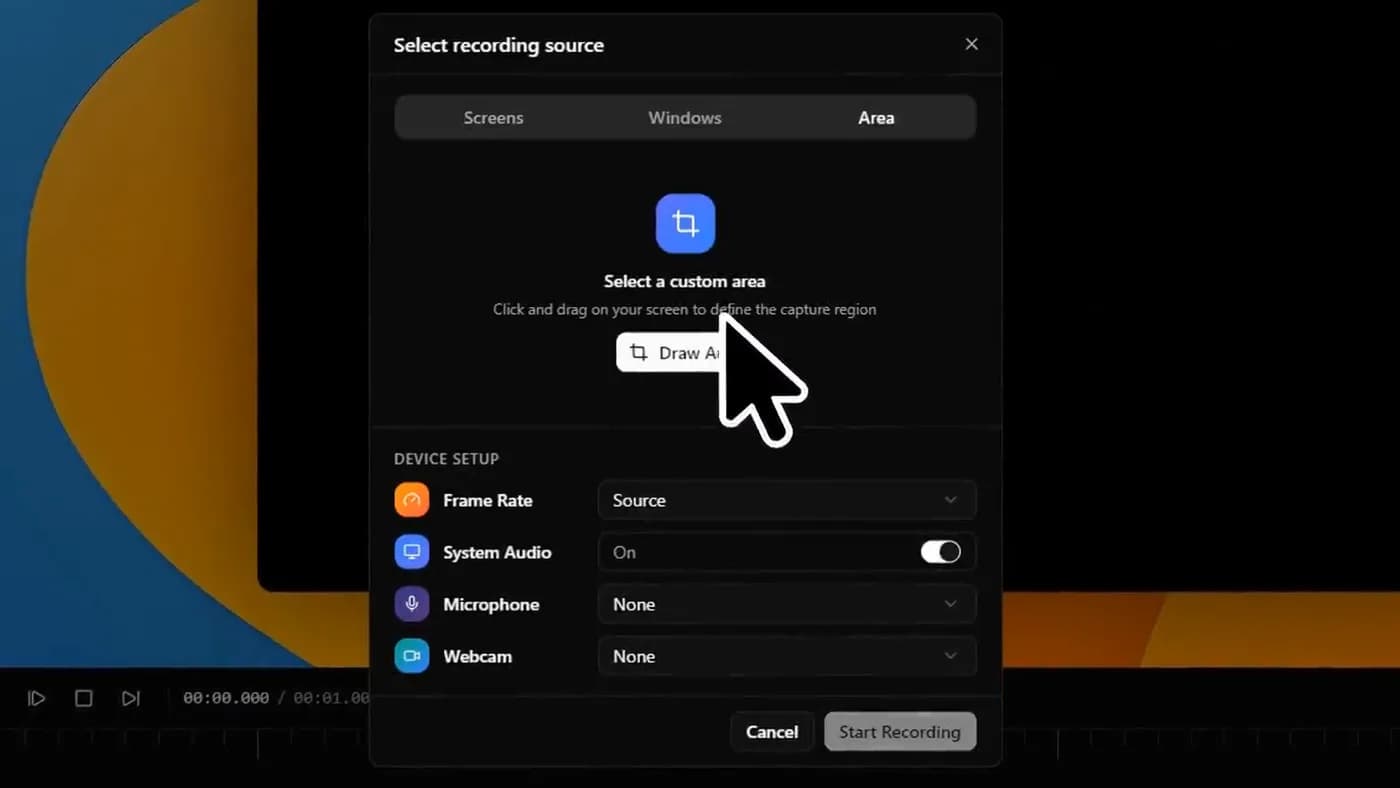
Two things separate it from the rest of this group rather than one. It is a one-time purchase covering both Windows and macOS with all future updates. And the AI runs locally: subtitles transcribed on your own device in over fifty languages with no API key, no account and no per-minute credits, and the same for the noise removal. Recording, editing, transcription and export all execute on your machine and the footage is not uploaded, though a connection is needed to download the app, activate a licence and export with a Pro account.
Permanent free tier at 720p with a watermark, keeping the zoom and cursor work, which is the cheap way to find out whether the behaviour suits you.
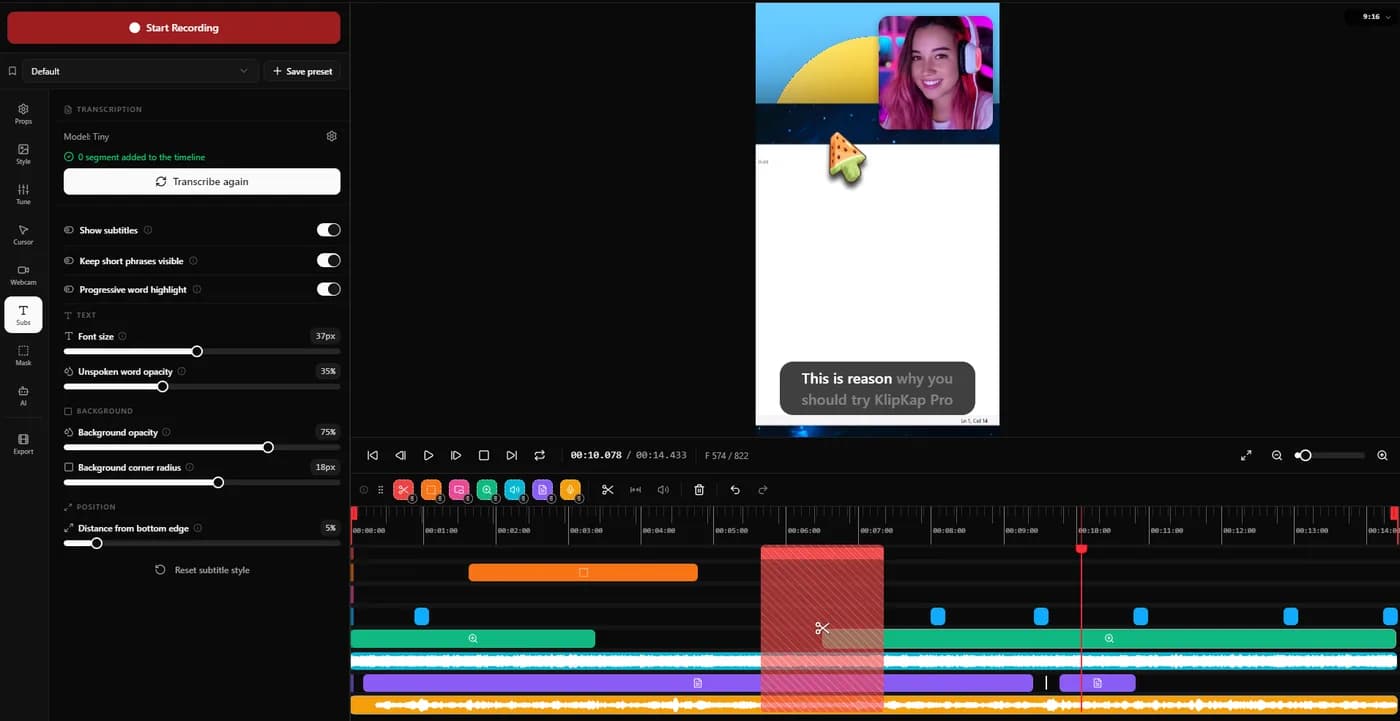
In its favour
- One account covers every machine you own, Windows and macOS, with no device limit
- A bespoke effects engine, written from scratch rather than built on a shared foundation
- One payment, both platforms, all future updates
- Local subtitles and noise removal, with no credits
- Permanent free tier rather than a trial
What you give up
- No Linux build today
- Exports a file rather than a share link
- Younger than the established names here

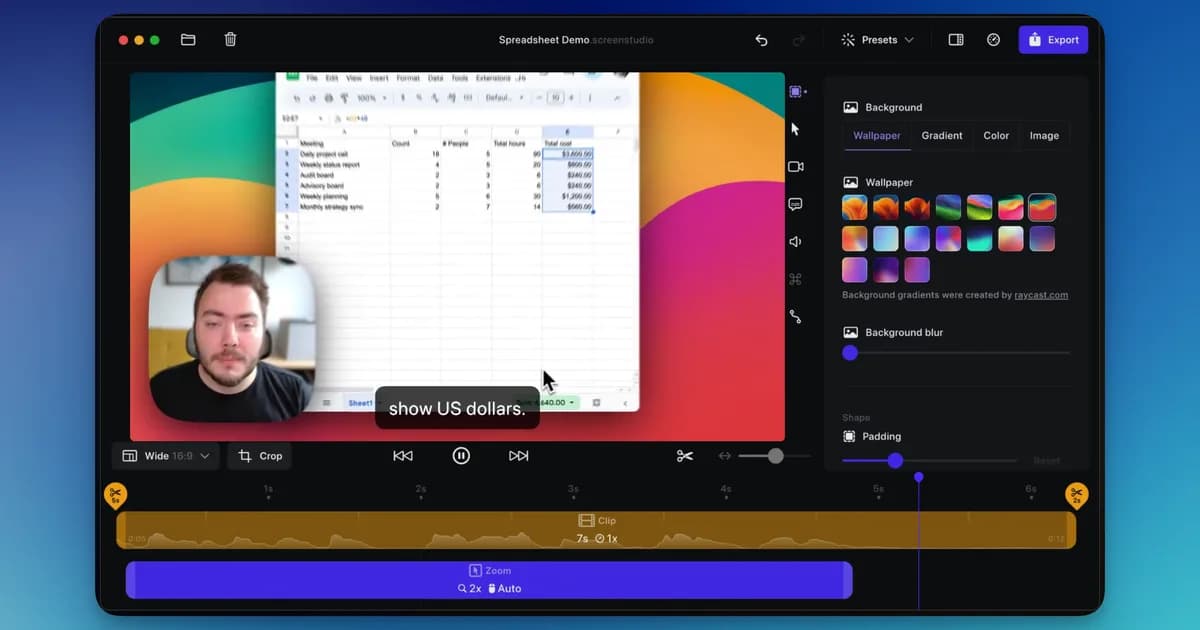
2. Screen Studio
The most mature of the group, on macOS only
- Platforms
- macOS only
- Price
- $9/month billed annually, or $29/month
The product that defined this category, and still the best-tuned set of defaults in it. Its handling of vertical export (re-deriving every zoom for a 9:16 crop rather than cropping the finished frame) remains the best implementation anyone has shipped.
Two constraints decide whether it is on your list at all. It is macOS only, with no Windows build at any price. And it is a subscription: the one-time licence it used to sell was withdrawn for new customers in October 2025.
In its favour
- The most mature product in the category
- Best-tuned defaults and best vertical export
- Deepest track record
What you give up
- macOS only, with no Windows build announced
- Subscription; the one-time licence is gone for new buyers
- No permanent free tier
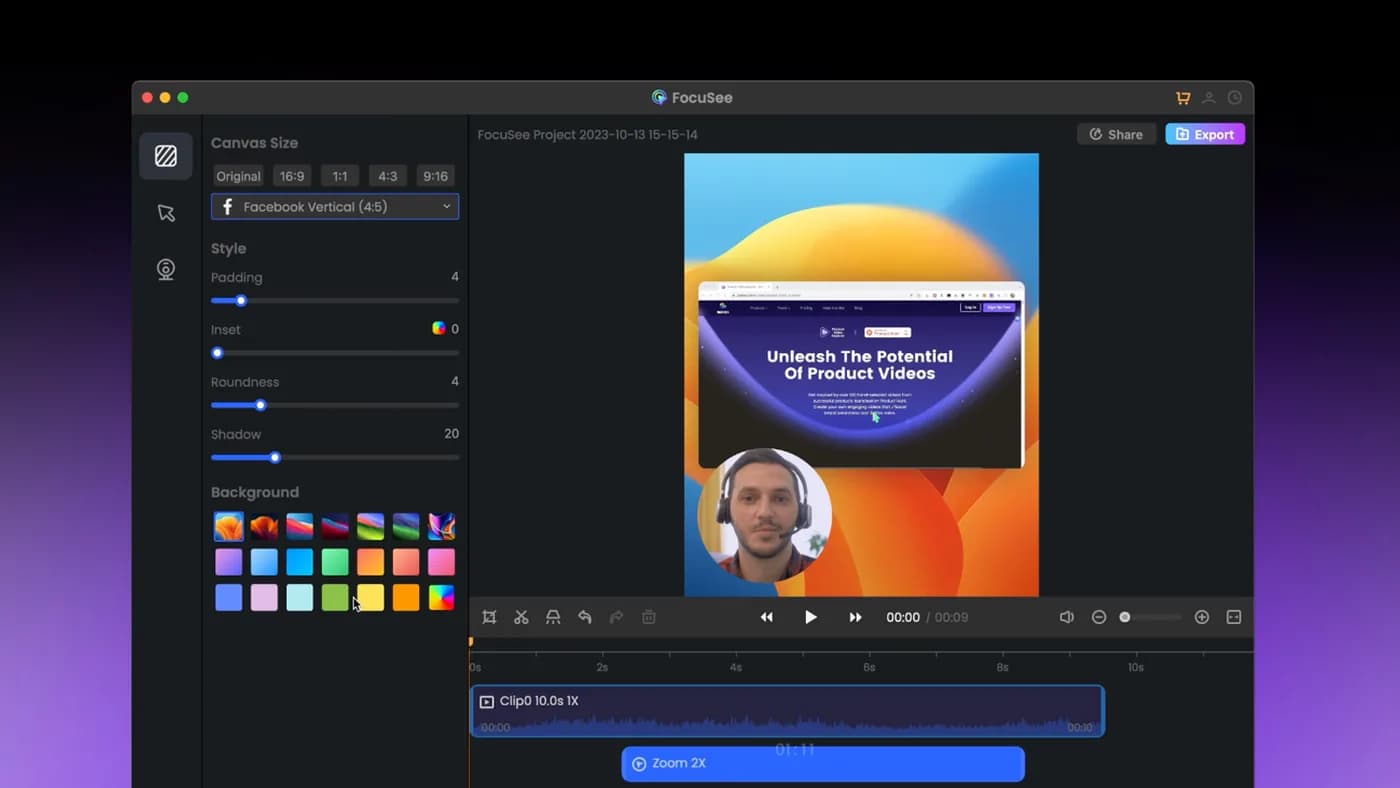
3. FocuSee
Closest feature match that ships on Windows
- Platforms
- Windows and macOS
- Price
- $49.99/year (Standard), $79.99/year (Advanced), $199.99 lifetime
Automatic zoom on clicks, dynamic backgrounds, and genuine builds for both Windows and macOS. For a Windows reader who wants the Screen Studio feature set, this is the nearest thing that exists.
Read its lifetime option carefully rather than treating it as a one-time purchase: it covers version 2.x, the next major version is a paid upgrade, and its AI credits expire annually.
In its favour
- Real Windows and macOS builds
- Feature set close to Screen Studio's
- A lifetime option exists
What you give up
- Lifetime covers one major version
- AI credits expire after a year
- No permanent free tier

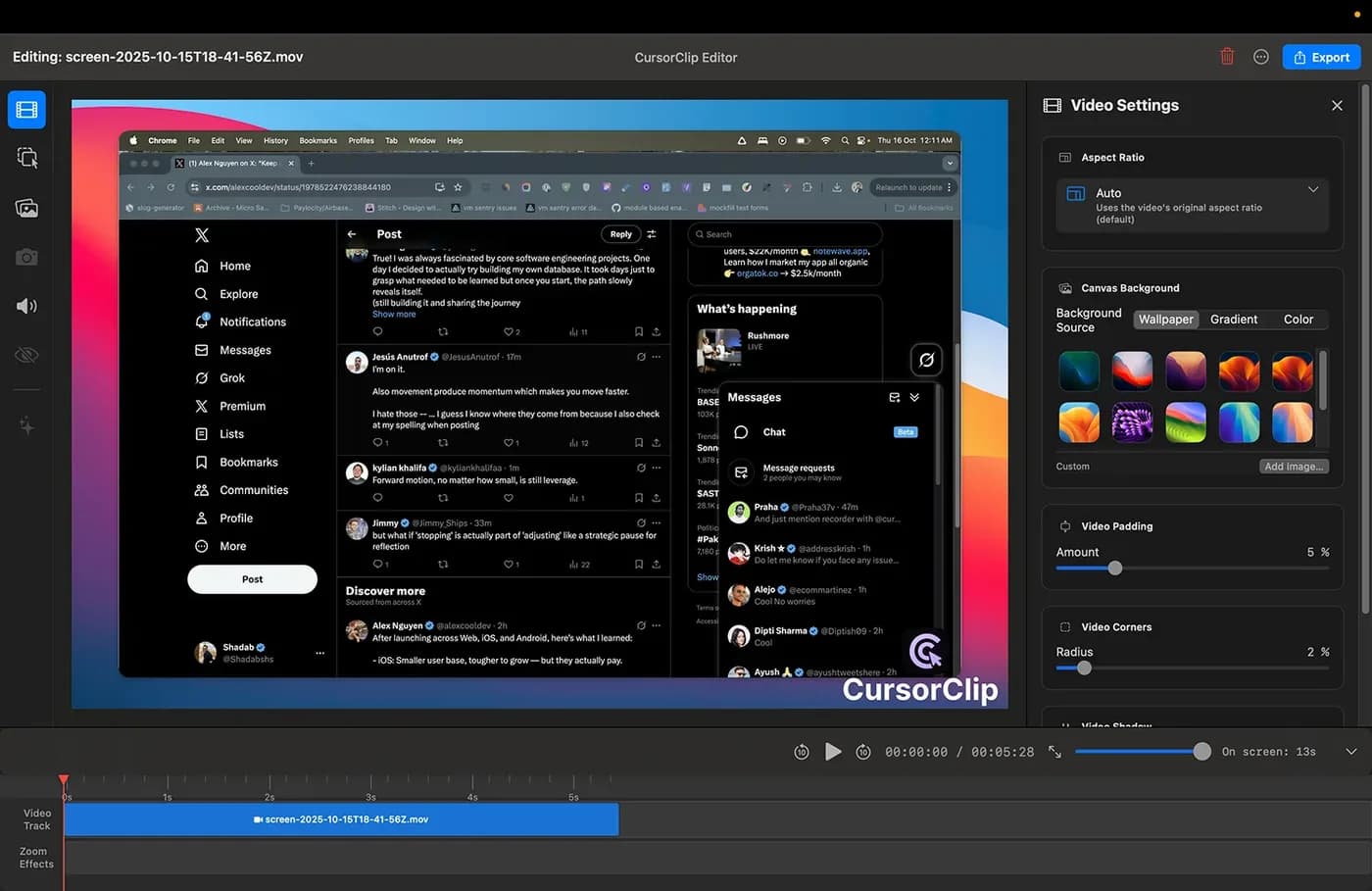
4. CursorClip
A Mac perpetual licence, narrow and fast
- Platforms
- macOS 13.5 or later
- Price
- $70 once, or plans from $9/month
Cursor-follow zoom is the entire product rather than one feature inside a larger app, and it shows: a small native binary, fast to launch, 4K at 60fps out. Sold once, with no account and no cloud.
macOS 13.5 or later and no Windows version planned. Its price moved between our two checks ten days apart, which is why the date beside every figure on this site matters.
In its favour
- One payment, no account
- Free until export
- Small, fast, native
What you give up
- macOS only
- Narrow by design
- Price rising
For sending someone a video: Loom

1. Loom
The right answer when the goal is a link, not a file
- Platforms
- Web, desktop app, browser extension
- Price
- $15/creator/month billed annually, or $18/month
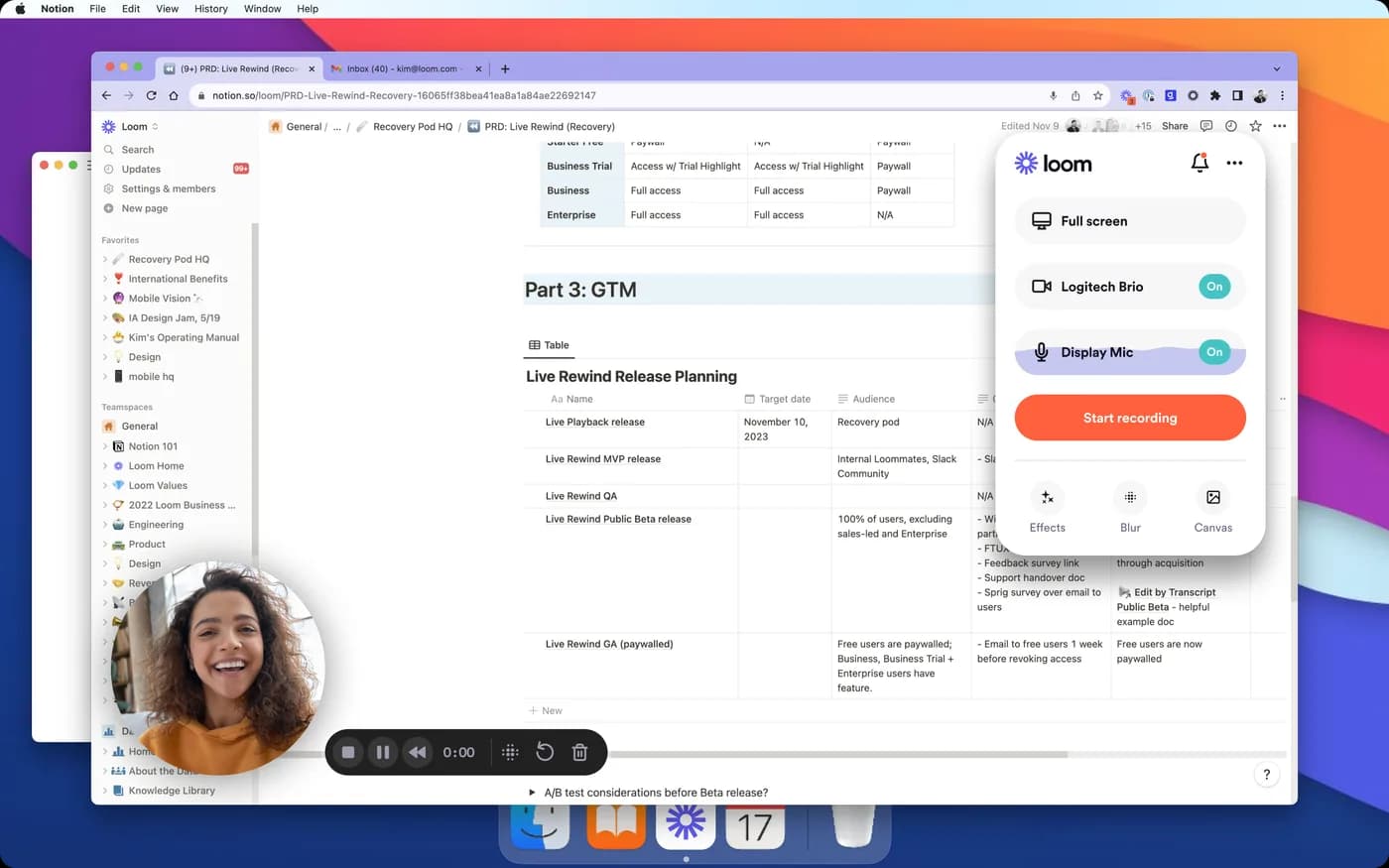
If what you need is to explain something to a colleague or a customer today, stop comparing and use Loom. Record, stop, and the link is already on your clipboard. Nobody exports anything, nobody downloads anything, and the viewer needs no account.
It deliberately does not do the polish. No cinematic zoom, no cursor smoothing. Recordings live on Loom's servers, which rules it out for customer screens and internal systems, and it bills per creator, so the cost scales with headcount rather than with usage.
In its favour
- Fastest path from recording to a viewer
- No export step at all
- Free tier of 25 videos, five minutes each
What you give up
- No automatic zoom or cursor smoothing
- Recordings stored on Loom's servers
- Priced per creator
For courses and training: Camtasia

1. Camtasia
A real editor, when the video is a lesson
- Platforms
- Windows and macOS
- Price
- From $179.88/year (Essentials)
Two decades of training-content features behind it: a genuine multi-track editor, effects, quizzes, SCORM export and detailed audio repair. If your output is a course rather than a demo, nothing else in this article is close.
The trade-off is that the polish is manual. You keyframe the zooms yourself, which is exactly the work the tools above remove. It is also the most expensive option here, and that depth is wasted on a two-minute walkthrough.
In its favour
- Genuine multi-track editing
- Quizzes and SCORM export
- Windows and macOS
What you give up
- Zooms are manual keyframes
- Most expensive option in this article
- Far more tool than a demo needs
What zero budget actually costs
Three genuinely free answers, and they are not interchangeable.
OBS Studio is free without qualification on all three platforms and is the standard for livestreaming and scene mixing. It has no editor, no automatic zoom and no cursor treatment, so the polish is a second application and an evening. Cap is open source with a perpetual free tier that includes the full editor, licensed for personal use, so it covers learning and does not cover client work. Tight Studio is the third, on Apple Silicon Macs only, with the AI features that distinguish it metered on the free tier and gated to its top plan.
On Windows specifically, ShareX deserves a mention that it rarely gets in articles like this. It is free, open source, Windows only, has been in active development for eighteen years, and does screen recording and GIF capture alongside the screenshot tools it is better known for. It does no automatic zoom.

1. OBS Studio
Free, and the standard for livestreaming
- Platforms
- Windows, macOS, Linux
- Price
- Free
Unmatched control over sources, audio routing and output, on Windows, macOS and Linux, with no paid tier of any kind.
It captures what happened. Turning that into a polished demo is a second tool and manual work, so 'OBS is free' is true and frequently the wrong recommendation: the cost moved into your evening rather than disappearing.
In its favour
- Free with no conditions
- All three platforms
- Total control over capture
What you give up
- No editor, no auto-zoom
- Steep setup
- Needs a second tool for polish

2. Tight Studio
Retargetable zooms, Apple Silicon only
- Platforms
- macOS on Apple Silicon only, Windows on a waitlist
- Price
- $9/month (Plus) or $24/month (Pro), both billed yearly
Auto-zoom and cursor animation with zooms that stay editable after recording, on Apple Silicon Macs only. Its own FAQ states it supports Apple chip Macs alone, so an Intel Mac is not a cheaper option here, it is not an option.
macOS only, with Windows on a waitlist rather than in a build, and the AI features that distinguish it are metered free and gated to the top plan.
In its favour
- Auto-zoom included free
- Captions at the free tier
What you give up
- macOS only
- AI metered and gated
- Windows is a waitlist
What each one costs over three years
Headline prices are not comparable when some are paid once and some every year. Three years is roughly how long people keep a tool like this, and it reorders the list considerably. These totals are ours, derived from the sourced vendor prices below; the per-year figure is shown so the sums can be checked.
| Tool | Billing | Three-year total |
|---|---|---|
| OBS Studio | Free | $0 |
| ShareX | Free | $0 |
| KlipKap Pro | $25.49 once | $25.49 |
| CleanShot X | $29 once, 1 year of updates | $29 |
| CursorClip | $70 once | $70 |
| Cap | $29 a year | $87 |
| FocuSee | $49.99 a year | $149.97 |
| Screen Studio | $108 a year | $324 |
| Tight Studio | $108 a year (Plus) | $324 |
| Tella | $156 a user, a year | $468 |
| Camtasia | $179.88 a year | $539.64 |
| Loom | $180 a creator, a year | $540 |
The short version
- Polished product demos, on Windows: KlipKap Pro or FocuSee
- Polished product demos, on macOS: Screen Studio for maturity, CursorClip or KlipKap Pro to pay once
- Sending a colleague a video today: Loom, and stop reading
- Courses, quizzes, training: Camtasia
- Livestreams, scenes, audio routing: OBS Studio
- Trying before paying: KlipKap Pro, whose free tier is permanent on both platforms and keeps the automatic zoom
- Recording a customer's screen or internal systems: rule out anything that uploads by default
Frequently asked questions
- What is the best screen recorder in 2026?
- It depends on what you are making. For polished product demos, the automatic-zoom tools: KlipKap Pro and FocuSee on Windows and macOS, Screen Studio and CursorClip on macOS. For async updates, Loom. For courses, Camtasia. For livestreaming, OBS Studio. A tool that leads at one of those is usually a poor choice for another.
- What is the best free screen recorder?
- OBS Studio is free on all three platforms with no restrictions, but does no automatic zoom and includes no editor. KlipKap Pro's free tier runs on Windows and macOS and keeps the automatic zoom at 720p. On Windows, Cap is open source and free for personal use, and ShareX is free with no conditions but does no zoom work.
- What is the best screen recorder with automatic zoom?
- On Windows and macOS: KlipKap Pro and FocuSee. On macOS: Screen Studio, CursorClip, Screen Charm and Tight Studio. Cap does it across Windows, macOS and Linux. The differences between them are less about whether they zoom than about how the movement is eased and whether a single zoom can be retargeted afterwards.
- Do I need a paid screen recorder?
- Not to record. Every operating system ships something, and OBS Studio is free and more capable than most paid tools at capture. You are paying for what happens after the recording (automatic zoom, cursor smoothing, captions, backgrounds) which is roughly an evening of manual editing per video if you do it yourself.
- Which screen recorders work on both Windows and Mac?
- KlipKap Pro, FocuSee, Cap, Tella, Loom, Camtasia and OBS Studio all ship builds for both. Screen Studio, CursorClip, Screen Charm, Tight Studio and CleanShot X are macOS only; ShareX is Windows only.
More from the blog
 The best screen recorders for WindowsWhat is built into Windows already, what is worth installing, and the two settings that decide whether your export looks sharp or soft.Read it
 The best screen recorders for MacmacOS has the deepest field in this category and already records screens for free. Which of the eight is right depends on what you are making.Read itThe best Loom alternatives in 2026Loom bills per creator and stores your recordings. Whether an alternative fits depends on which half of Loom you actually use, the recording or the hosting.Read it
Sources
Prices and platform support come from each vendor’s own pricing page, linked below. Software changes; if you spot something out of date here, tell us at contact@klipkap.pro and we will correct it.
- Screen Studio: pricing and platforms
- CursorClip: pricing and platforms
- FocuSee: pricing and platforms
- Tight Studio: pricing and platforms
- Cap: pricing and platforms
- Tella: pricing and platforms
- Loom: pricing and platforms
- Camtasia: pricing and platforms
- OBS Studio: pricing and platforms
- CleanShot X: pricing and platforms
- ShareX: free and open source, Windows only