Offline screen recorders that never upload your footage
- privacy
- offline
- local processing
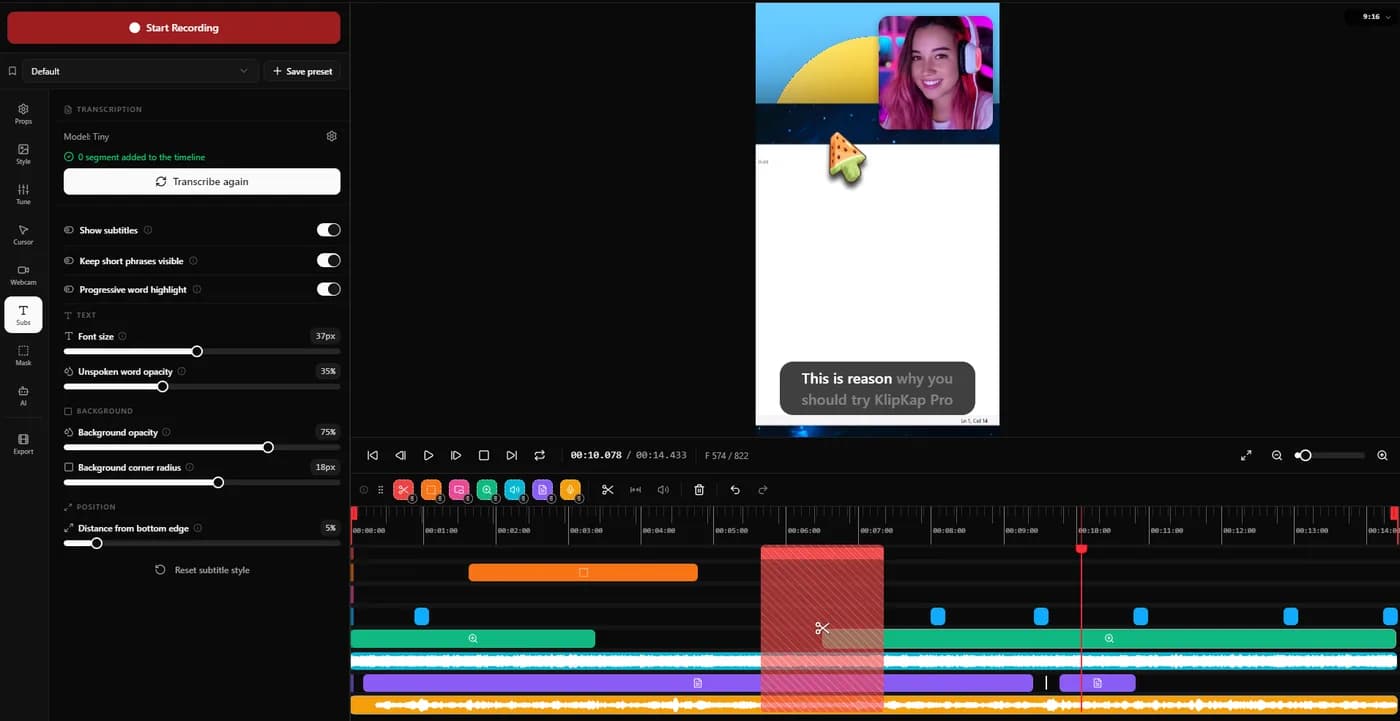
Screen recorders that keep footage on your machine by default include KlipKap Pro, OBS Studio, Cap, CursorClip and Screen Charm. Loom is built around uploading and stores recordings on its servers. The distinction that matters is not where the file is saved but where the processing happens: a recorder can write locally and still send your audio to a server for transcription.
Offline is two questions, not one
Almost every recorder will tell you your recordings are private. The claim is usually true and usually answers a narrower question than the one you are asking, so it is worth separating the two before comparing anything.
The first question is where the file is stored. Does stopping the recording write an MP4 to your disk, or does it upload to a server and hand you a link? This is the one most articles cover, and it is the easier of the two.
The second question is where the processing happens, and it is the one that actually catches people. A recorder can write the video to your disk and still send the audio to a server to generate subtitles, or push a frame to an API to remove a background. Subtitles are the usual culprit, because good speech recognition is expensive and running it in the cloud is the cheap way to ship it. If your recording contains a customer's data, a patient record or an unreleased product, 'the file is stored locally' does not cover you: the audio still left.
The signal to look for is billing. If a tool meters its AI features by the minute, or sells credits, or asks for an API key, the processing is happening somewhere you are not. Meters exist because somebody is paying per use, and nobody pays per use for your own CPU.
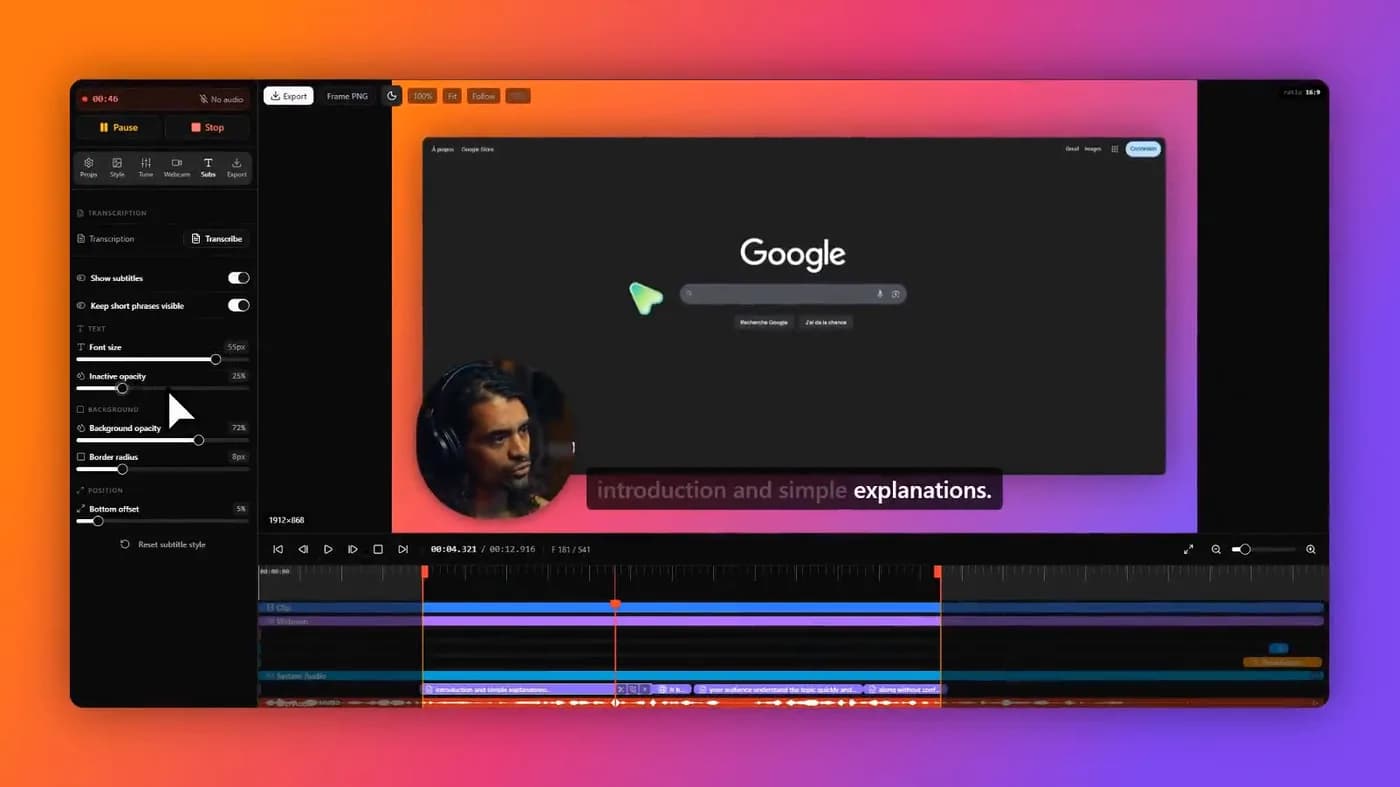
If a recorder meters its subtitles by the minute or sells AI credits, the transcription is running on somebody else's server, whatever the storage page says.
The two-minute test that settles it
You do not have to take anyone's word for this, including ours. There are two checks, and between them they answer both questions above.
The blunt test: disconnect from the network, then try to complete a full cycle. Record something, generate subtitles, export. Anything that depends on a server fails immediately and visibly. This is the more useful of the two because it tests the whole chain rather than one moment.
The precise test: watch the connections while you work. On Windows, open Resource Monitor and use the Network tab to filter by the recorder's process. On macOS, an outbound firewall such as Little Snitch or the open-source LuLu will prompt on every connection attempt and name the destination. Run a recording with subtitles through it and watch what it tries to reach.
Read the results with some care, because a couple of connections are normal and innocent. An update check, a licence validation and a crash reporter are all ordinary, none of them carries your footage, and treating any connection as a failure will just make you distrust every tool equally. What you are looking for is a sustained upload while a recording or a transcription is running. That is the one that means your data is in flight.
- Windows: Resource Monitor, Network tab, filter by the recorder's process
- macOS: Little Snitch or LuLu, then watch the prompts during a transcription
- Either: pull the network and try to record, transcribe and export end to end
- Expect to see: update checks, licence validation, crash reports
- Look for: a sustained upload while recording or transcribing
What passes, and with what caveats

1. KlipKap Pro
Local recording, local editing, local AI
- Platforms
- Windows 10/11, macOS 13+
- Price
- $25.49 once
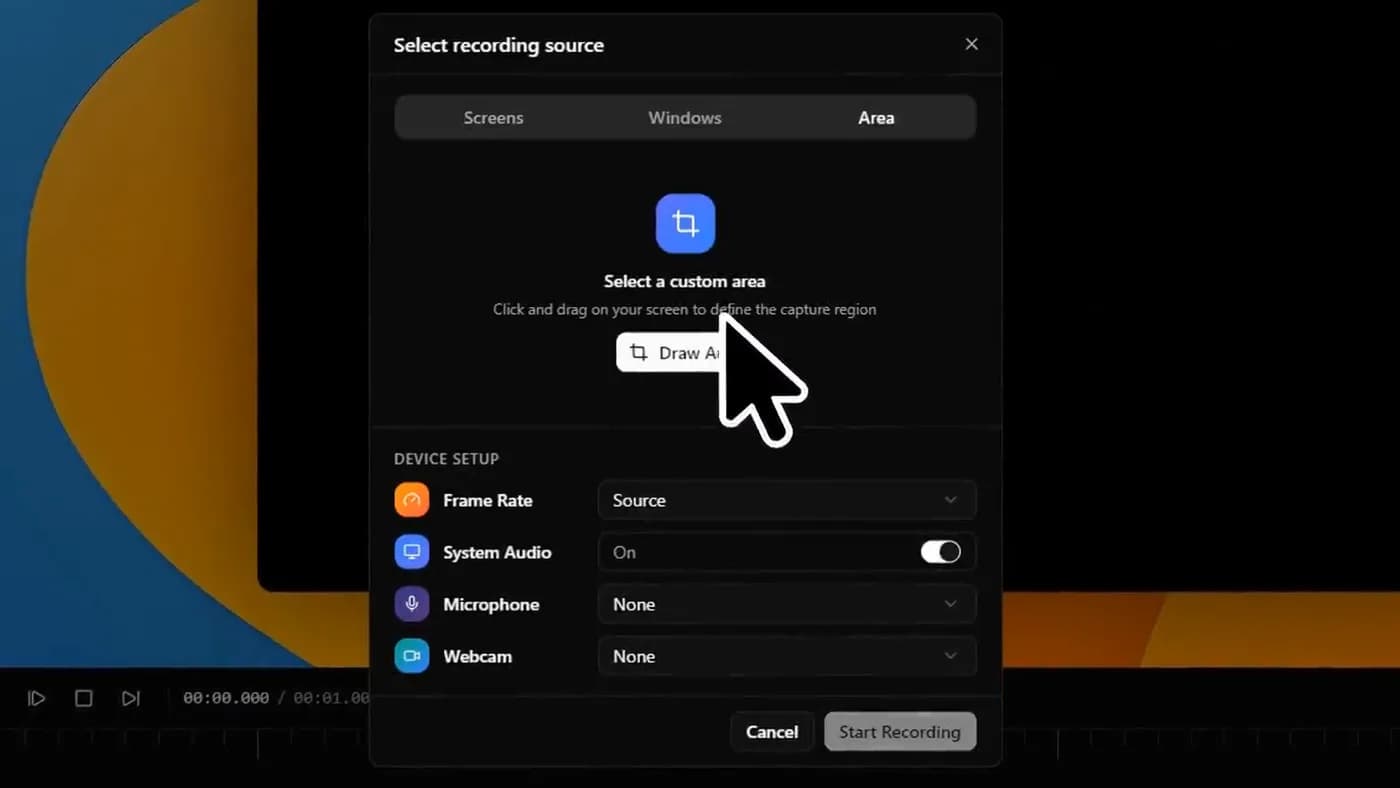
Run the network test above against it. What it shows: recording, editing, subtitle transcription and export all execute on your own machine, and the footage is not uploaded at any point.
The subtitles are the part worth checking specifically, because that is where most tools in this category reach for a server. Transcription runs on your device in over fifty languages, with no API key, no account and no per-minute credits, which is also why there is nothing to meter.
Being precise about what is not offline, because a page that claims too much here deserves to be caught by its own test: the app needs a connection to download itself, to activate a licence, and to export with a Pro account. A fully air-gapped machine is not a supported configuration. What a network monitor will not show you is your video or your audio going anywhere.
In its favour
- One account covers every machine you own, Windows and macOS, with no device limit
- A bespoke effects engine, written from scratch rather than built on a shared foundation
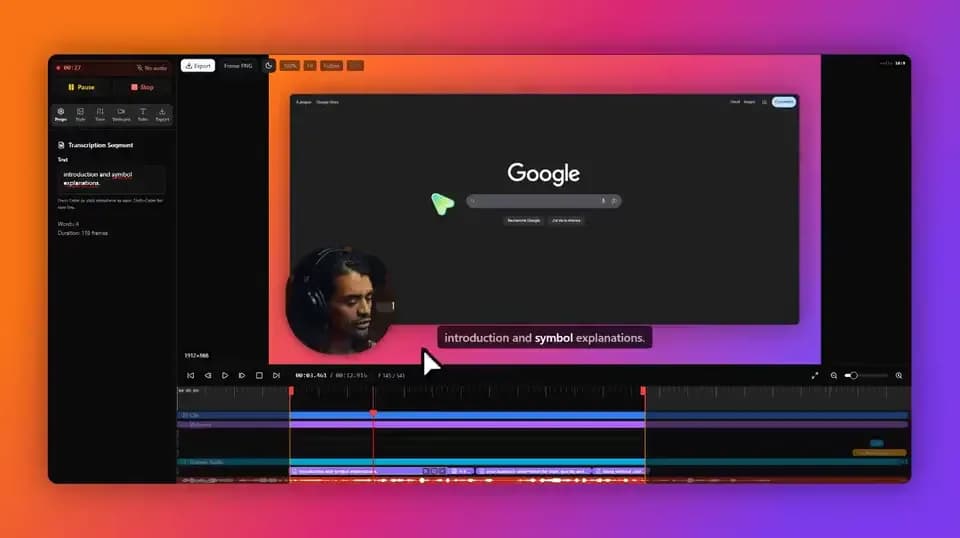
- Transcription and noise removal run on your machine, not a server
- No credits, no API key, no account for the AI features
- Footage is never uploaded during recording or editing
What you give up
- A connection is needed to download, activate a licence and export with Pro
- Local transcription uses your CPU, so it is slower than a server on a large file
- No Linux build today

2. OBS Studio
Writes to a file and does nothing else
- Platforms
- Windows, macOS, Linux
- Price
- Free
The most straightforwardly local option in this article, because it barely does anything beyond capture. It writes a file and that is the end of the transaction. No account, no upload, no processing step in between.
It also does no automatic zoom, no cursor smoothing and no subtitles, so whatever polish you want is another tool afterwards, and that second tool is where you have to ask these questions again.
In its favour
- Free, open source, auditable
- No account and no upload path
- Windows, macOS, Linux
What you give up
- No editor, no auto-zoom, no subtitles
- The tool you use next is where the risk returns

3. Cap
Local by default, and you can read the code
- Platforms
- macOS, Windows, Linux
- Price
- $29/licence billed yearly (Desktop), or $8.16/user/month (Pro)
The strongest answer if verification matters more than convenience: it is genuinely open source, so the network behaviour can be audited rather than inferred, and it can be self-hosted if you want sharing without a third party.
It does have a hosted product alongside the local one, so check which mode you are in: the sharing features are the cloud, by design. The free tier is licensed for personal use only.
In its favour
- Open source and auditable
- Self-hostable
- Windows, macOS and Linux
What you give up
- A hosted mode exists alongside the local one
- Free tier is personal use only

4. CursorClip
No account at all, which removes the question
- Platforms
- macOS 13.5 or later
- Price
- $70 once, or plans from $9/month
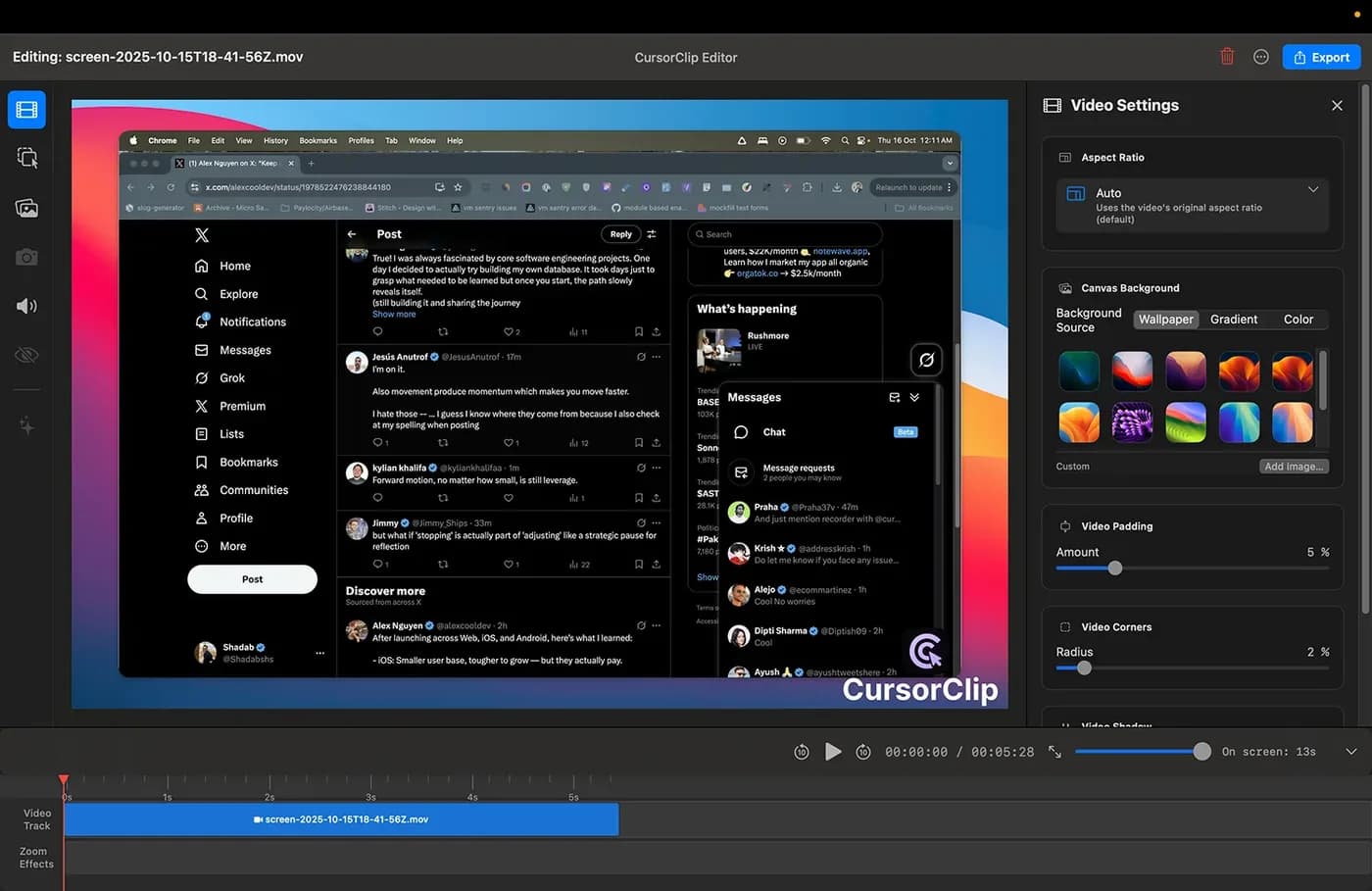
Notable here for a structural reason rather than a feature: it has no cloud account. There is no login, so there is no server-side identity to attach a recording to, and you can run the whole workflow before paying.
macOS 13.5 or later, and no Windows version is planned.
In its favour
- No account to create
- One-time purchase, no cloud dependency
- Free until export
What you give up
- macOS only
- Narrow feature set by design

5. Loom
The clear exception: uploading is the product
- Platforms
- Web, desktop app, browser extension
- Price
- $15/creator/month billed annually, or $18/month
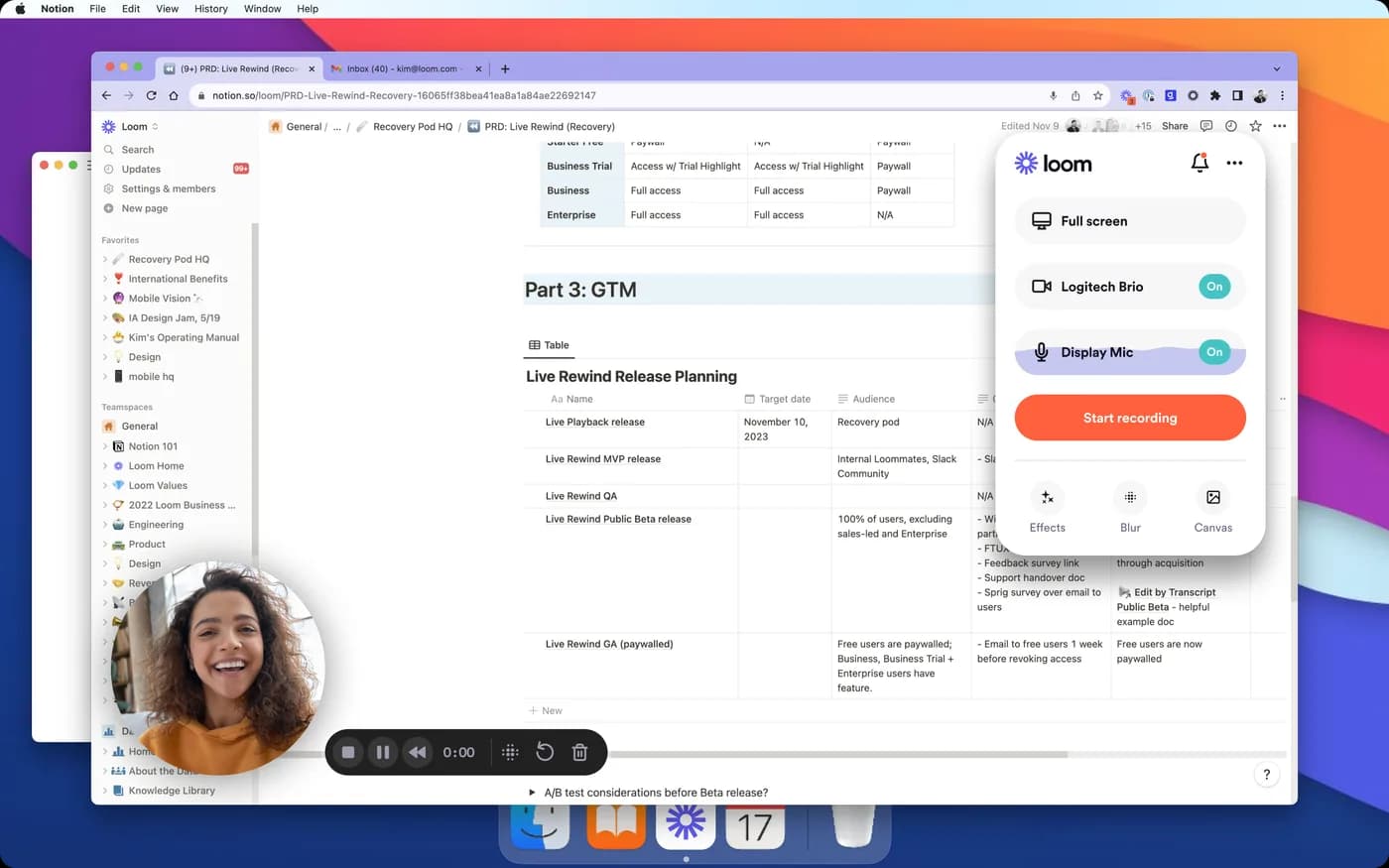
Included because it is the tool most often already installed at the companies asking this question, and the answer has to be unambiguous: Loom is built around uploading. Recordings live on Loom's servers. That is not a flaw, it is the entire value, the link is in your clipboard the moment you stop, and the viewer needs no account.
But it means Loom is the wrong tool for a customer's screen, a patient record, an internal admin panel or an unreleased product. If your reason for reading this page is any of those, this is the one to rule out first, and it is usually the one already in use.
In its favour
- Fastest path from recording to a viewer
- No export step
- Good for ordinary internal updates
What you give up
- Recordings are stored on Loom's servers
- Wrong tool for confidential or customer-facing screens
Who actually needs this
Worth being concrete, because 'privacy' as a feature is vague enough to be ignorable until the moment it is not.
Support and success teams recording a customer's screen are capturing that customer's data, not their own. Anyone working under a data processing agreement has told a client where their data goes, and a transcription service nobody listed in it is a problem. Regulated work (health, legal, financial) often has explicit rules about which third parties may see records. Internal tooling and admin panels frequently show production data. And anything pre-launch is a leak with a timestamp.
One caution on how this gets sold: several tools in this category advertise themselves as HIPAA or GDPR compliant. Software is not compliant on its own, an organisation is compliant, and the software is one part of how it gets there. A tool that processes everything on your machine makes that easier because there is no third party to account for, and that is a genuine and checkable advantage. It is not a certificate, and anyone selling it to you as one is overselling.
What to ask before you install
- Where is the file after I press stop: on my disk, or on your server?
- Where does transcription run? If it is metered per minute, it is not on my machine
- Is there an account, and what does it hold?
- Does the app work with the network off, and which parts stop?
- What does it connect to during ordinary use, and can I see that list?
- If the company shuts down, does my installed copy still open my files?
Frequently asked questions
- Which screen recorders work completely offline?
- OBS Studio records and writes to a file with no network involvement at all. KlipKap Pro records, edits, transcribes and exports on your machine, though it needs a connection to download the app, activate a licence and export with a Pro account. Cap works locally and is open source, so its behaviour can be audited. Loom does not. It is built around uploading.
- Does a local screen recorder mean my subtitles are private too?
- Not automatically, and this is the most common gap. Many recorders store video locally but send audio to a server for speech recognition. The quickest indicator is billing: if subtitles are metered per minute, sold as credits or require an API key, the audio is being processed remotely. KlipKap Pro transcribes on your own device, which is why there is nothing to meter.
- How can I verify a screen recorder is not uploading anything?
- Two checks. Disconnect from the network and try to record, transcribe and export end to end. Anything server-dependent fails immediately. Or watch the connections live: Resource Monitor's Network tab on Windows filtered to the recorder's process, or Little Snitch or LuLu on macOS. Update checks and licence validation are normal; a sustained upload during recording or transcription is not.
- Is a screen recorder HIPAA or GDPR compliant?
- Software is not compliant by itself, the organisation using it is, and the software is one component. A recorder that processes everything on your own machine removes a third-party processor from the picture, which makes compliance simpler and is a real advantage. Treat any vendor presenting that as a certificate with caution.
- Is Screen Studio offline?
- Screen Studio records and edits on the Mac and its site addresses privacy directly in its own FAQ, which is the right place to check for a current answer. What we can state from its pricing page is that it is macOS only and subscription-based. Run the network test above on any tool, including this one, if the answer matters to your work.
More from the blog
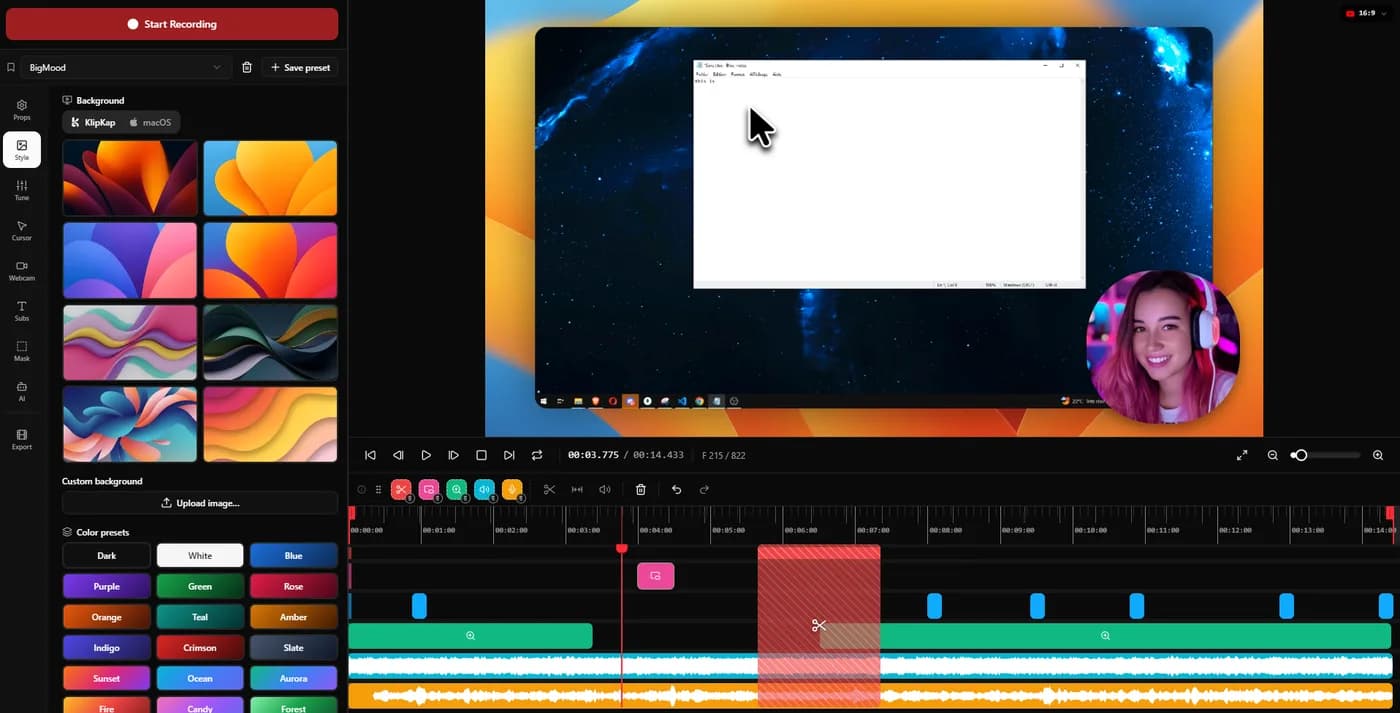 The best Screen Studio alternatives in 2026Ten tools compared on platform, price and what three years actually costs. Screen Studio is macOS-only and withdrew its one-time licence in October 2025.Read it
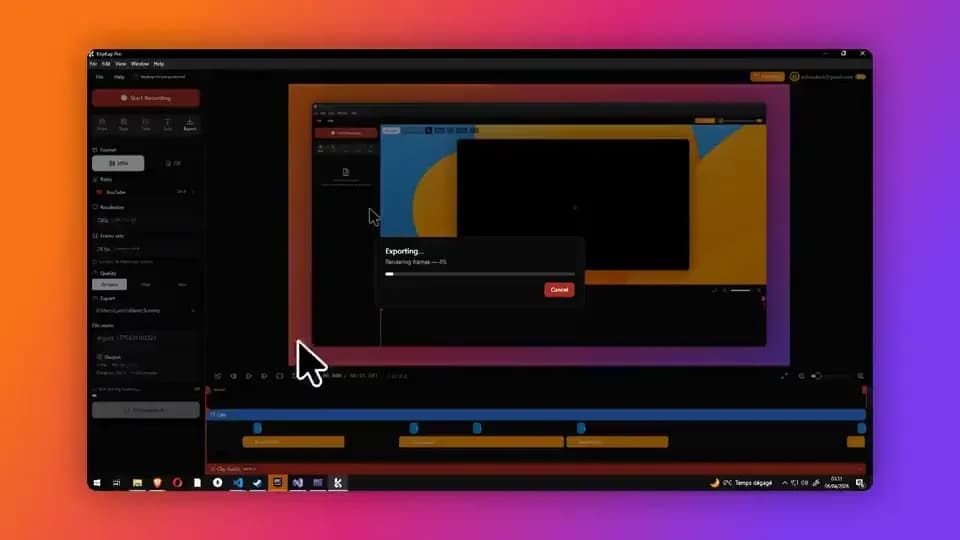 Screen recorders with a one-time purchaseThe tools still sold as a perpetual licence in 2026, what three years costs against the subscriptions, and what the word lifetime is doing in each case.Read it
 Screen recorders with automatic zoomHow automatic zoom actually works, why two tools using the same idea look completely different, and which ones do it on which platform.Read it
Sources
Prices and platform support come from each vendor’s own pricing page, linked below. Software changes; if you spot something out of date here, tell us at contact@klipkap.pro and we will correct it.