6 Screen Studio alternatives, compared
Every price comes from the vendor’s own page, linked at the bottom
Two questions decide this and the rest is detail. Does it run on your operating system, and do you rent it or buy it? Screen Studio answers badly on both for a lot of people: macOS only, $108 a year, forever. Of the six alternatives here, only KlipKap Pro and FocuSee ship a Windows build with automatic zoom. CursorClip is the closest match on price model but stays on the Mac.
Quick comparison
| Tool | Platforms | Pricing | Year one | Free tier |
|---|---|---|---|---|
 KlipKap Pro KlipKap Pro | Windows 10/11, macOS 13+ | $25.49 once | $25.49 | Permanent, 720p with a watermark |
 Screen Studio Screen Studio | macOS only | $9/mo billed annually | $108/year | None |
 CursorClip CursorClip | macOS 13.5+ only | $70 once, or from $9/mo | n/a, paid once | Edit free, licence to export |
 FocuSee FocuSee | Windows and macOS | $49.99/yr, or $199.99 lifetime | $49.99/year | None |
 Tight Studio Tight Studio | macOS only | $9/mo (Plus) or $24/mo (Pro) | $108/year | Free forever, no watermark |
 Tella Tella | macOS, Windows, Chrome extension | $13/user/mo billed annually | $156/user/year | 7-day trial of the full Pro plan |
 Loom Loom | Web, desktop app, browser extension | $15/creator/mo billed annually | $180/creator/year | 25 videos per creator, 5 minutes each |
Cheapest paid tier at the time of writing, in USD. Per-seat products are shown for one seat. This table sticks to platforms and pricing, which anyone can check on the linked pages.
What actually separates these tools
All of them record a screen. What Screen Studio popularised is the part that happens afterwards: the camera moves to where you are working, the pointer stops jittering, and a raw capture comes out looking like somebody edited it. Anything sold as a replacement has to clear that bar or it is just a recorder with a share button.
Past that, three things sort the field. Your operating system, which removes four of the seven options if you are on Windows. The payment model, which over four years is the difference between a takeaway and a few hundred dollars. And how much control you get over the automation, because auto-zoom that fires on the wrong click is worse than no auto-zoom at all.
That last one is where most comparison tables go quiet, so it is worth being concrete. A tool that offers auto-zoom as a switch gives you one behaviour. A tool that lets you set the zoom depth, how tightly the camera tracks the pointer, and how fast it accelerates is a different proposition once you have material the default does not suit.
1. KlipKap Pro
Ours, and the reason this article exists, so read the rest knowing that. The figures are checkable and the limitations at the end are real.
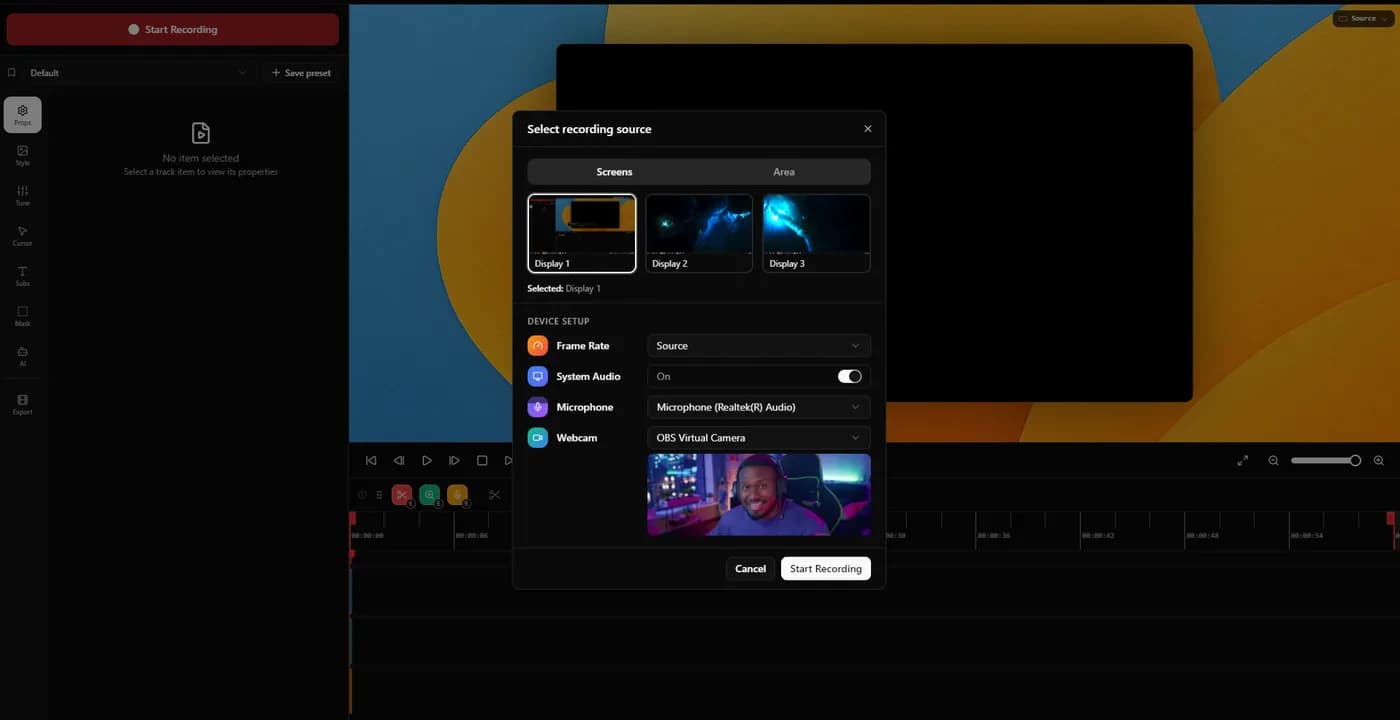
KlipKap Pro records on Windows 10/11 and macOS 13 or later. The source picker lists every connected display with a live thumbnail and has an Area tab for cropping to a region, with frame rate, system audio, microphone and webcam all selected in the same dialog before you start.
Auto-zoom with three separate controls. Intensity runs 1.0x to 4.0x, mouse smoothing from 0 (instant) to 1 (maximum lag), and zoom speed from slow to instant. Most tools in this category expose auto-zoom as a switch; these are three dials you set once and reuse.
Per-zoom manual targeting. Any individual zoom can be switched off cursor-following and pointed at a fixed spot, set with a crosshair on a mini preview canvas. Useful when the thing worth showing is not where the pointer happens to be.
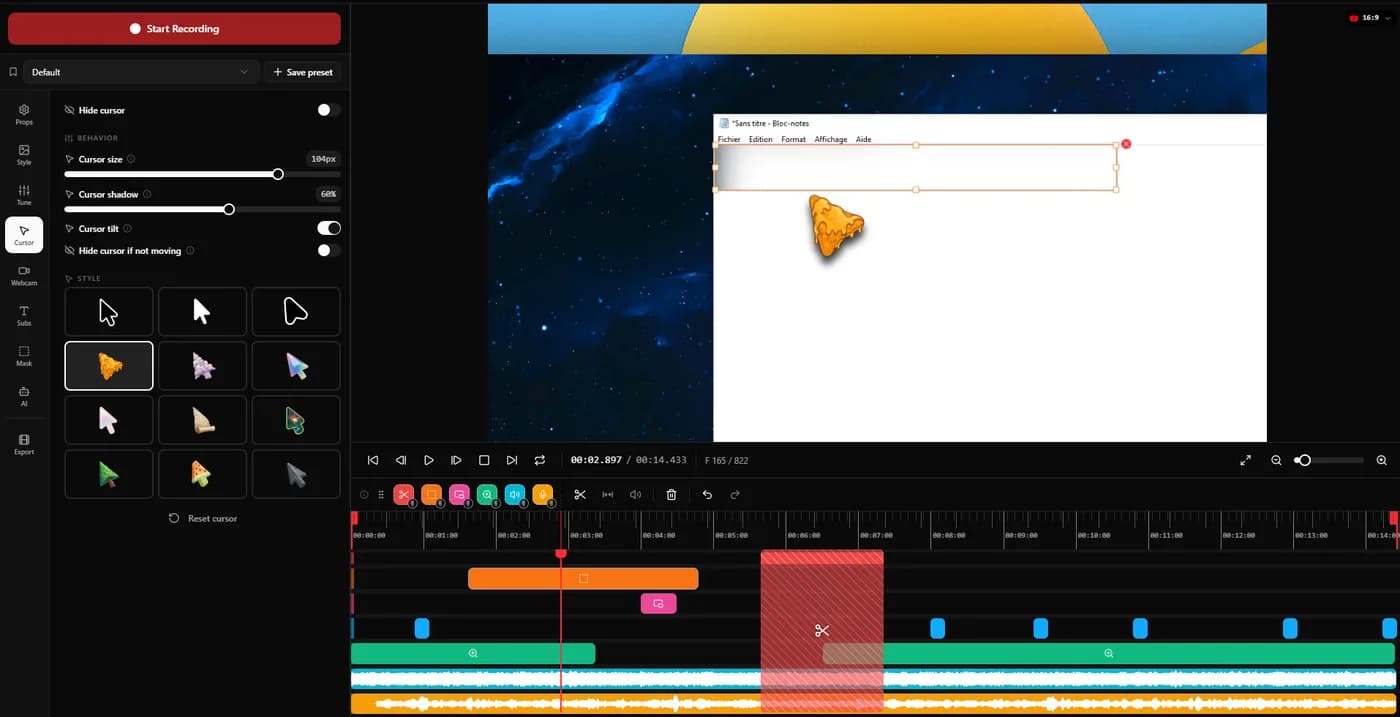
A whole tab for the cursor, with twelve styles. Twelve pointer styles, adjustable size and shadow, a tilt toggle that leans the pointer into its direction of travel, and an option to hide it whenever it stops moving. The cursor is redrawn rather than captured, which is why any of this is possible after the recording exists.
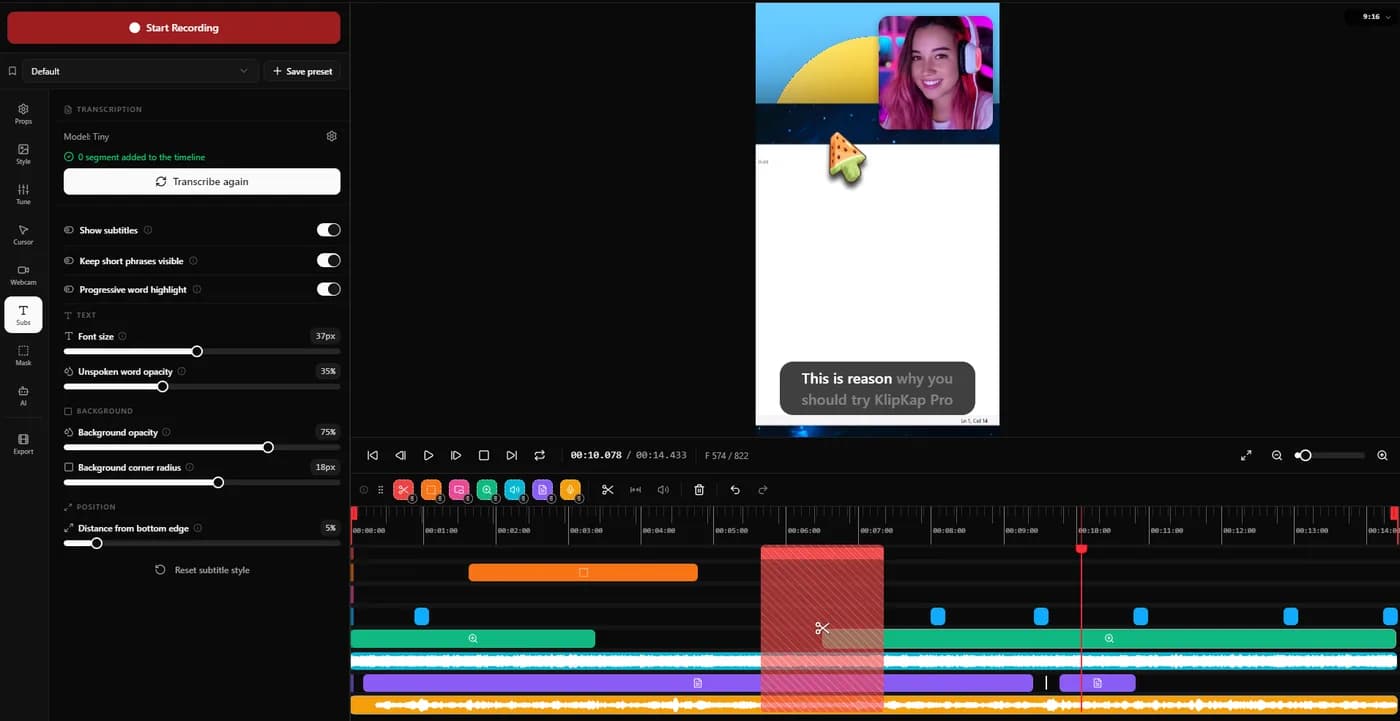
Word-level subtitles, transcribed locally. Transcription runs on your machine, with a choice of model sizes, so no audio is uploaded and there is no API key or per-minute credit. Progressive word highlight dims the words you have not said yet, at an opacity you set, which is the karaoke effect people associate with well-produced short video. Transcription is a Pro feature, not part of the free tier.
Three more worth naming because they come up in support rather than in marketing: automatic silence trimming on long unscripted takes, six voice processing controls applied at export instead of baked into the recording, and GIF output alongside MP4, which is unusual here and handy for a README loop.
Price. $25.49 once, updates included. The free tier is permanent rather than a trial and exports 720p with a watermark, so the automatic zoom can be tested on your own material indefinitely before any money changes hands.
Where it falls short. It is not a multi-track editor, so layered video with complex transitions belongs in a traditional timeline. There is no instant share link and no viewer analytics. And there is no Linux build yet, though one is in development.
2. Screen Studio
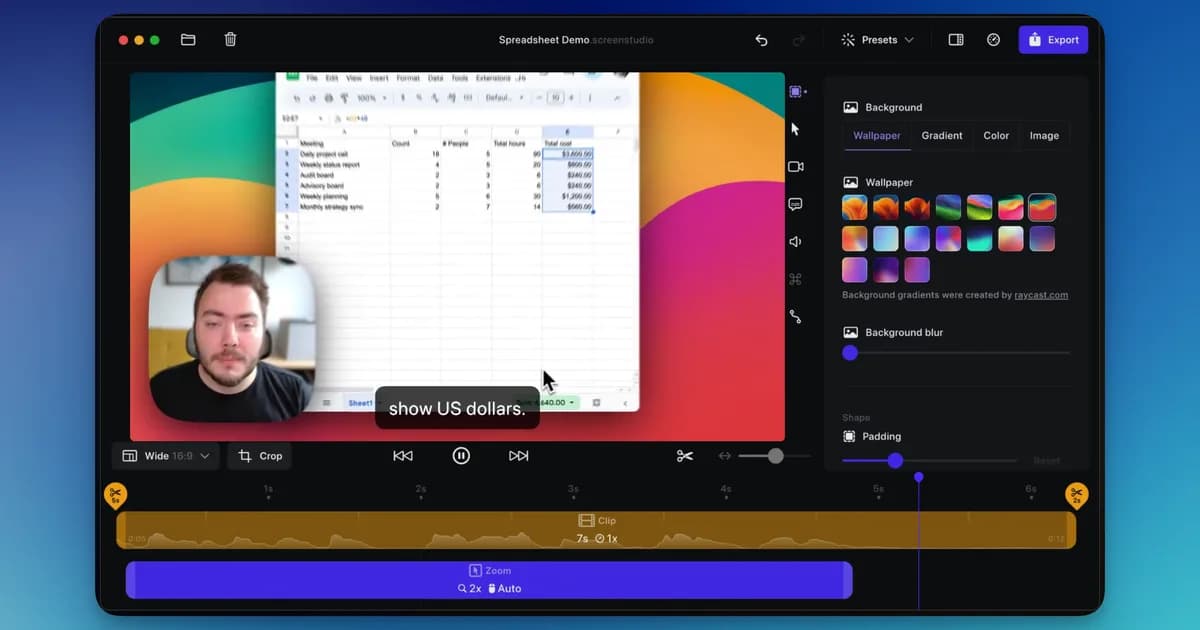
A mature macOS app with automatic zoom and cursor smoothing, sold as an annual subscription.
Being early brought an ecosystem with it: more tutorials, and more people who have already hit whatever you are about to hit. That is worth something on a tool you are learning from scratch.
Trade-off It is macOS only, with no Windows build at any price, and it is rented rather than bought. The subscription renews whether you recorded anything that year or not.
3. CursorClip
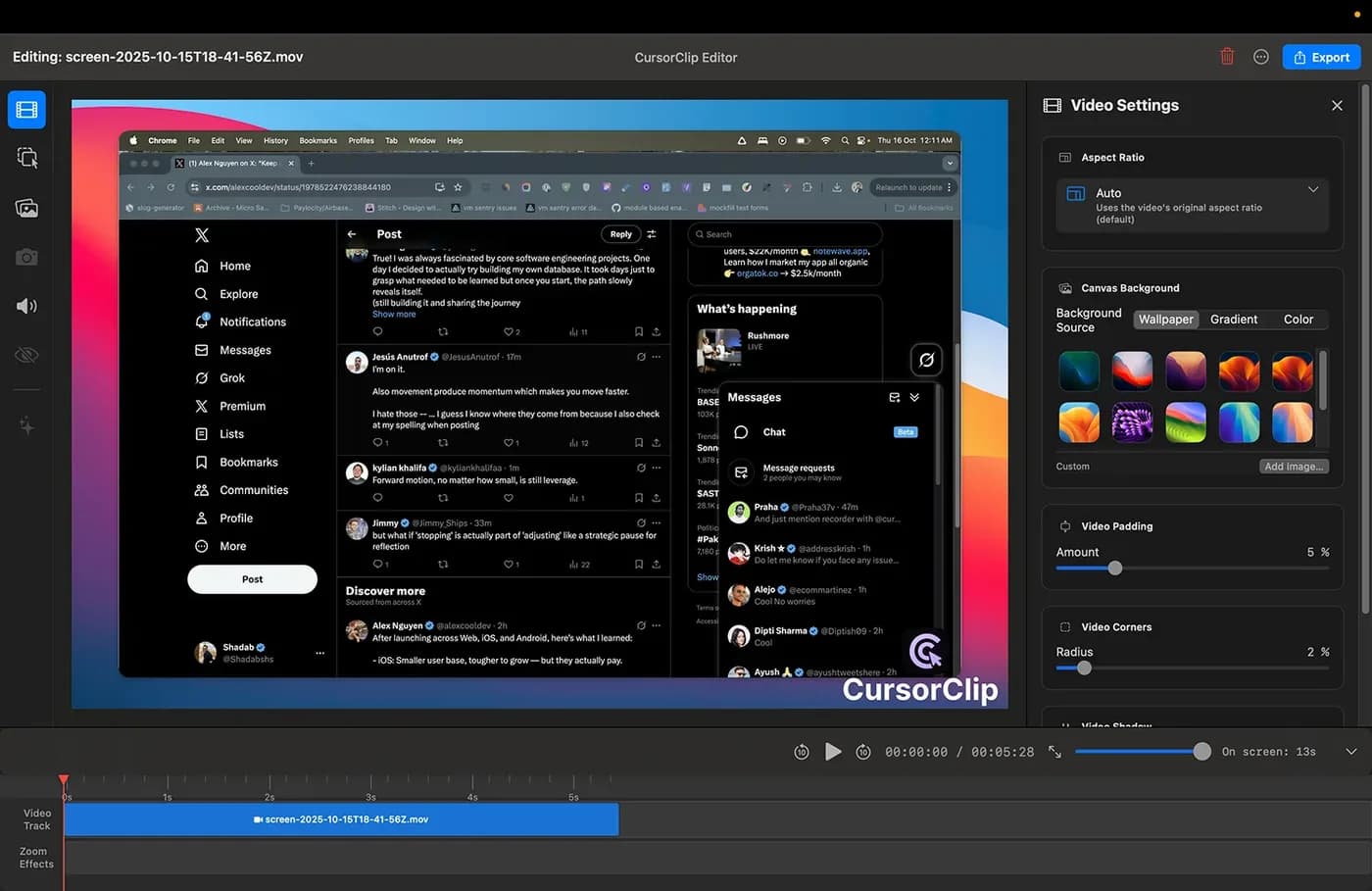
The closest match to KlipKap on business model: pay once, keep it, no cloud account. Cursor-follow auto-zoom is the whole point of the product, with 4K 60fps output in MP4 or GIF. Its free mode lets you run the complete workflow and only asks for money at export.
Its free mode is unusual and worth knowing about: you can record and edit indefinitely without an account, and a licence is only needed to export. That is a more honest evaluation than a seven day clock, because you find out whether the tool suits your work rather than whether you can rush a decision.
Trade-off macOS 13.5 or later, and the site states no Windows version is planned. At $70 it is nearly three times KlipKap's price. It read $59 on 2026-09-07 and had risen ten days later, though existing customers keep the price they paid.
4. FocuSee
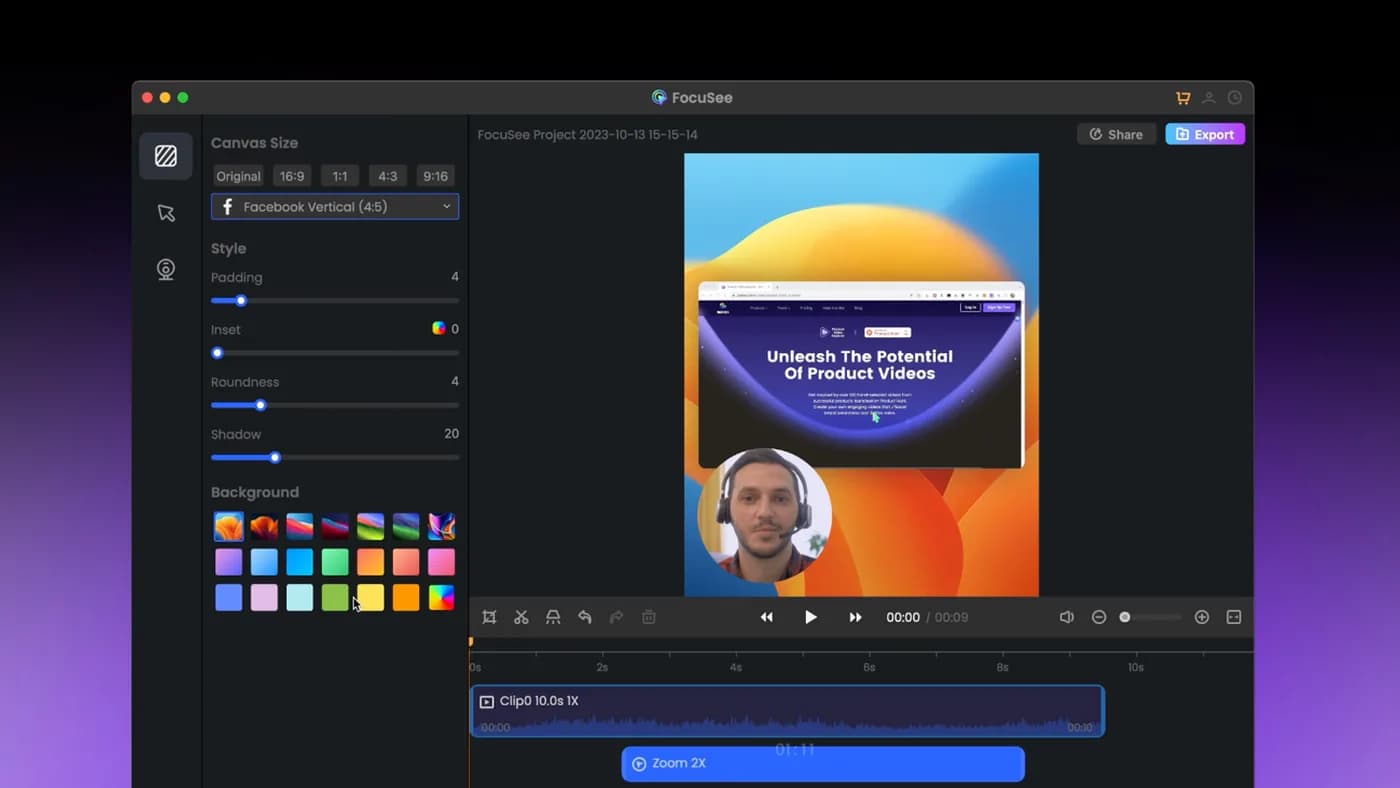
The closest competitor on paper: automatic zoom on cursor clicks, dynamic backgrounds, and it genuinely runs on Windows as well as Mac.
Trade-off The lifetime licence covers version 2.x only, with the next major version sold as a paid upgrade, and its AI credits expire after a year. 'Lifetime' has a narrower meaning than it first appears. Its lifetime tier does cover up to five computers, which is more generous than a single machine licence if you work across several.
5. Tight Studio
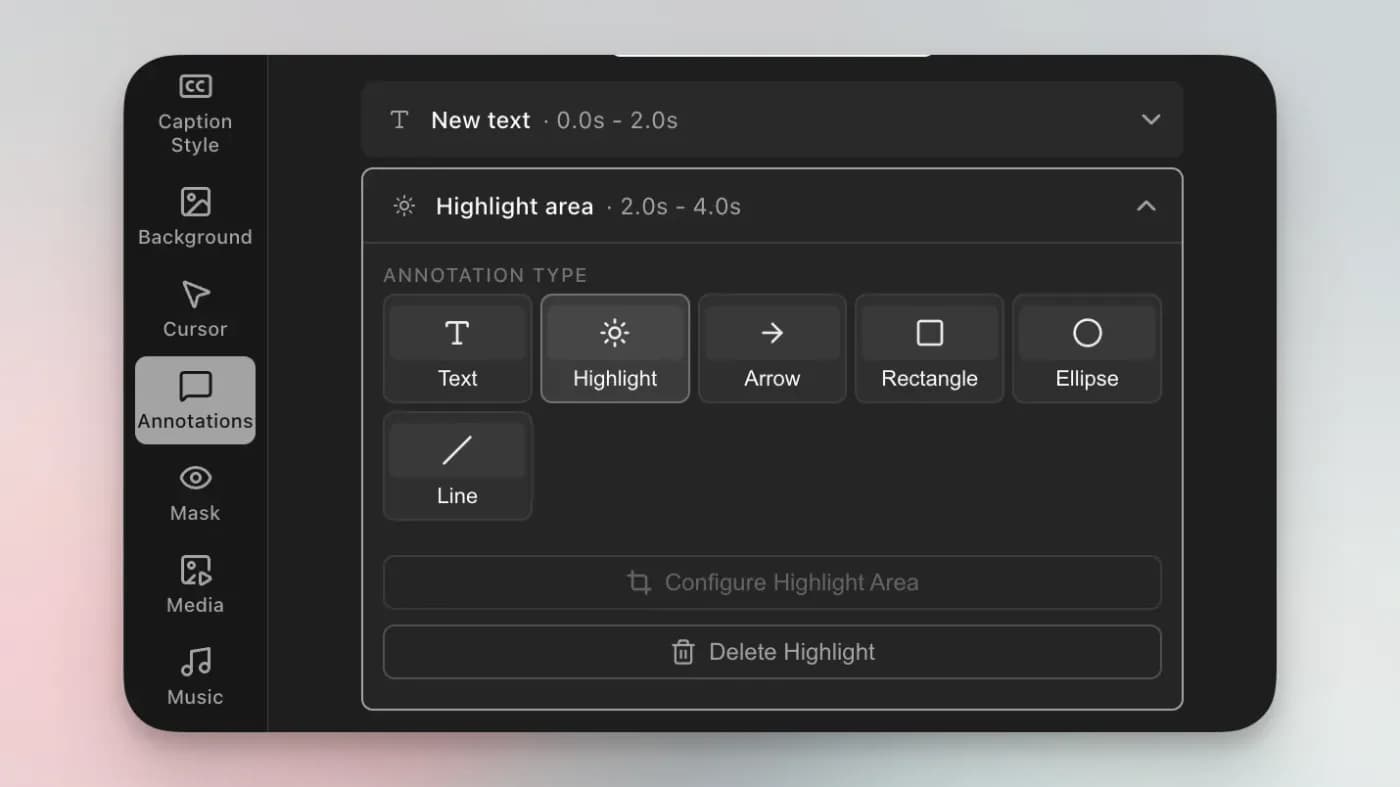
Its zooms stay editable after recording, and each one can flip between cursor tracking and manual framing. AI voiceover with voice cloning and an on-screen teleprompter are unusual additions.
Trade-off macOS only, with Windows still a waitlist rather than a build, and narrower than that: its own FAQ states “Currently we support Mac Apple chip only”, so an Intel Mac cannot run it at all. The AI features that distinguish it are metered on the free tier and gated to Pro at $24 a month.
6. Tella
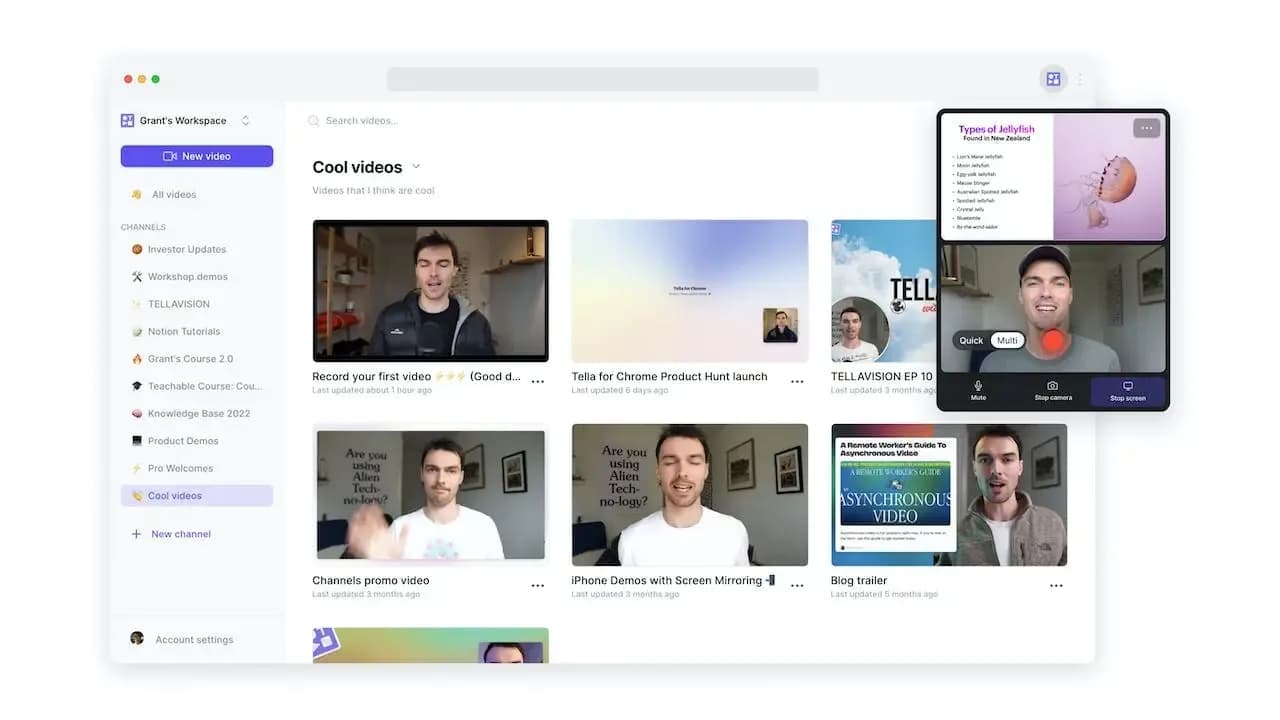
Backgrounds, layouts and webcam framing that make a talking-head recording look produced without touching an editor. Strong for founder videos and course intros.
Trade-off Browser-first and subscription-only, with no permanent free tier. After seven days it is pay or stop.
7. Loom
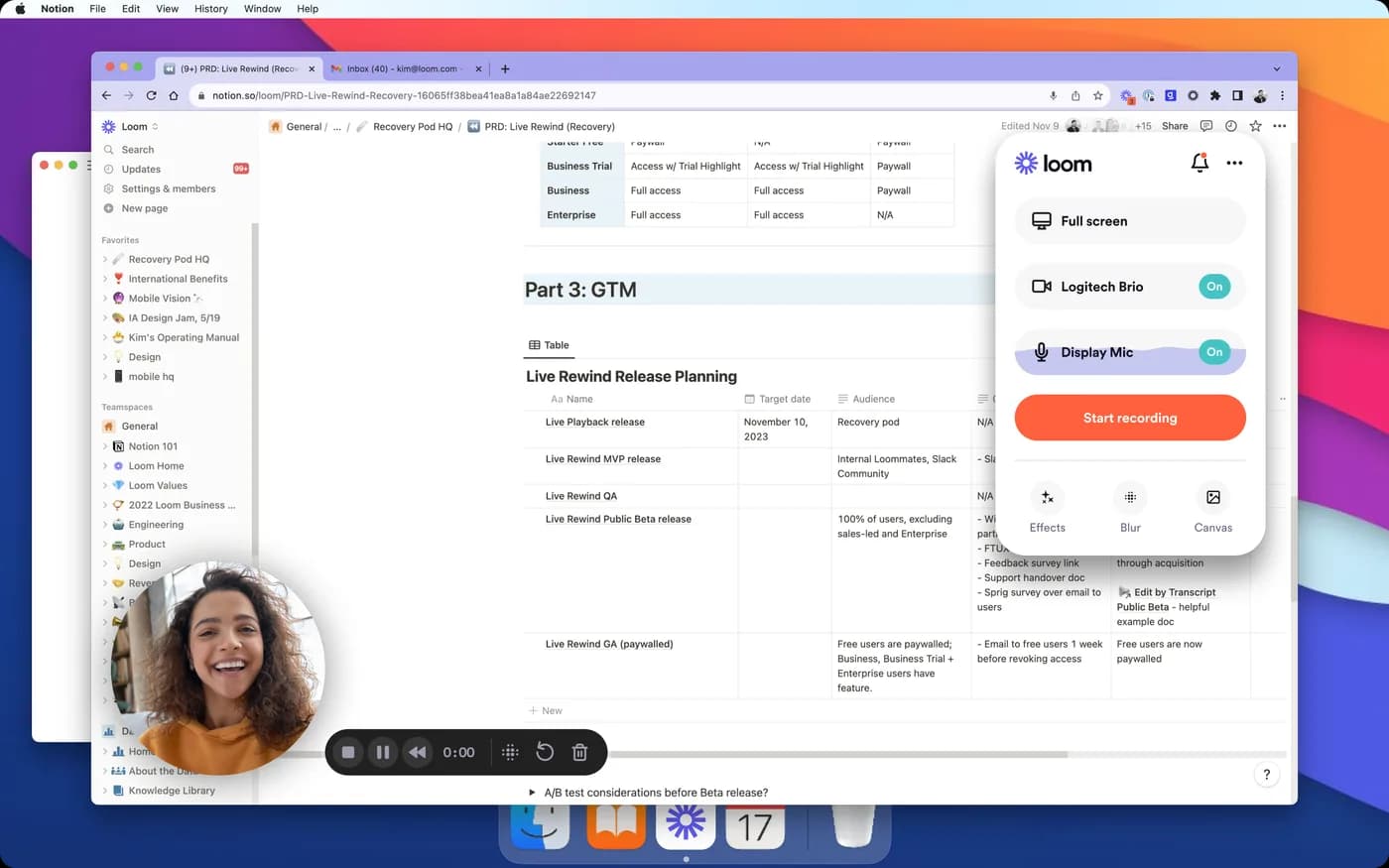
Unbeatable for async messaging. Record, stop, and the shareable link is already in your clipboard. Nobody exports anything, and viewers do not need an account.
Trade-off Recordings live on Loom's servers, the free tier caps videos at five minutes, and the polish is deliberately minimal: no cinematic zoom, no cursor smoothing. It is a communication tool, not a demo-production tool.
Which one to pick
You are on Windows. KlipKap Pro or FocuSee, and nothing else on this page. The split between them is commercial rather than technical: $25.49 once with updates included, against $49.99 a year or $199.99 for a lifetime licence tied to one major version.
You are on a Mac and want to buy rather than rent. CursorClip at $70, or KlipKap Pro. CursorClip does one thing and does it without a cloud account; KlipKap covers more ground and costs less.
You are on a Mac and already pay for Screen Studio. Stay. It is a good application, switching costs time you will not recover, and the money is only worth chasing if the subscription is actually bothering you.
You want to spend nothing. KlipKap’s free tier is permanent, runs on both platforms and exports 720p with a watermark. On macOS, Tight Studio and Cap also have free tiers worth checking before you pay anyone.
When none of this is the right purchase
If your recordings are messages to colleagues rather than published videos, this whole category is overkill and Loom’s free tier will serve you better than any of it. If you are the subject of the video rather than your software, Tella does that job properly and the screen-first tools do not.
And if you edit long-form video with several tracks, transitions and colour work, use a real editor. Everything compared here is built for turning a screen capture into something watchable, which is a narrower problem than video editing.
Frequently asked questions
- What is the best Screen Studio alternative for Windows?
- KlipKap Pro or FocuSee. They are the only two tools in this comparison that ship a Windows build and apply zoom automatically around the cursor. KlipKap Pro is $25.49 once; FocuSee is $49.99 a year or $199.99 for a lifetime licence covering version 2.x. CursorClip and Tight Studio are both macOS only, so on Windows they are not options at any price.
- Is there a Screen Studio alternative without a subscription?
- Three. KlipKap Pro is $25.49 once with updates included. CursorClip is $70 once, macOS only. FocuSee sells a $199.99 lifetime licence, though it covers version 2.x and its AI credits expire after a year.
- Does Screen Studio work on Windows?
- No. Screen Studio is macOS only and there is no Windows build at any price. It is the single most common reason people go looking for something else.
- Which screen recorders have automatic zoom?
- Screen Studio, KlipKap Pro, FocuSee, CursorClip and Tight Studio all move the camera around cursor activity without keyframing. Loom does not; it records the screen as it is. Tella zooms but is built around the presenter rather than the interface.
- What is the cheapest Screen Studio alternative?
- KlipKap Pro at $25.49 paid once, or free if the permanent 720p tier covers you. It is the cheapest paid option here by some distance: the next one up is CursorClip at $70, and every subscription passes it inside three months.
- Is KlipKap better than Screen Studio?
- For most people, yes. KlipKap runs on Windows and macOS where Screen Studio is Mac-only, costs once instead of $108 every year, and covers more of the workflow in one app: tunable auto-zoom, twelve cursor styles, on-device captions with no credit limit, voice cleanup, silence trimming, and 4K export at 120 fps with GPU acceleration. Screen Studio has been shipping longer, which matters if an established ecosystem is what you are buying.
Disclosure: this article is published by the team behind KlipKap Pro, one of the tools compared. Every price and platform claim is sourced below so you can check it rather than take our word for it. KlipKap has a free tier if you want to test it against the alternatives yourself.
Sources
Prices and platform support come from each vendor’s own pricing page, linked below. Software changes; if you spot something out of date here, tell us at contact@klipkap.pro and we will correct it.